





Upload Files (including 'Add to Calendar')
It's not uncommon to want to include files, including Excel, PDFs, and ICS (to make an 'Add to Calendar' link) to Marketing Cloud emails or eComm's Event Management registration process or emails. Learn how to download a meeting/appointment from Outlook and make it public (there are different options depending on your access).
Save File
Save File
Saving an Excel, PDF, or Word file should be straightforward. See the next section for where to save it for public use (when not using Marketing Cloud).
Save ICS ('Add to Calendar')
1. From your Outlook calendar, create the event you want to share with your audience. Be sure to add all relevant details, like the event title, location, and any special instructions.
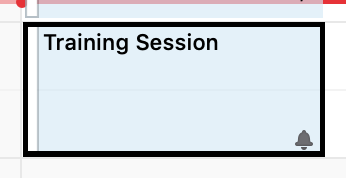
- Open the meeting or appointment.
- Click File in the top-left corner.
- Select Save As in the dropdown.
- Select "Save as type" = iCalendar Format (.ics)*
- Choose a location to save the file and give it a name, then click Save
*Unable to Save an .ics File? Some computers and browsers will not save a meeting as an .ics file. Instead, make an appointment.
Upload Files for Public Access
Marketing Cloud users can upload the saved file to Marketing Cloud. If you do not have Marketing Cloud access, you may be able to upload the file to a different site if you have access, ask a colleague with access, or ask your IT help desk for a recommendation. Regardless, the goal is to get a public URL to promote.
Upload File to Marketing Cloud
- Log in to Marketing Cloud.
- Navigate to the folder (if applicable) associated with that email content, and drag and drop the file from your desktop into Content Builder.
- Click Upload and Publish to upload the file.
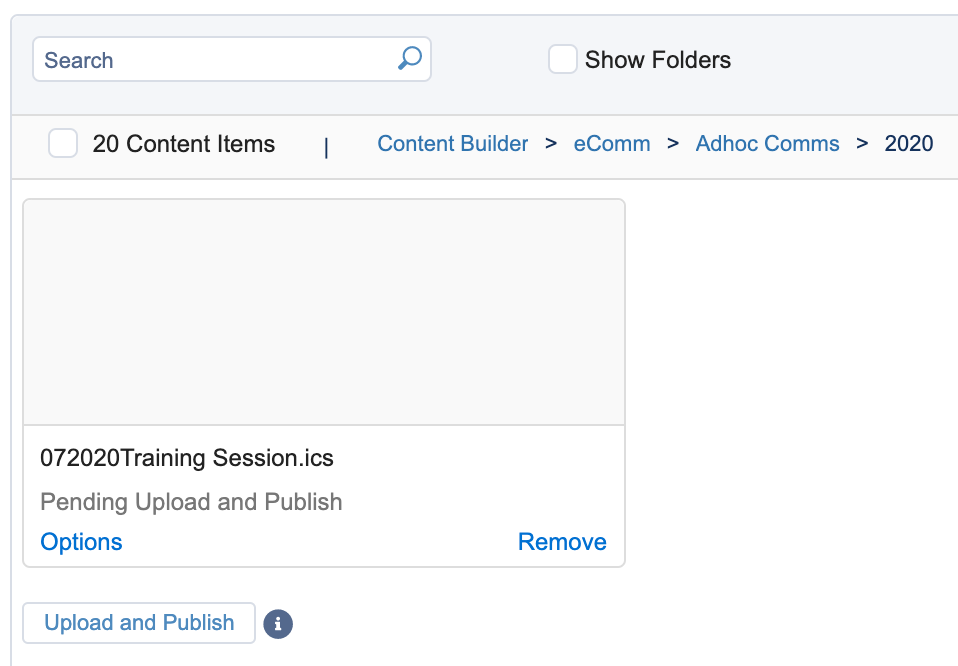
- The file will upload as a Marketing Cloud document.
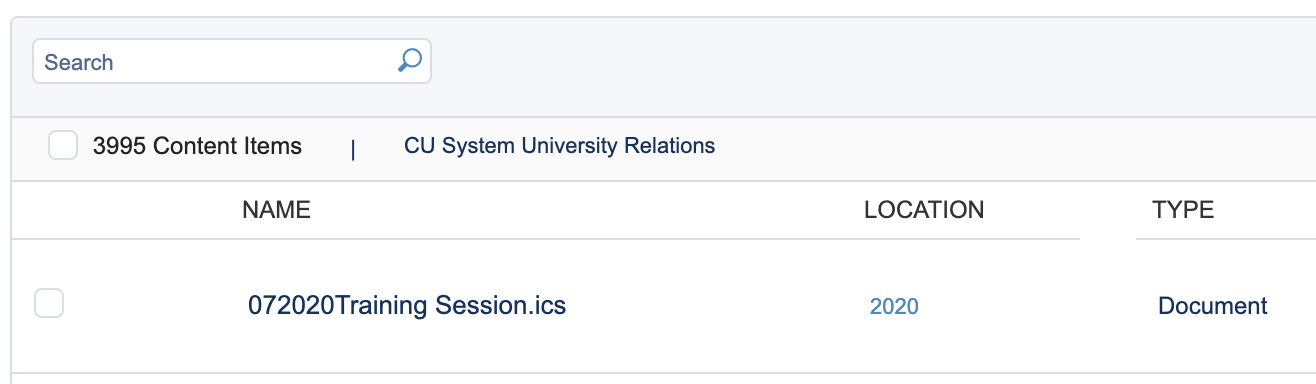
- Click the name of the document file to open it. A window will appear that contains a URL for the document. Click "Copy" to copy the link.
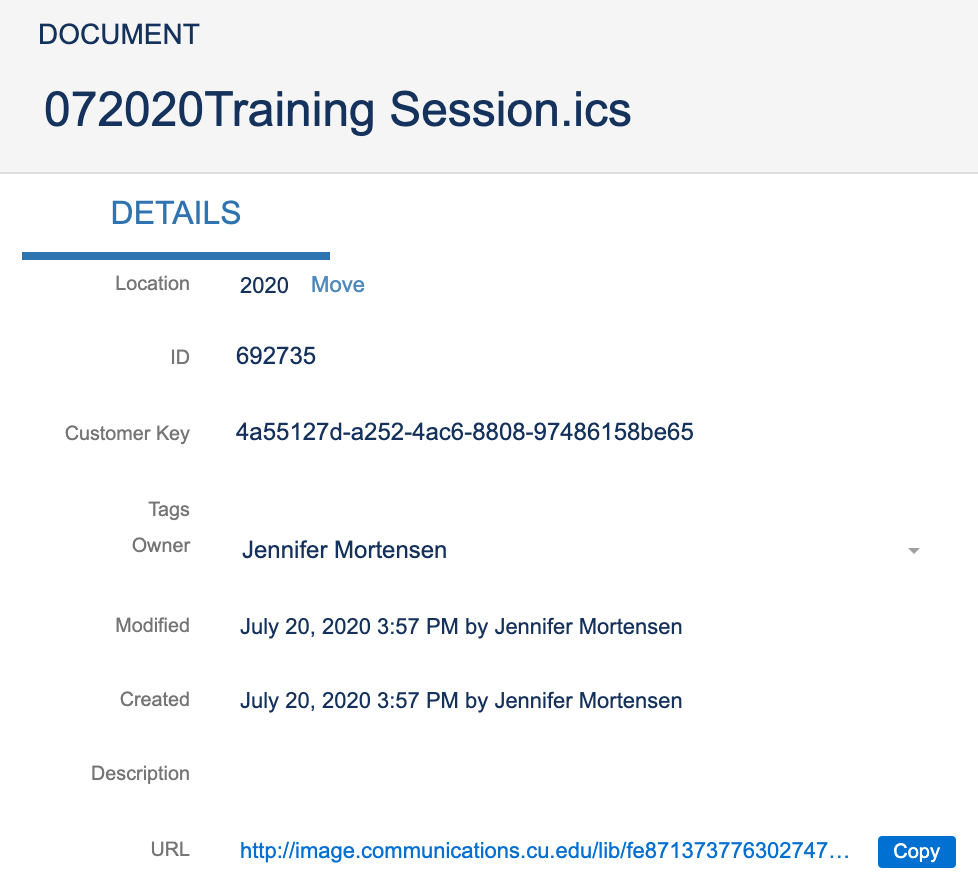
Multiple 'Add to Calendar' Links Load multiple .ics files into Marketing Cloud and give them unique names (i.e 5.24 meeting 3-4pm, 5.24 meeting 4-5pm)
Upload File to SharePoint/OneDrive File/Website
- Save the file to a folder or location where your participants can access. A common location folks may share this file is a website or SharePoint site (that has sharing settings that allow participants to access).
- You don't want to save it to a personal folder because people who register for your event won't be able to access it.
- Then, grab a link to the file.
- This will depend on where you saved it, like on a website, SharePoint, or OneDrive. On SharePoint or OneDrive, you can right-click> Share (and choose the share option that fits your needs), then copy the link. This is also an important step to make sure the type of sharing link applies to your participants, as with SharePoint, there are a few types of links – select carefully. To make sure your link works, send it to a few colleagues and make sure they can open the file.
Add Public Link to Marketing Cloud
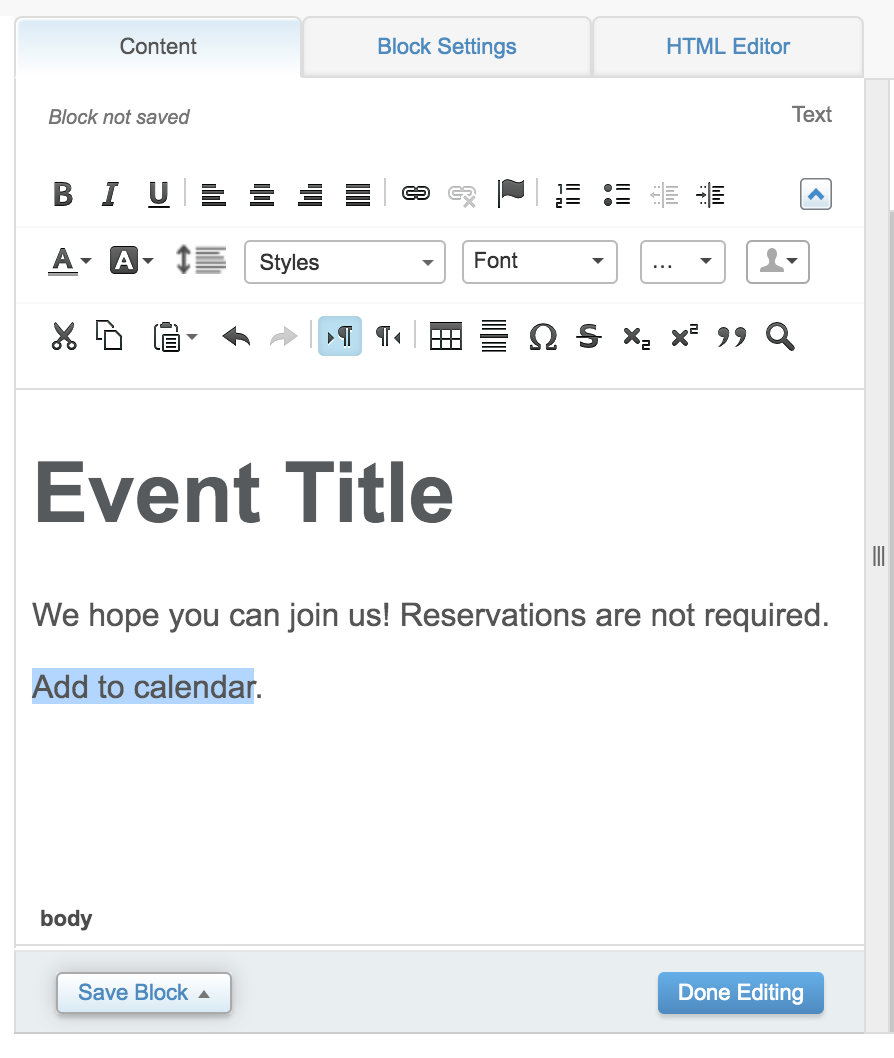
- Access your email and the content block that contains the "Add to Calendar" link. Highlight the text you want to link and click the hyperlink button.
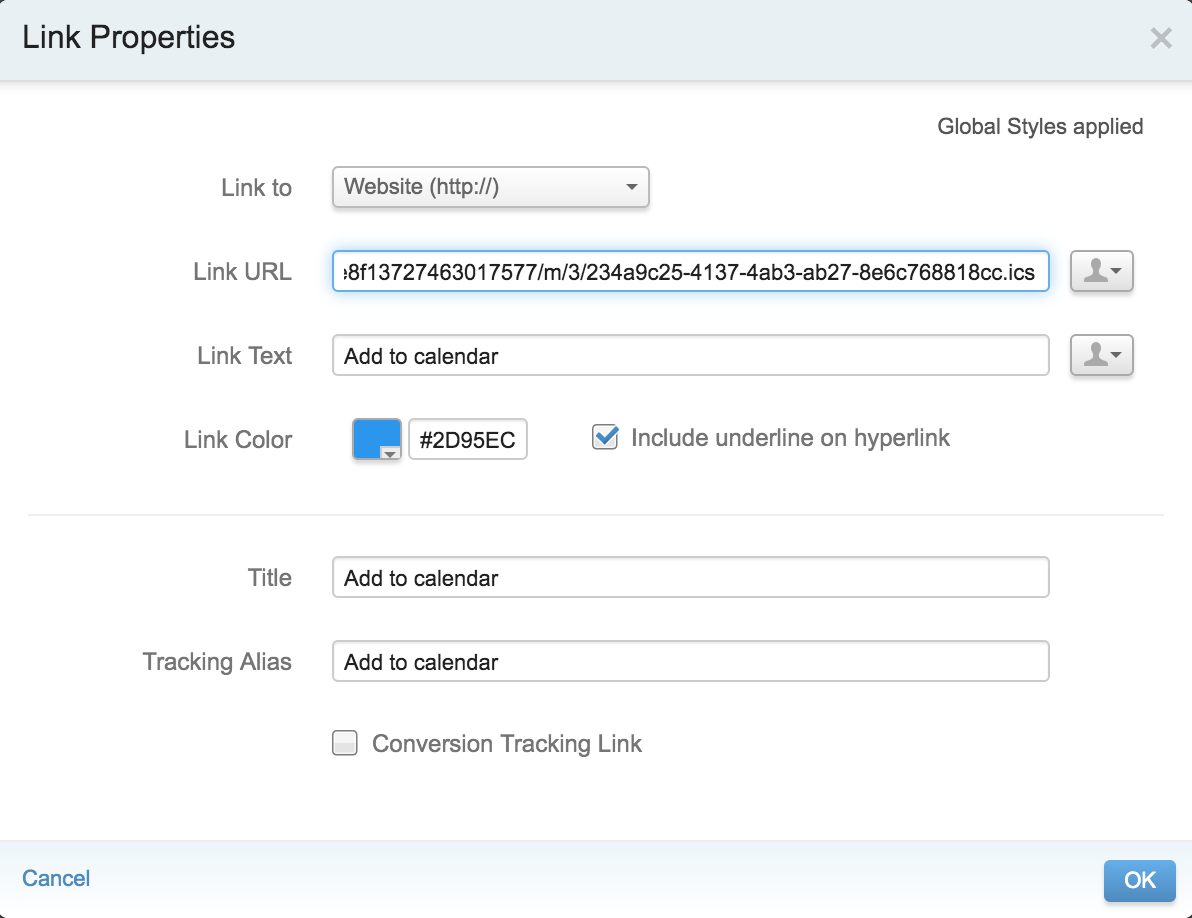
- Paste the Link URL and click OK.
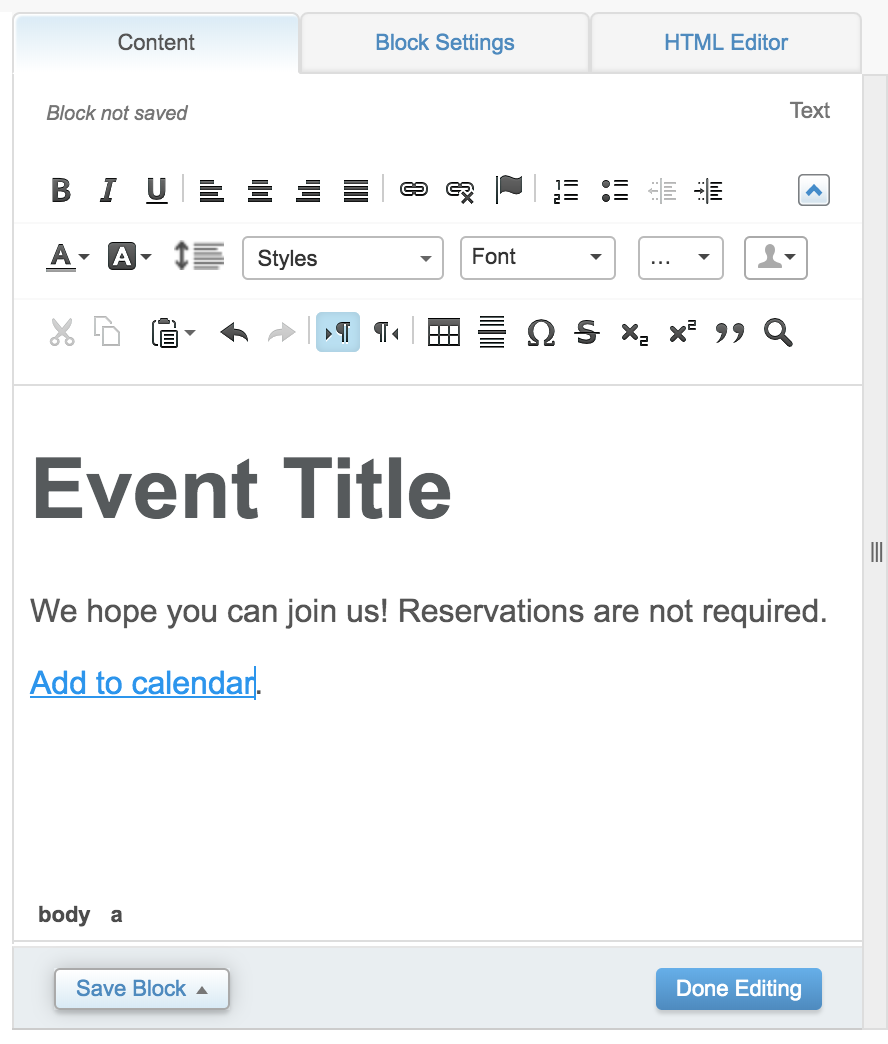
- Your link is now active.
Add Public Link to eComm Event Management
- You can add the link to the file to your event's confirmation message and/or KBYG email.
- If you add the URL to the confirmation message, it should hyperlink itself in most email providers like Outlook, Google, etc
- As an example, in your event confirmation message, you can add a sentence like: To add this event to your calendar, use this link, then open the file and save to your calendar: https://tinyurl.com/testcalendarinvite
- Make sure to test your setup by registering for the event and clicking the link in the confirmation email.