




CU System Administration and Employee Services will be closed Friday, June 19, for Juneteenth. We will reopen at 8 a.m. Monday, June 22.
Can't see recent updates? Clear your cache.
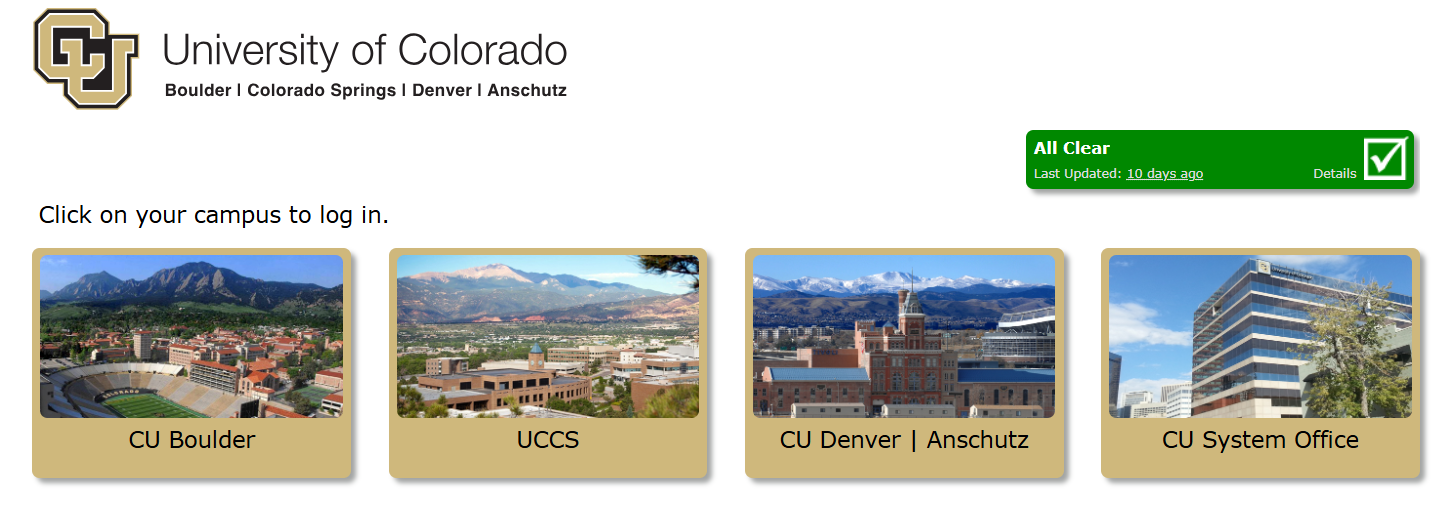
Step 1: Log in to the portal
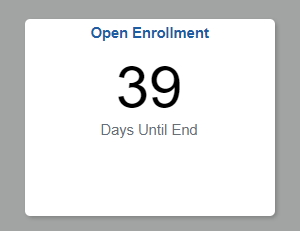
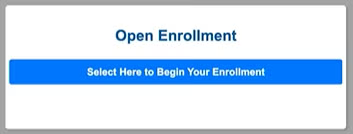
Step 2: Find the Open Enrollment tile
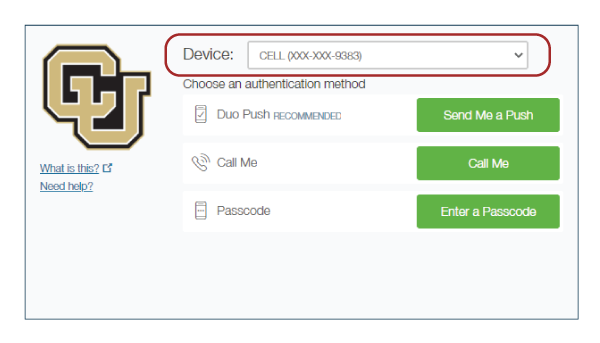
Step 3: Authenticate your identity
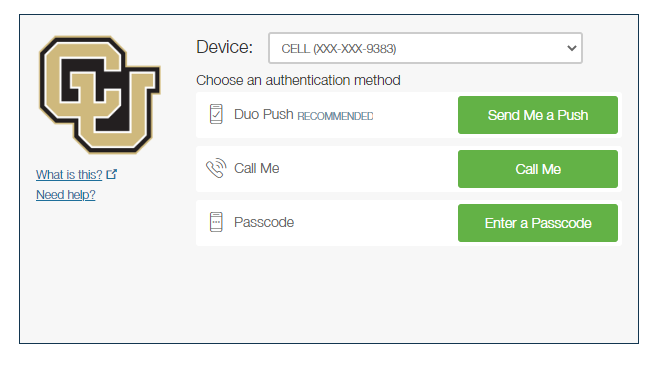
Option 1: Receive push notification
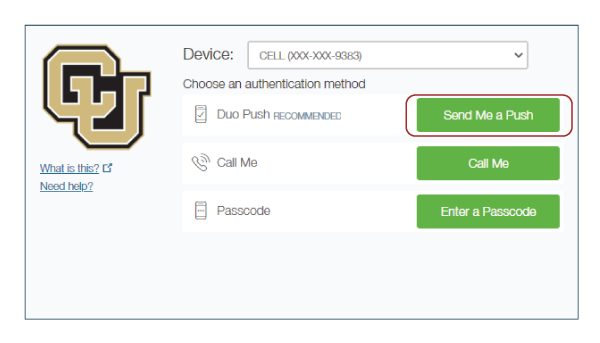
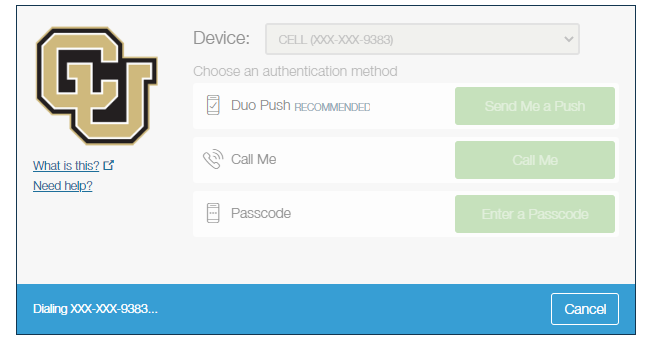
From the Device drop-down menu, select the phone number where you wish to be contacted.
Click the Send Me a Push button.
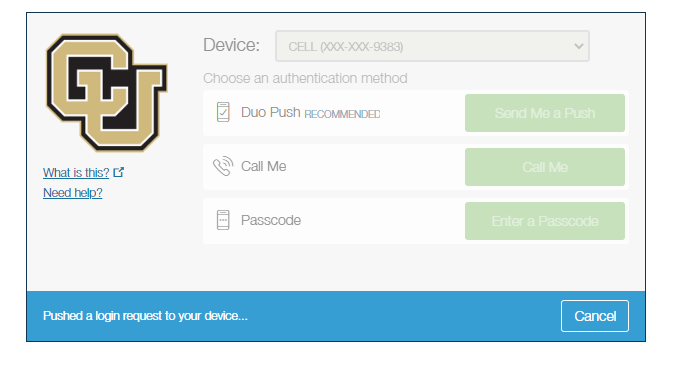
You'll see that the system has pushed a login to your device.
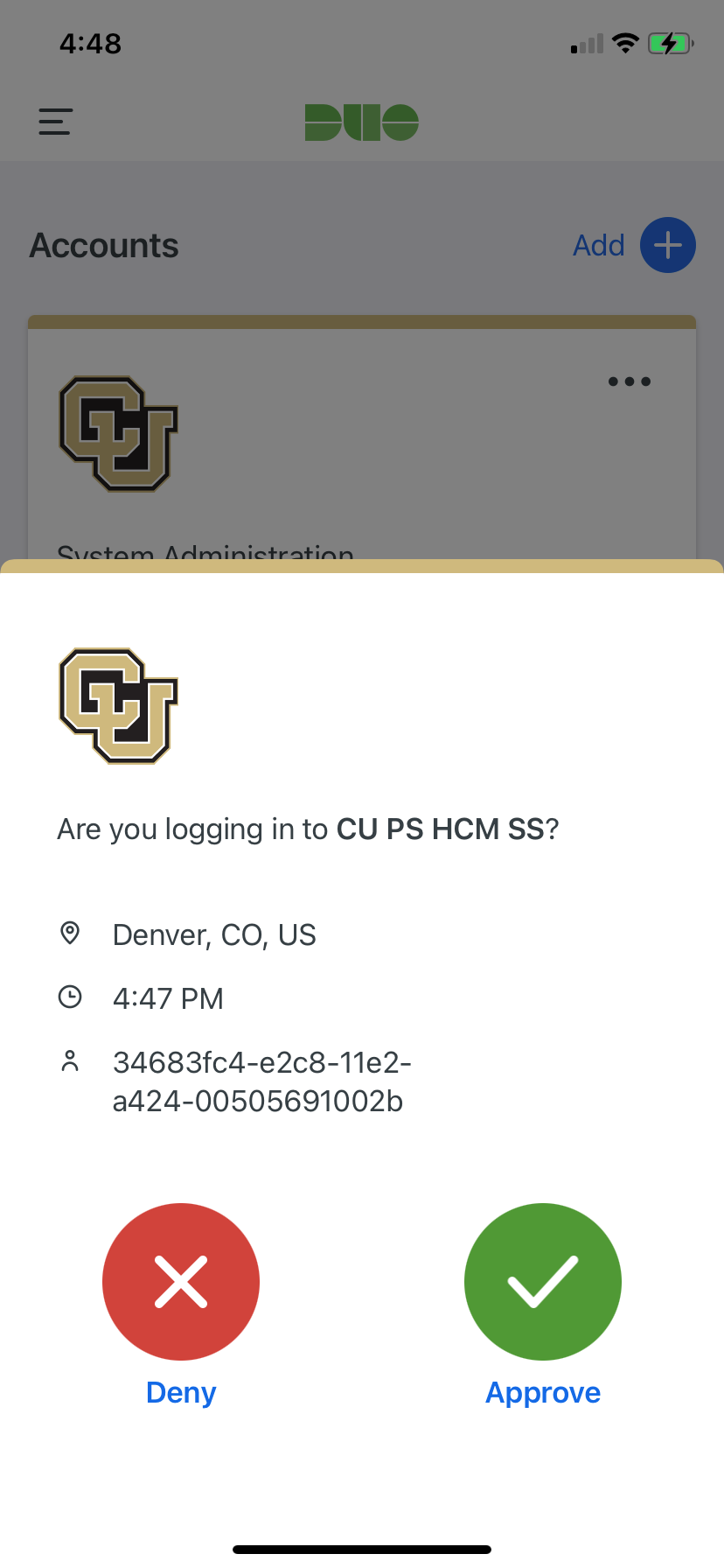
Open the Duo app on your phone. Select the green button to accept.
The protected page will open.Option 2: Receive a phone call
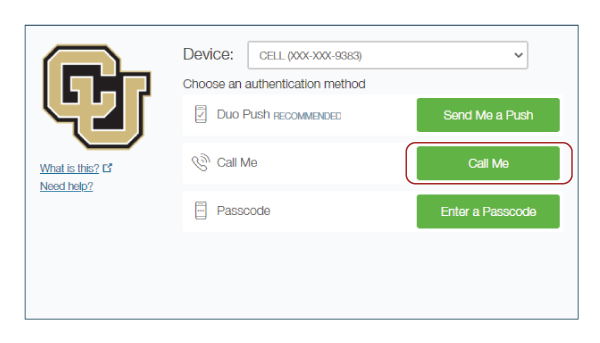
From the Device drop-down menu, select the phone number where you wish to be contacted.
Click the Call Me button.
Answer the call, then press any key on your phone to log in.
The protected page will open.
Option 3: Receive a text message with a passcode or enter a passcode
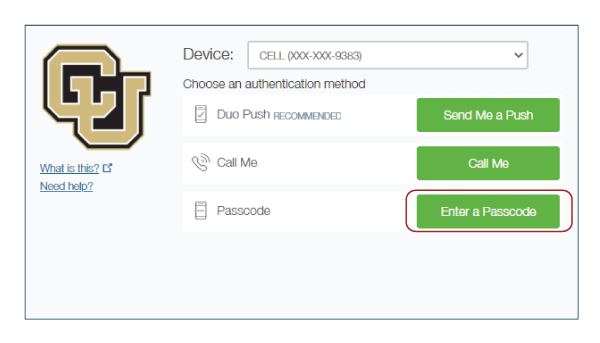
From the Device drop-down menu, select the phone number where you wish to be contacted.
Click the Enter a Passcode button.
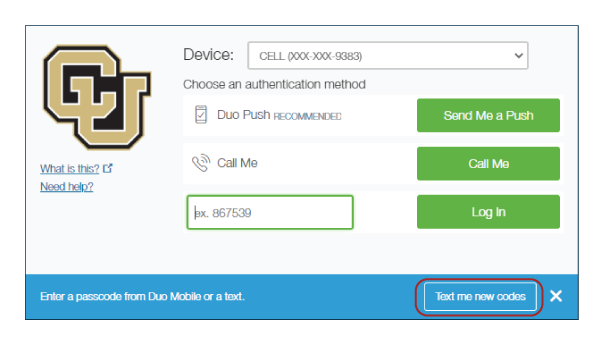
A blue bar will appear on the screen. Press the Text me new codes button.
You’ll receive a text message from CU with a passcode or you can open your DUO app and find a passcode there.
Enter the passcode and press the Log In button.
The protected page will open.
Step 4: Follow the steps on the activity guide

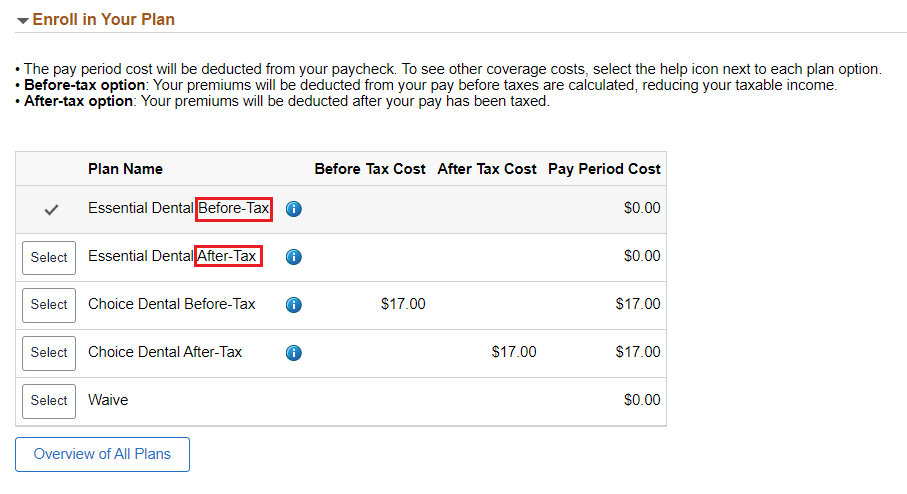
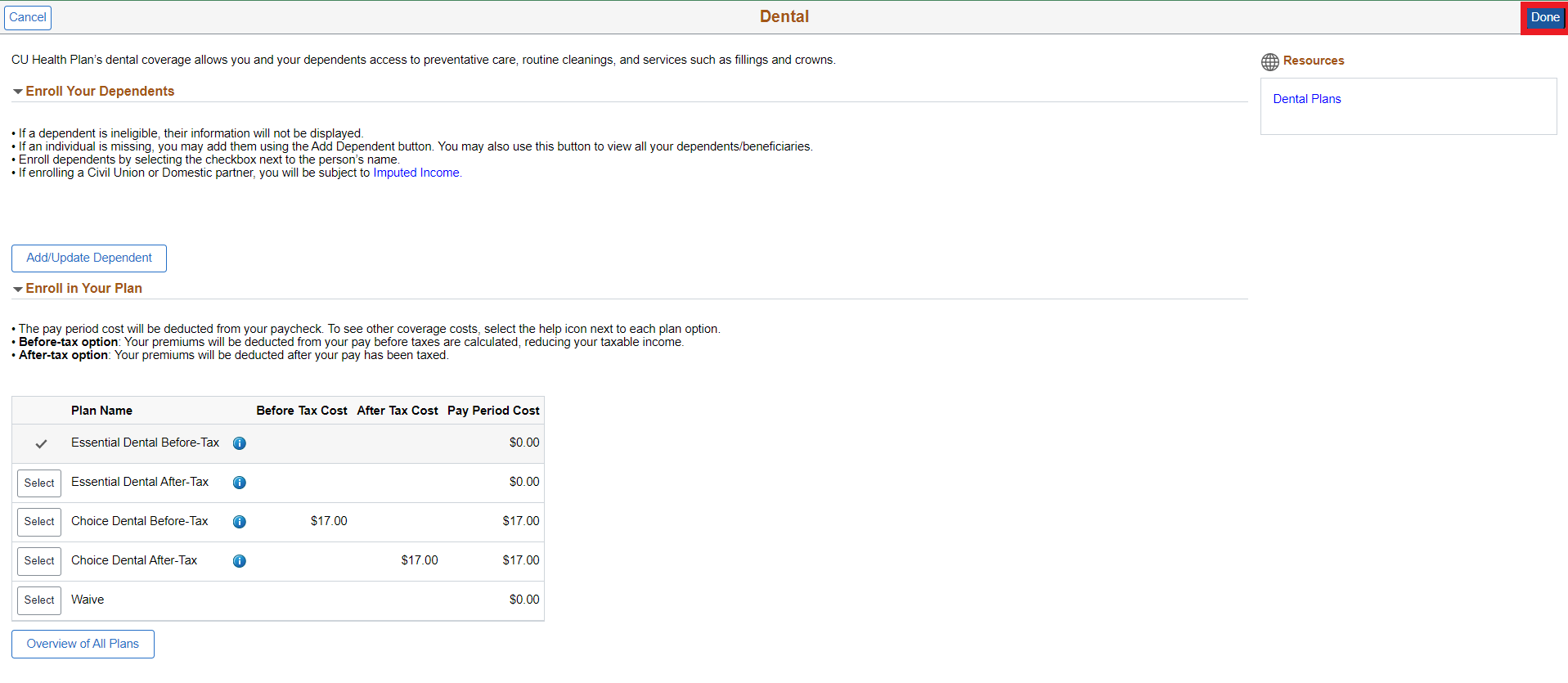
Step 5: Choose your plans
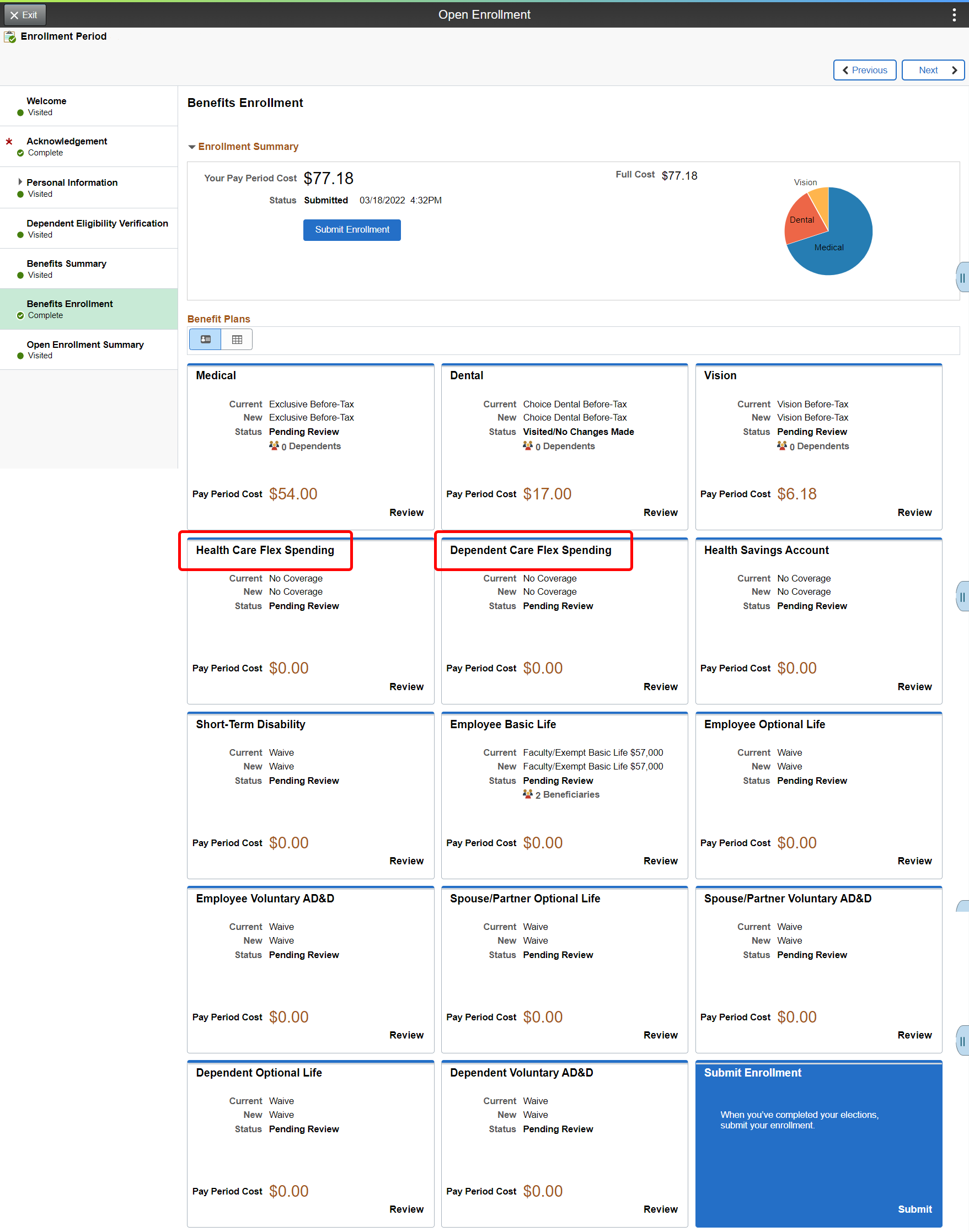
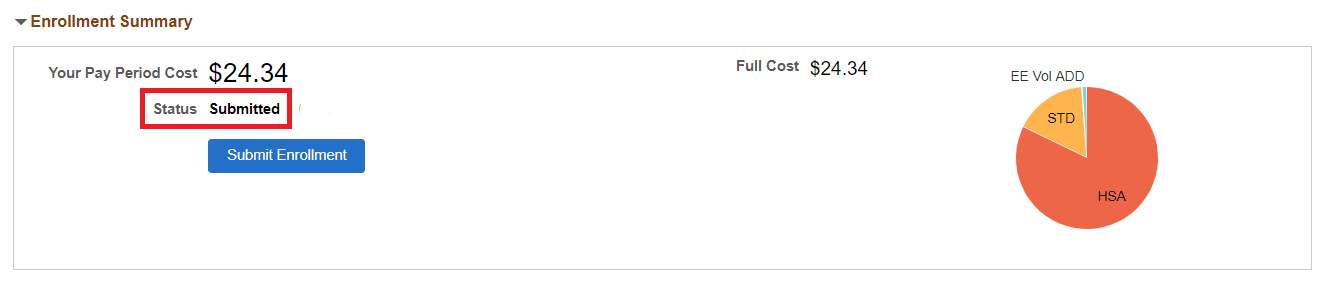
Step 6: Click Submit Enrollment
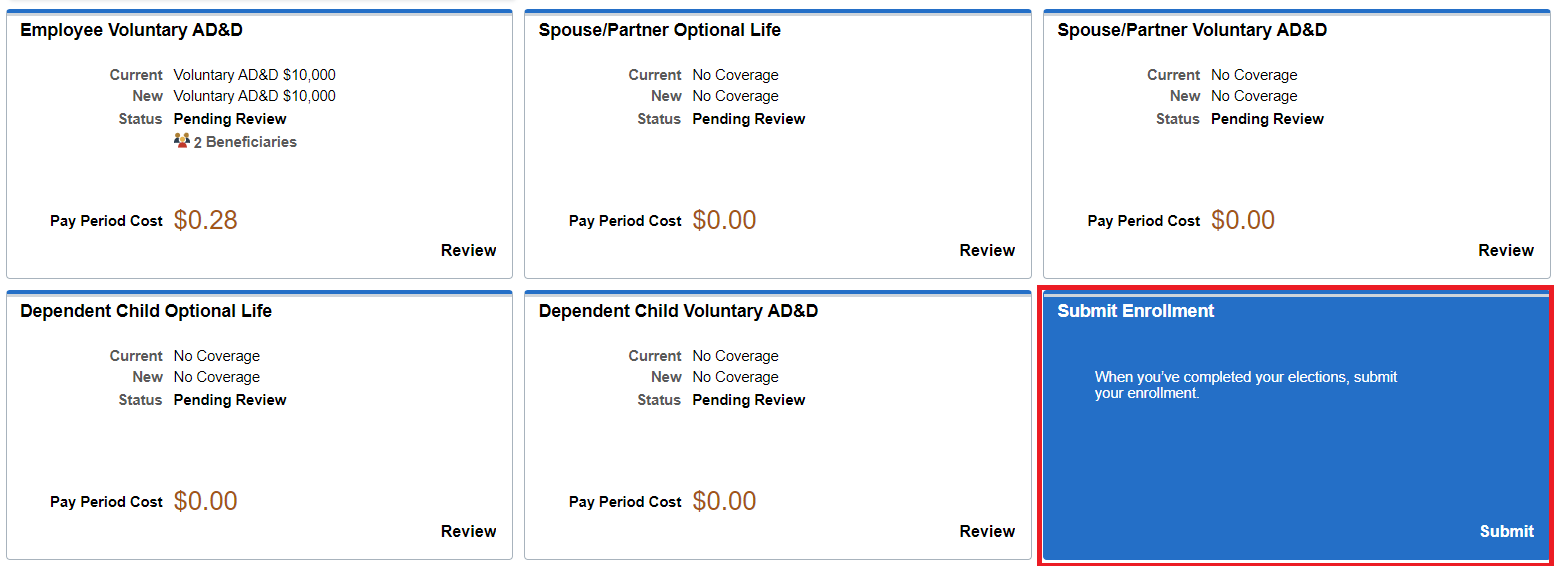
Step 7: Review your benefits



What do you want to do?
I want to enroll in benefits.
The benefits enrollment tool allows you to enter your benefit elections online for the plan year starting July 1 and ending June 30. Access it through the employee portal. See our step-by-step instructions on how to enroll on the first tab of this page.
Once you're logged in, you can view your current benefits (if you have any) and enroll in plans for the upcoming plan year. Once you've completed your enrollment, you can view your new enrollment elections right in the portal. This is your confirmation of enrollment.
Need a paper form?
The fastest way to complete your enrollment is by using the benefits enrollment tool, but for some tasks you will need a paper form. For a qualifying life event, complete one of benefits enrollment/change forms below to request your changes.
To check your benefits:
- Once you've logged in to the employee portal, click on the CU Resources tab. (CU System employees can skip this step.)
- You can find your benefits summary by clicking on the Open Enrollment tile, then selecting Benefits Summary.
- To see your benefits for the current year, enter your benefits effective date (for example: "7/1/2026") and press Refresh.
- You will then see an updated version of your benefits.
Retiree portal access
If you are a retiree who has never enrolled online, please review these instructions to get your portal username and password.
I want to add a dependent.
Eligible dependents include:
- Spouses, Common-Law Spouses, Civil Union Partners and Domestic Partners
- Dependent children up to age 27
- Qualified disabled children over age 27
Complete the Dependent Eligibility Verification and submit it with the documentation listed upon completion of your self-service elections. Documentation must be received by Employee Services by your enrollment deadline or within 31 days of a qualifying event.
Dependents only have to be verified once; verification carries over year-to-year.
I want to change benefits as part of a qualifying event.
Qualifying life events include marriage, divorce, birth, gaining/losing other coverage, gaining/losing eligibility, change in employee residence and changes in dependent care needs.
For a qualifying event, complete a Benefits Enrollment/Change Form to make benefits changes that are effective before July 1.
I want to increase my employee or spouse optional life coverage.
- During this Open Enrollment, employees can enroll in and or increase their current elected optional life insurance amount up to the new Guarantee Issue amount of $350,000 without having to submit a medical history statement. The spouse dependent life option may also be elected or increased to $50,000 without having to submit the medical history statement. You may enroll or increase your elections using the Benefits Enrollment tool within the employee portal.
- To apply to increase your coverage over the new Guaranteed Issue amounts, you must submit a Medical History Statement Form to The Standard Insurance Company as evidence of insurability (EOI). If you are approved, Standard will notify CU, and you will be enrolled in the approved amount on the first of the month following the date of your approval.
- If you want to remain enrolled, but would like to decrease your coverage, you may do so using the Benefits Enrollment tool within the employee portal.
This table shows the plan(s) in which you will be automatically enrolled if you do not take action during the enrollment period.
Start by locating your current plan(s) in the left column.
| 2026-27 Auto-Enrollment What happens if faculty, staff, GME medical residents, retirees or surviving spouses take no action |
||||||
| 2025-26 Enrollment Status | Eligible Participant | 2026-27 Default | ||||
| Medical Plans | ||||||
| Waived medical coverage | All members | Waived coverage continues | ||||
| CU Health Plan - Exclusive | Active faculty and staff, GME medical residents, retirees and surviving spouses who are not eligible for Medicare | Same plan and coverage level | ||||
| CU Health Plan - Pathway | Active faculty and staff, GME medical residents, retirees and surviving spouses who are not eligible for Medicare | Same plan and coverage level | ||||
| CU Health Plan - Kaiser | Active faculty and staff, GME medical residents, retirees and surviving spouses who are not eligible for Medicare | Same plan and coverage level | ||||
| CU Health Plan - High Deductible | ||||||
| CU Health Plan - Medicare | Medicare-eligible retirees and surviving spouses | |||||
| CU Health Plan - Medicare/High Deductible | Retirees and surviving spouses when at least one member is Medicare-eligible | |||||
| Alternate Medicare Payment (AMP) | Medicare-eligible retirees and surviving spouses | |||||
| Dental Plans | ||||||
| Waived dental coverage | All members | Waived coverage continues | ||||
| Active faculty and staff, GME medical residents, retirees and surviving spouses who are not eligible for Medicare | ||||||
CU Health Plan - Essential |
||||||
| Same plan and coverage level | ||||||
| CU Health Plan - Choice | Same plan and coverage level | |||||
CU Health Plan - Dental Premier |
Retirees and surviving spouses when at least one member is Medicare-eligible | Same plan and coverage level |
||||
| Vision | ||||||
| Waived vision coverage | All members | Waived coverage continues | ||||
| CU Health Plan - Vision | All benefits-eligible faculty and staff, GME medical residents | Same plan and coverage level | ||||
| Life Plans | ||||||
| Waived Optional Life coverage(s) | All members | Waived coverage continues | ||||
| CU Basic Term Life | Faculty and staff and retirees | Same plan, same coverage level, same rate level as long as you remain enrolled in Optional Life plan | ||||
| CU Optional Term Life - Employee and Retiree | ||||||
| CU Optional Life - Spouse | Faculty and staff | |||||
| CU Optional Life - Dependent Child | ||||||
| CU Free 10k Optional Life | ||||||
| Voluntary Accidental Death & Dismemberment - Employee | ||||||
| Voluntary Accidental Death & Dismemberment - Spouse | ||||||
| Voluntary Accidental Death & Dismemberment - Dependent Child | ||||||
| PERA Optional Life | ||||||
| Disability | ||||||
| Waived Classified Staff Long-Term Disability | Classified staff members | Waived coverage continues | ||||
| Waived Faculty/University Staff Short-Term Disability | Eligible faculty and university staff members | |||||
| Faculty/University Staff Short-Term Disability | Eligible faculty and university staff members | Same plan | ||||
| Faculty/University Staff Long-Term Disability | ||||||
| Classified Staff Short-Term Disability | Eligible classified staff members | |||||
| Classified Staff Long-Term Disability | ||||||
| Cafeteria Plans | ||||||
| Premium Only Plan | Active faculty and staff, GME medical residents | Same plan | ||||
| Health Care Flexible Spending Account | Not enrolled for plan year 2026-27 | |||||
| Dependent Care Flexible Spending Account | ||||||