




Can't see recent portal updates? Clear your cache.
Select Click Here to Begin Your Enrollment. Sample:
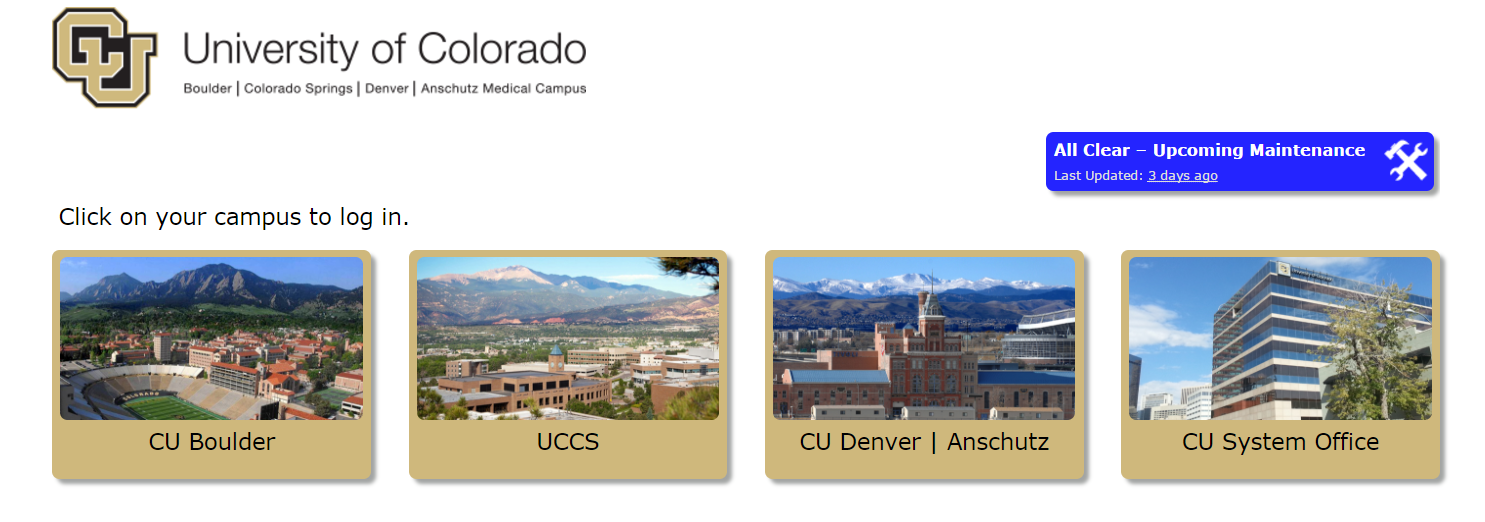
Step 1: Log in to the portal
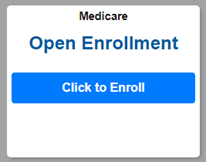
Step 2: Find the CU Medicare Open Enrollment tile
Step 3: Authenticate your identity
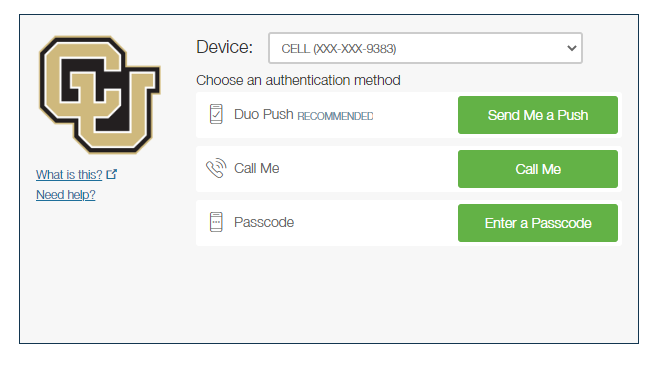
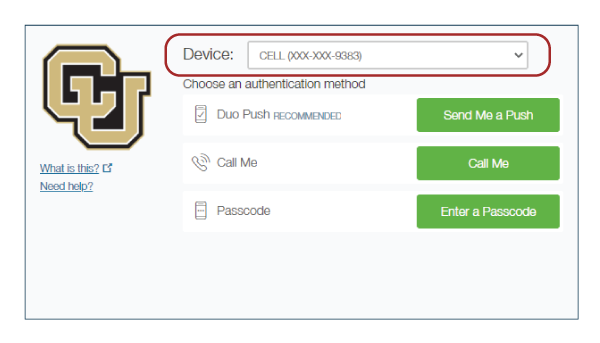
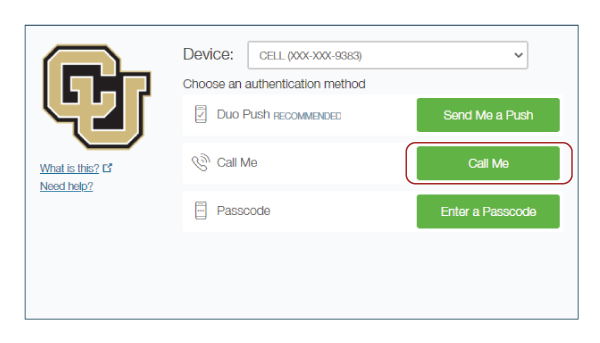
Option 1: Receive a phone call
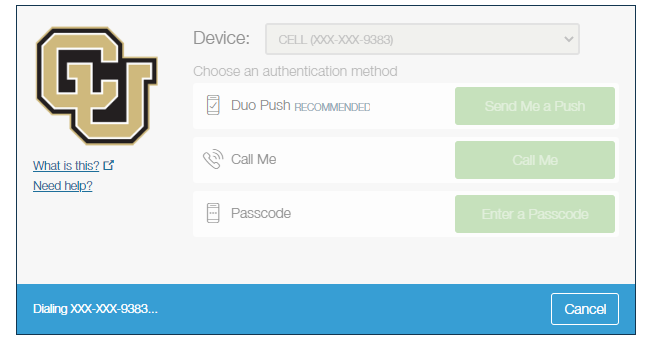
From the Device drop-down menu, select the phone number where you wish to be contacted.
Click the Call Me button.
Answer the call, then press any key on your phone to log in.
The protected page will open.
Option 2: Receive a text message with a passcode or enter a passcode
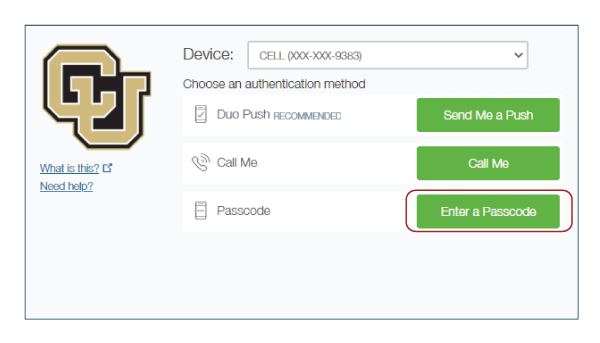
From the Device drop-down menu, select the phone number where you wish to be contacted.
Click the Enter a Passcode button.
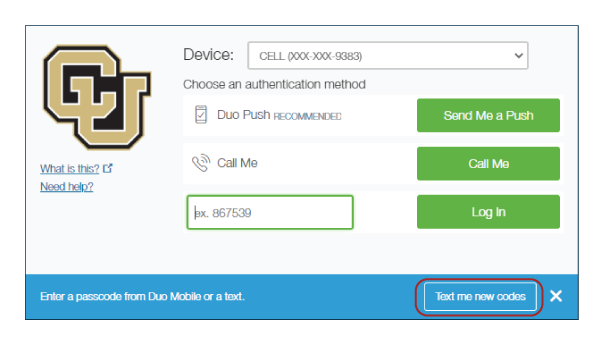
A blue bar will appear on the screen. Press the Text me new codes button.
You’ll receive a text message from CU with a passcode or you can open your DUO app and find a passcode there.
Enter the passcode and press the Log In button.
The protected page will open.
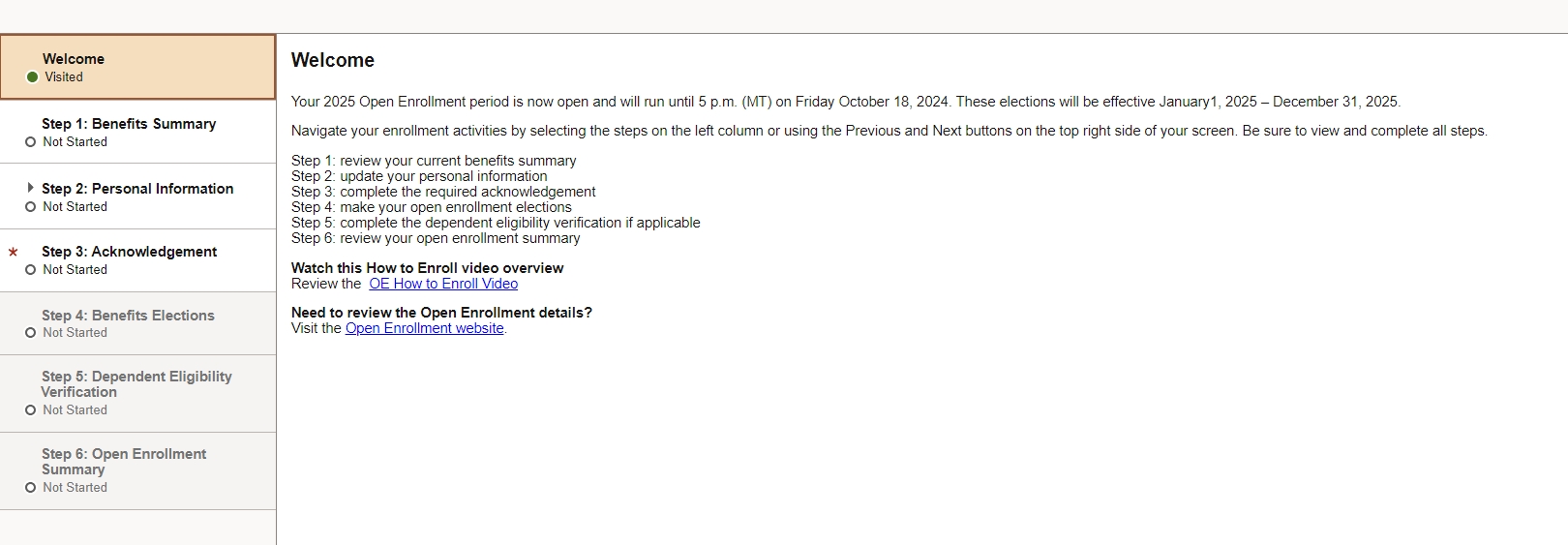
Step 4: Follow the steps on the activity guide
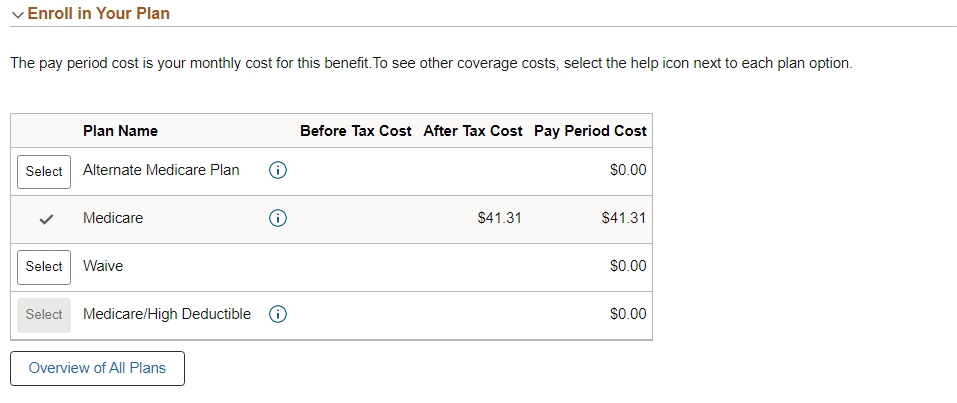
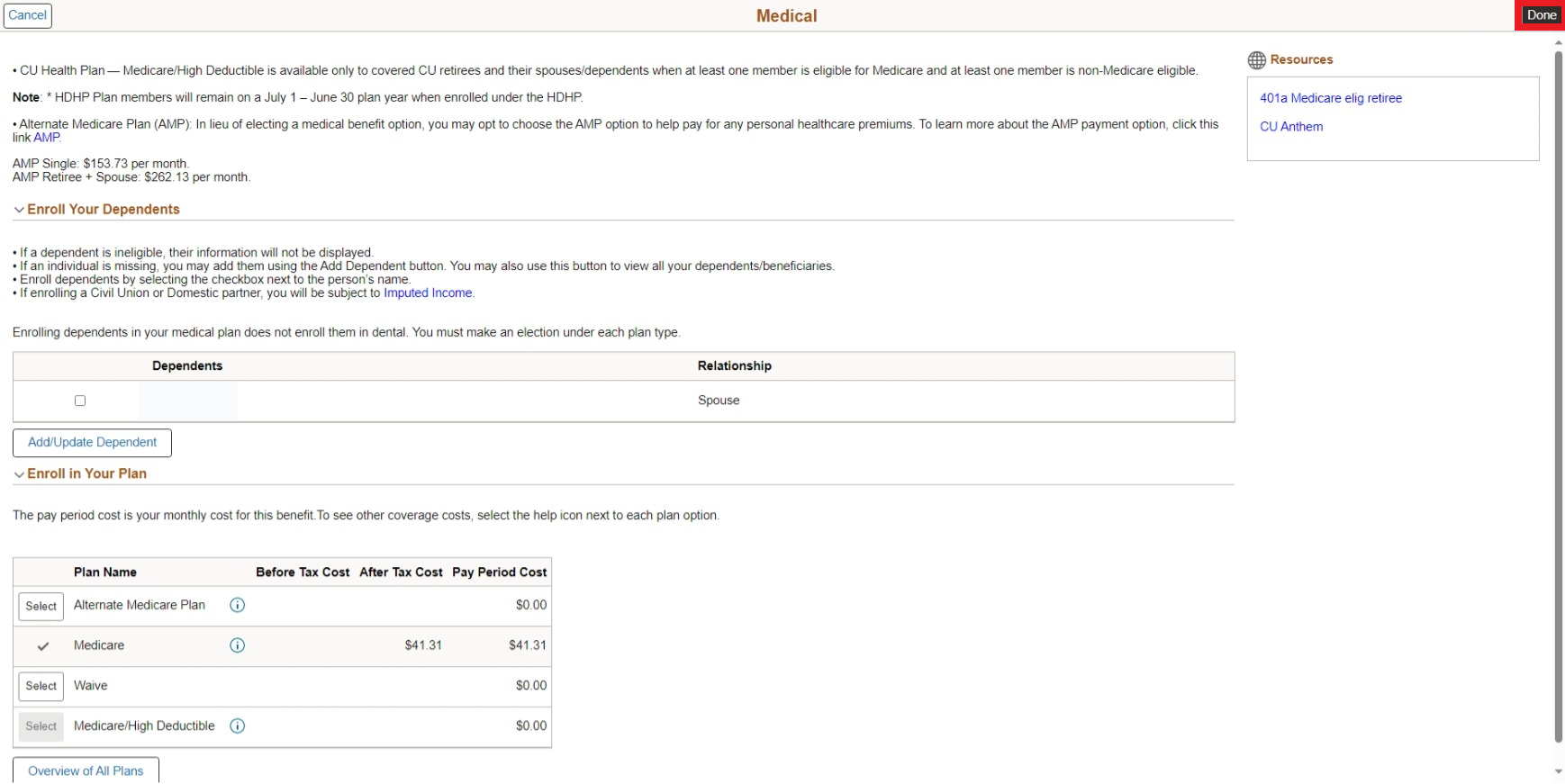
Step 5: Choose your plans
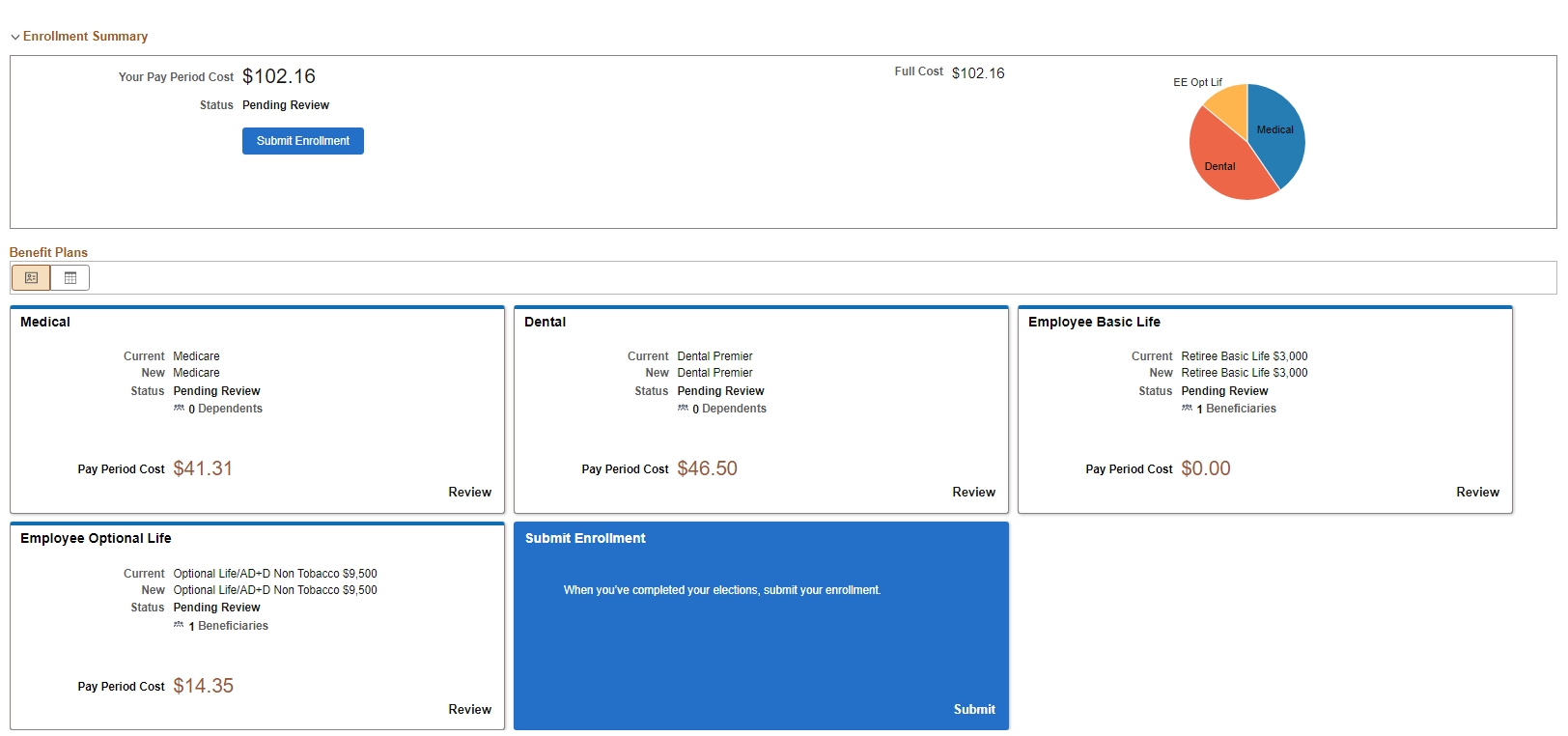
Step 6: Click Submit Enrollment
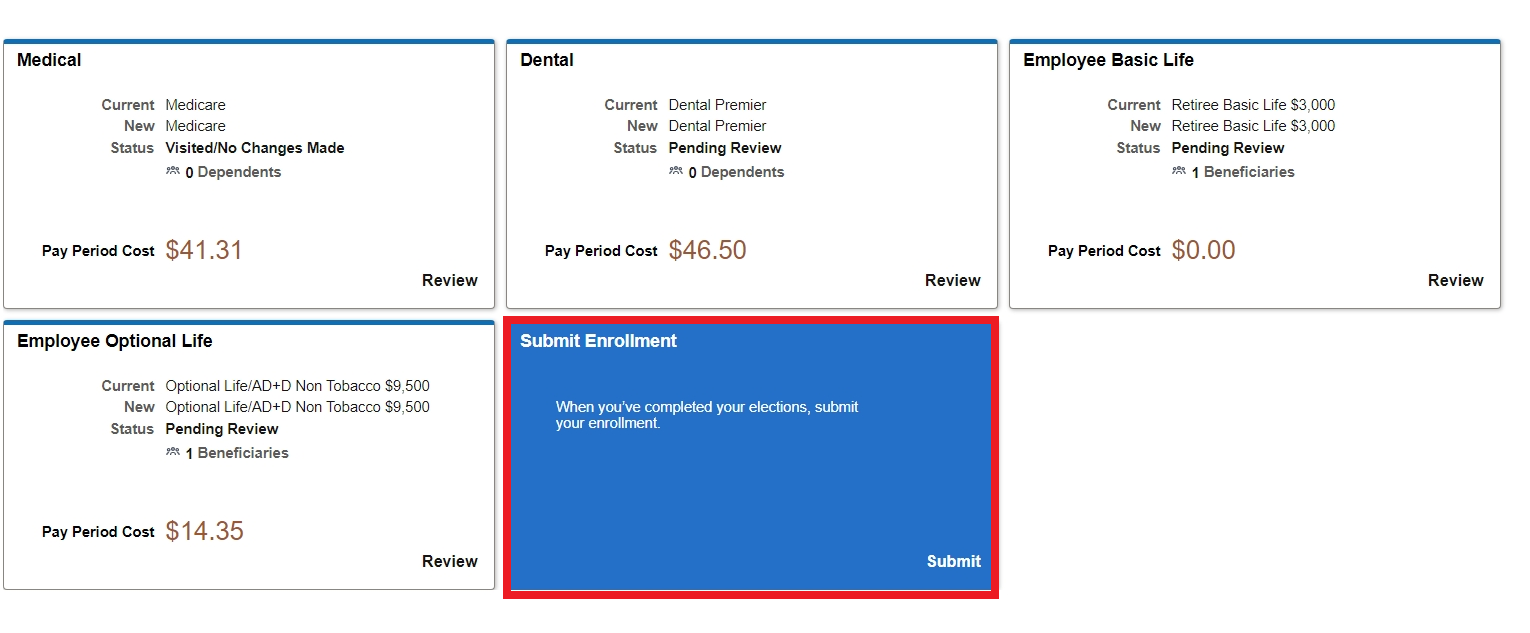
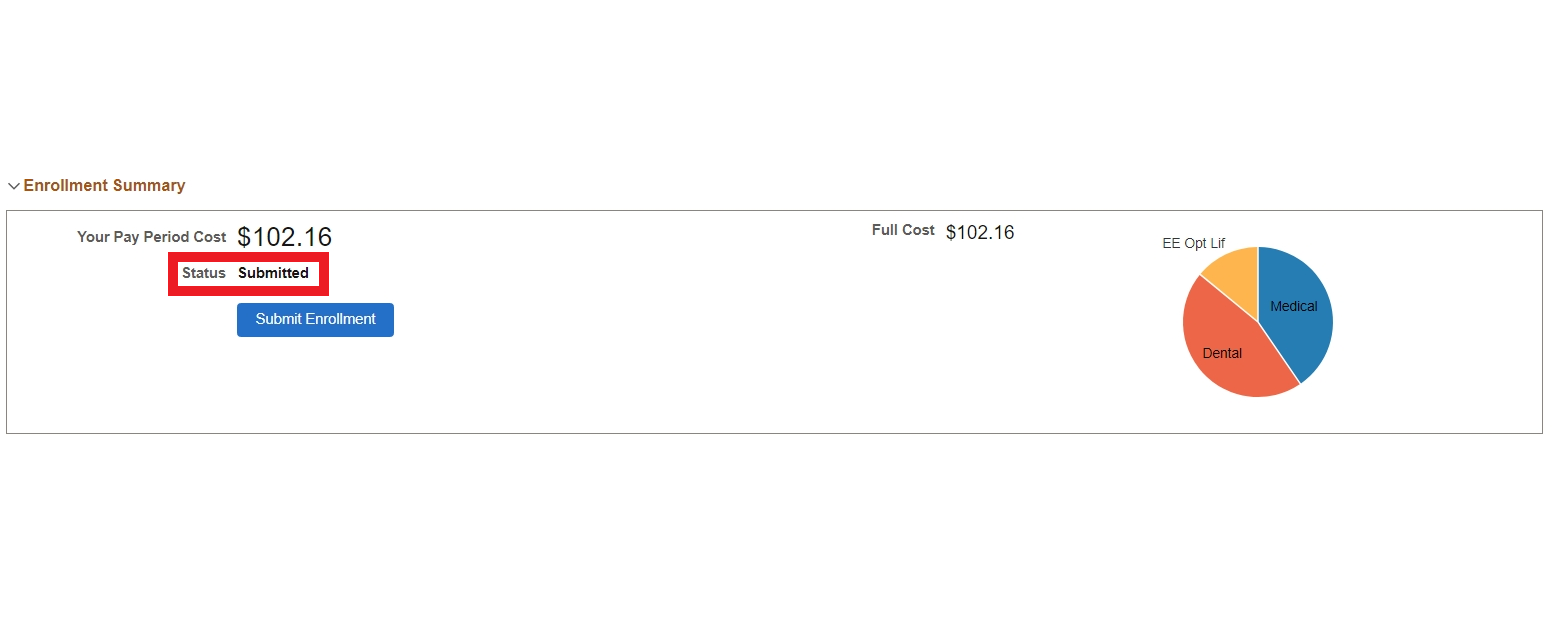
Step 7: Review your benefits




What do you want to do?
I want to enroll in benefits.
Once you're logged in, you can view your current benefits (if you have any) and enroll in plans for the upcoming plan year. Once you've completed your enrollment, you can view your new enrollment elections right in the portal. This is your confirmation of enrollment.
Need the paper form?
The fastest way to complete your enrollment is by using the benefits enrollment tool, but for some tasks you will need a paper form. For a qualifying life event, complete one of benefits enrollment/change forms below to request your changes.
To check your benefits:
- Once you've logged in to the employee portal, click on the CU Resources tab. (CU System employees can skip this step.)
- You can find your benefits summary by clicking on the Benefits Summary tile on your Benefits & Wellness section.
- To see your benefits for the current year, enter your benefits effective date (for example: "1/1/2026") and press Refresh.
- You will then see an updated version of your benefits.
Retiree portal access
If you are a retiree who has never enrolled online, please review these instructions to get your portal username and password.
I want to add a dependent.
Eligible dependents include:
- Spouses, common-law spouses, civil union partners and domestic partners
- Dependent children up to age 27
- Qualified disabled children over age 27
Complete the Dependent Eligibility Verification and submit it with the documentation listed upon completion of your self-service elections. Documentation must be received by Employee Services by your enrollment deadline or within 31 days of a qualifying life event.
Dependents only have to be verified once; verification carries over year-to-year.
This table shows the plan(s) in which you will be automatically enrolled if you do not take action during the enrollment period.
Start by locating your current plan(s) in the left column.
| 2027 Auto-Enrollment What happens if retirees or surviving spouses takes no action |
||||
| 2026 Enrollment Status | Eligible Participant | 2027 Default | ||
| Medical Plans | ||||
| Waived medical coverage | All members | Waived coverage continues | ||
| CU Health Plan - Medicare | Medicare eligible retirees and surviving spouses | Same plan and coverage level (Note: the Medicare plan is on a Jan. 1-Dec. 31 plan year, while the High Deductible plan is on a July 1-June 30 plan year.) | ||
| CU Health Plan - Medicare/High Deductible | Medicare-eligible retirees/surviving spouses and a non-Medicare-eligible dependent(s) | |||
| Alternate Medicare Payment (AMP) | Medicare-eligible retirees and surviving spouses | |||
| Dental Plans | ||||
| Waived dental coverage | All members | Waived coverage continues | ||
| CU Health Plan - Premier | Medicare-eligible retirees and surviving spouses | Same plan, same coverage level | ||
| Life Plans | ||||
| Waived Optional Life coverage(s) | All members | Waived coverage continues | ||
| CU Optional Term Life - Employee and Retiree | Retirees | Same plan, same coverage level, same rate level | ||