




Having trouble using Skillsoft Percipio?
Refer to this page for any known issues, workarounds and FAQs for Pericpio courses. If you are experiencing an issue not listed below, email system.training@cu.edu for additional support.
Known Issues
Completing a Recurring Course
Completing a Course
The description page of a course lists its status.
Based on the course’s status, below are the steps to complete a course. Use this information for your reference and as communication. Email system.training@cu.edu for questions and support.
If the course is marked:
- Not Started (course has never been taken): Click Launch and complete the course.
- Started (course has been started but the quiz was not completed or not passed):
- Click Launch and click Resume to start the course from where you left, if you didn’t complete the quiz.
- Click Launch and Restart if you completed the quiz but didn’t pass it.
- Completed (the quiz has been passed, and the Close Course button has been selected):
- Click Launch. If you are taking a recurring course, a message will inform you that you need to restart the course.
- Click Restart on the prompt. The course status updates to Restarted.
- Click Launch again and complete the course. Note: If you cannot complete the course in one session and need to return to it after some time, use the steps listed in the Started section.
- Restarted (a course has been restarted using the prompt for recurring courses, but the quiz was not completed or not passed).
- If you did not complete the quiz, click Launch and then click Resume to start the course from where you left,
- If you completed the quiz but didn’t pass it, click Launch and then click Restart.
Resolving Issues with a Course
Resolving Issues with a Course
If the steps below do not solve the issue, contact system.training@cu.edu.
If a course is not marked completed after you have taken it:
- Make sure you clicked the Close Course button on the last page of the course when you complete a course. Launch the course again, click Resume (see CU: Recurring Course image below), then click Close Course.
- Verify that you passed the quiz.
- Allow enough time for the completion to display under My Learning in Percipio.
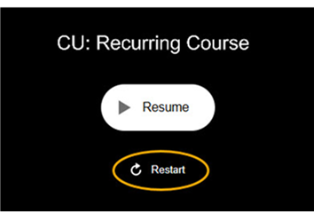
CU: Recurring Course image
If a course is not progressing:
- If it is a review slide, expand the menu on the left:
- If the slide after this one is open (a check mark icon), you can click it to continue the training.
- If it is locked (a lock icon), follow the next steps for a slide with content.
- If it is a slide with instructions about the NEXT button displaying after reading all content, make sure to click all the buttons on the slide. If the course still doesn't progress, follow the steps for a slide with content.
- If it is a slide with content:
- Exit the course.
- Click Launch and then select Restart at the prompt (see CU: Recurring Course image above). This will reset the course and resolve the issue. You can click NEXT until you reach the slide with the issue. You do not need to read the content again, unless you want to. Note: If this doesn’t resolve the issue, use a different browser or an Incognito page (if you are not sure how to open an Incognito page, search for instructions related to the browser you are using) to access the course and complete these steps.
Frequently Asked Questions
How do I take required training on Skillsoft Percipio?
Students
- Log on to your student portal.
- Click Training, in the upper-right navigation.
- Click Percipio.
CU Boulder Students
- Log on to your Buff Portal.
- Click the navigation bar on the top left.
- Enter Skillsoft in the search box.
- Select Skillsoft Training.
- Click Start Skillsoft.
Faculty, Staff & POIs
- Log on to your campus portal (https://my.cu.edu).
- Open the CU Resources dropdown menu.
- Select Training.
- Click the Skillsoft Percipio tile.
Is Skillsoft Percipio more than just compliance training?
Yes, Percipio is a learning management system that offers various eLearning and online training. These solutions include Business Skills, Training, Digital Skills Training, and IT Skills, to mention a few. The platform's professional certification catalog also provides content for your training certification program needs.
Where can I find my record of training completions?
Percipio keeps a real-time record.
- Click My Learning on the left-hand side.
- Select the My Acheivements tile for a list of all course completions.
- You may also access your completions by selecting the Trophy icon in the right-hand corner of Skillsoft Percipio.
NOTE: Employees may access training records from their portal by using the Training Summary.
How do I view a certificate of completion for a course I completed in Skillsoft Percipio?
To view a completion certificate:
- Log onto Skilsoft Percipio.
- Click My Learning on the left-hand side.
- Select the Completion Certificates tile for all available certificates.
Where can I find instructor-led training (ILT) courses?
- Log on to Skillsoft Percipio.
- Click the Live Learning tab.
- Click View all live learning.
Or
- Log on to Skillsoft Percipio.
- Select Library on the left-hand side.
- Scroll near the bottom of the page and click Live Learning Calendar.
Why am I unable to enroll in an ILT session?
You may be already enrolled in another session of the same course. You must withdraw from a session you're enrolled in before you can enroll in a different one.
Who do I contact if I have a problem with Percipio?
Email Employee Learning and Development at system.training@cu.edu.
How do I turn off my pop-up blocker?
The job aid, Disabling Pop-Up Blockers and Clearing Cache, will help you ensure your browser can display up-to-date information.
Why is the course I completed not showing up in the portal under Learning Transcript?
There is a one to two business day delay from the time you complete a course and quiz in Skillsoft Percipio to when it appears in your portal. If more than two business days have passed and you do not see the course, email Employee Learning and Development at system.training@cu.edu.