Categorized in: 

Recall a sent email in Outlook

Sending an email to the wrong person or without an attachment is an easy mistake to make. Outlook's message recall feature lets you delete or replace a sent email — provided the recipient has not yet read it.

Recall a sent email

NOTE: Message recall does not work for emails sent through Outlook on the web, emails sent to recipients outside CU System or messages that have already been read.

1. Open your Sent Items folder and select the message you want to recall.

2. Double-click the message to open it in a new window. 

3. In the Message tab, select the More commands icon. 

The Outlook message ribbon with "Message" highlighted in a red box in the top menu bar. The three-dot More Options icon at the far right of the toolbar is also highlighted with a red box.

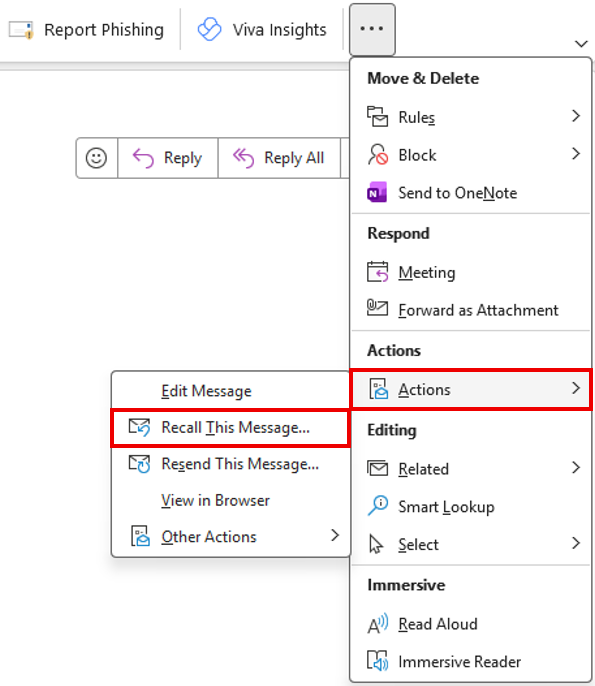
4. From the dropdown menu, select Actions, then Recall This Message.

The Outlook message ribbon with the three-dot More Options menu open, showing the Actions submenu expanded. "Actions" is highlighted with a red box in the right menu, and "Recall This Message..." is highlighted with a red box in the left submenu.

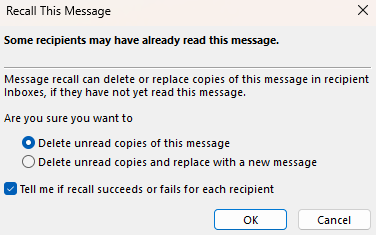
5. In the dialog box, select one of the following options:

  • Delete unread copies of this message — removes the email from the recipient's inbox.
  • Delete unread copies and replace with a new message — removes the original and opens a new draft so you can send a corrected version.

TIP: Check Tell me if recall succeeds or fails for each recipient in the dialog box to receive a confirmation email for each recall attempt.

The Recall This Message dialog box with two options: "Delete unread copies of this message" (selected) and "Delete unread copies and replace with a new message." A checked checkbox reads "Tell me if recall succeeds or fails for each recipient."

6. Select OK.  

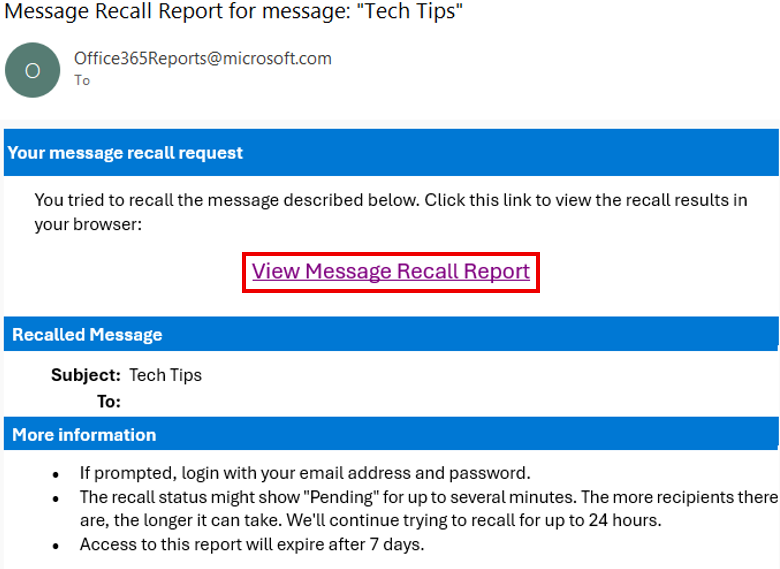
7. If you selected Tell me if recall succeeds or fails for each recipient, you will receive an email containing your message recall report. Click the link to view the results of the recall attempt.

A confirmation email from Office365Reports@microsoft.com showing a "View Message Recall Report" link, the recalled message's subject line, and notes that recall status may show as Pending for several minutes and the report expires after 7 days.

Add new comment