

All UIS enterprise and business applications are in service at this time.
Service Status: Green



By default, Outlook automatically deletes accepted or declined meeting requests, which can make it difficult to locate meeting details or attachments. Disabling this option ensures meeting invitations remain in your inbox.
NOTE: Emails in the Deleted Items and Junk Mail folders are automatically deleted after 30 days and cannot be easily accessed again. Review CU System’s data retention standards for more information.
1. In the Classic Outlook desktop app, click File.
2. Click Options.
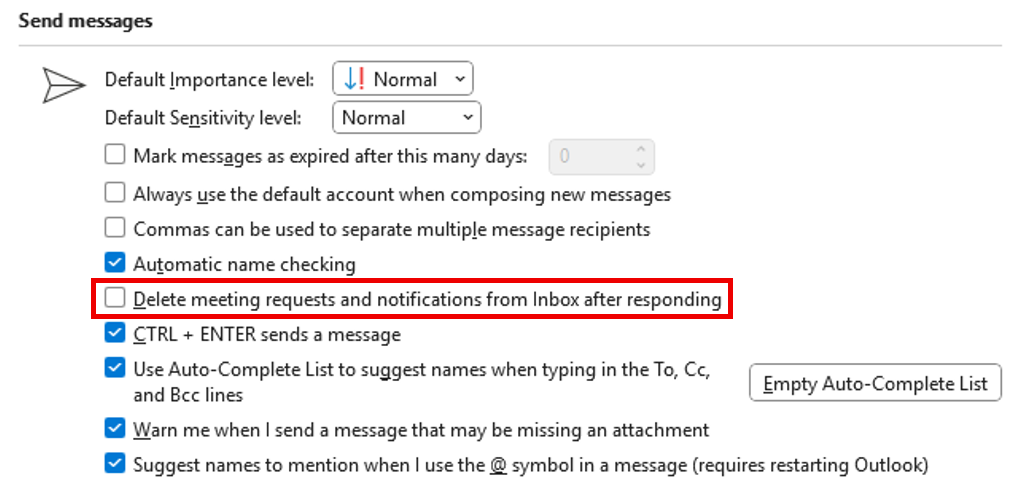
3. Select Mail from the left-side menu and scroll down to the Send messages tab.

4. Uncheck the Delete meeting requests and notifications from Inbox after responding option.
5. Click OK.
1. In the New Outlook desktop app or Outlook on the web (outlook.office.com/mail), select the gear icon on the top right-side.

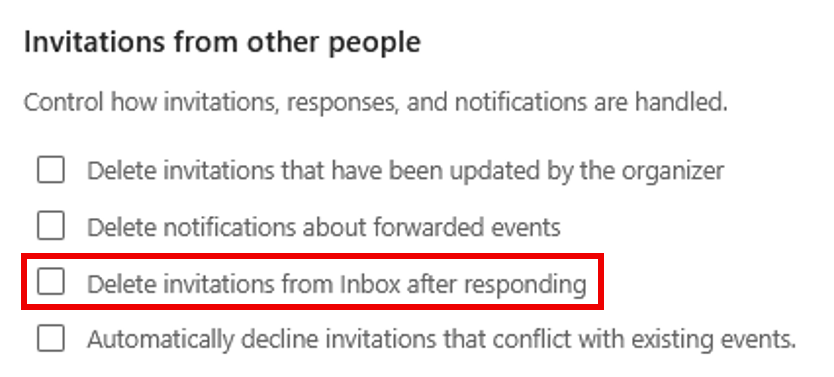
2. Select Calendar from the left-side menu and click the Events and invitations tab.

3. Uncheck Delete invitations from Inbox after responding.
4. Click Save.

Add new comment