

All UIS enterprise and business applications are in service at this time.
Service Status: Green



An out-of-date browser is one of the most common causes of broken pages, login problems and security vulnerabilities. Most browsers update automatically when you fully close and reopen them — but if you keep many tabs open and rarely restart, updates can sit unfinished for weeks. Here’s how to check manually in Edge, Chrome and Firefox.
1. In Edge, select the settings and more icon in the top-right corner.
2. Select Settings.
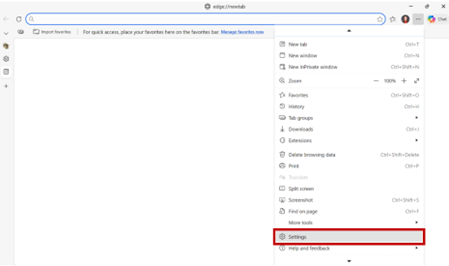
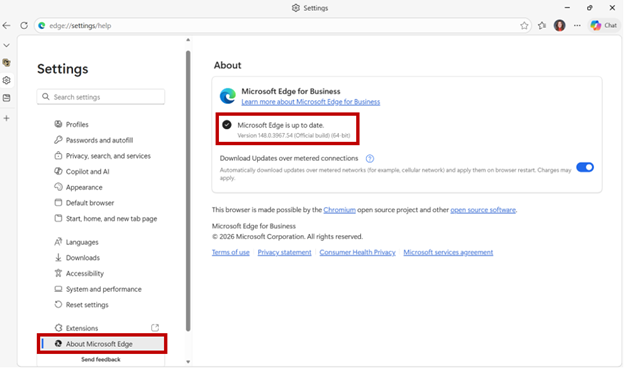
3. From the left-hand menu, select About Microsoft Edge.
4. Edge will automatically check for updates. If one is available, select Download, then Restart to finish installing. If the page reads “Microsoft Edge is up to date,” no action is needed.
1. Open Chrome. If an update is waiting, a colored dot or the word Update will appear on the three-dot menu in the top-right corner.
2. Select the three-dot icon, then select Help, About Google Chrome.
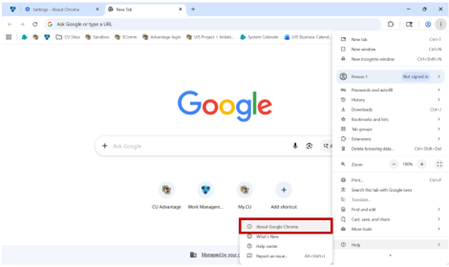
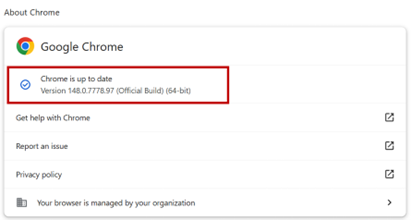
3. Chrome will check for updates and download them automatically.
4. When the download finishes, select Relaunch to apply the update.
1. Select the Menu icon in the top-right corner.
2. Select Help, then About Firefox.
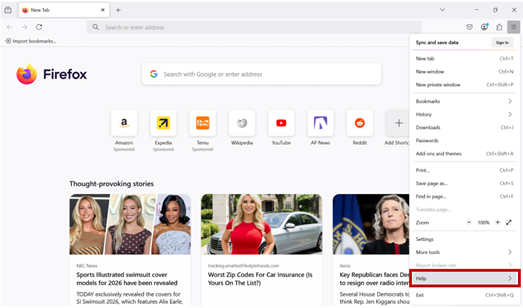
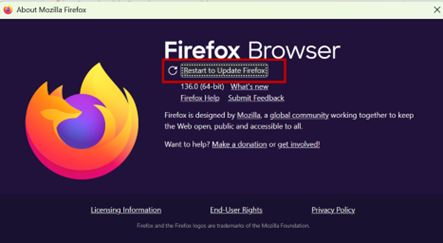
3. Firefox will automatically check for updates and download any it finds in the background.
4. When prompted, select Restart to Update Firefox. If the window reads "Firefox is up to date," no action is needed.
If you have installed an update, but websites still are not working, fully close and reopen the browser to ensure the new version is loaded. If issues continue, contact the UIS Service Desk at 303-860-4357 or help@cu.edu.

Add new comment