

All UIS enterprise and business applications are in service at this time.
Service Status: Green



1. Navigate to the folder you want to pin.
2. Single-click the folder to select it.
3. Right-click the folder to open the pop-up menu.
4. From the pop-up menu, click Pin to Quick access.
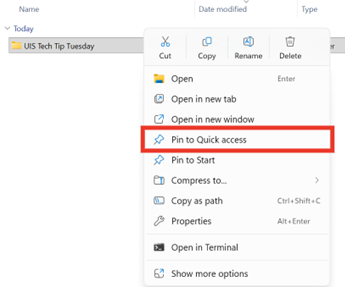
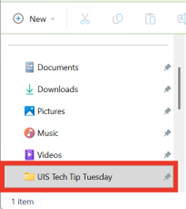
That folder now appears in the Quick Access sidebar above those most frequently used. Pinned folders will remain there, even if not frequently accessed.
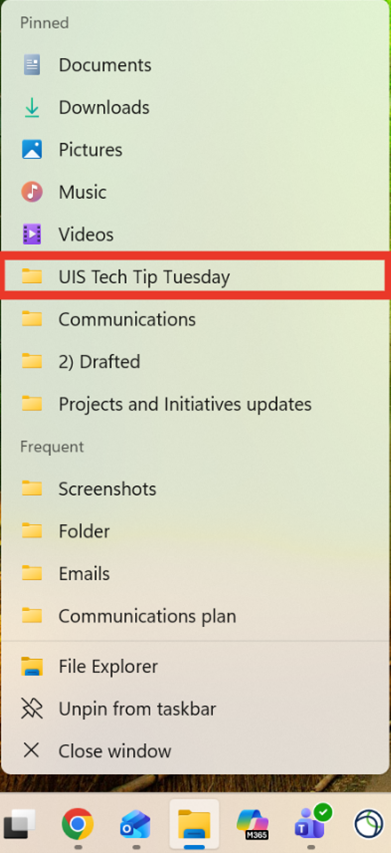
The top nine pinned folders will also be available if you right-click on the File Explorer icon from the taskbar.
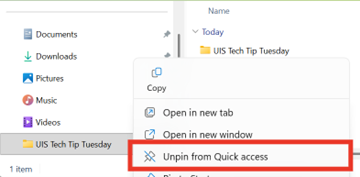
When you’ve finished a project and no longer need easy access, you can right-click the folder on the Quick Access sidebar and select Unpin from Quick access.
You can also right-click on the File Explorer icon from the taskbar and select the unpin icon to remove from Quick access.
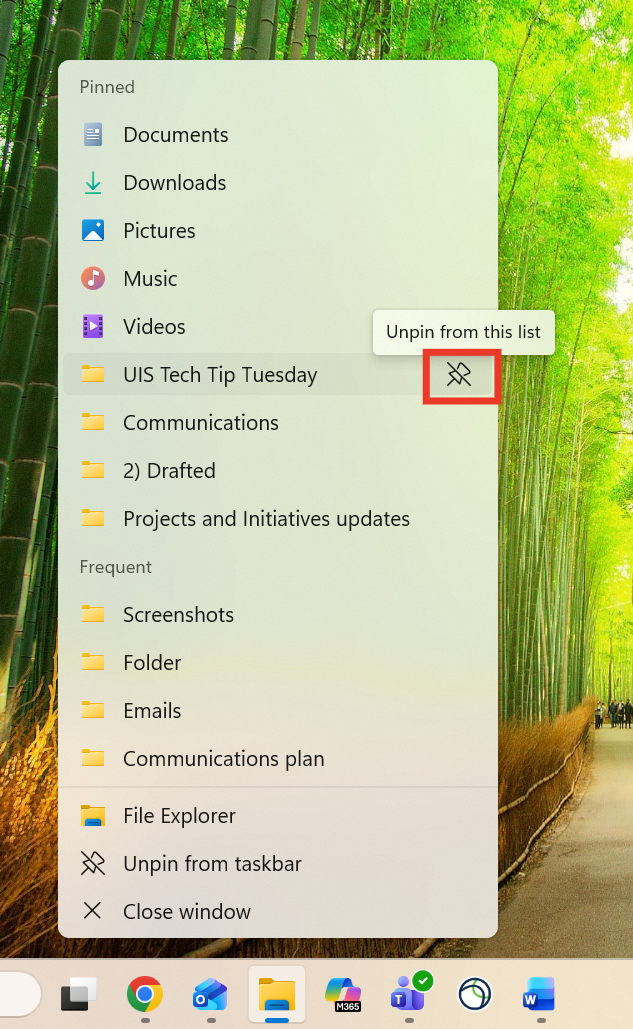
Likewise, you can pin a file — not to Quick Access, but instead to its application in your taskbar.
1. Right-click an application and select Pin to taskbar, if it is not already pinned. Now, it will show in your taskbar even when it is not open.
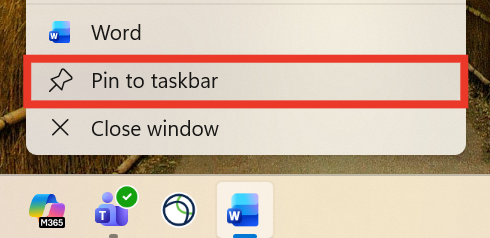
2. Open the file or document you would like to pin to make sure that it will appear in the application’s list of recent files.
3. Right-click on the application icon in your taskbar to see a list of recent files.
4. Click on the pin icon next to the document name.
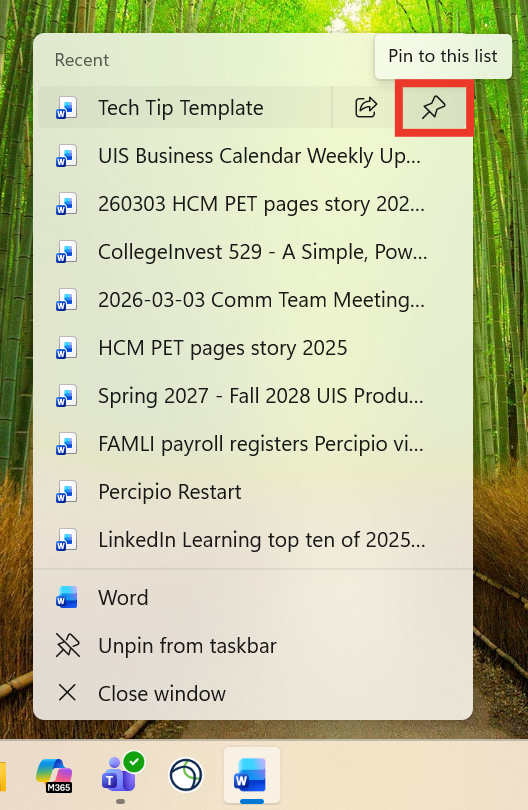
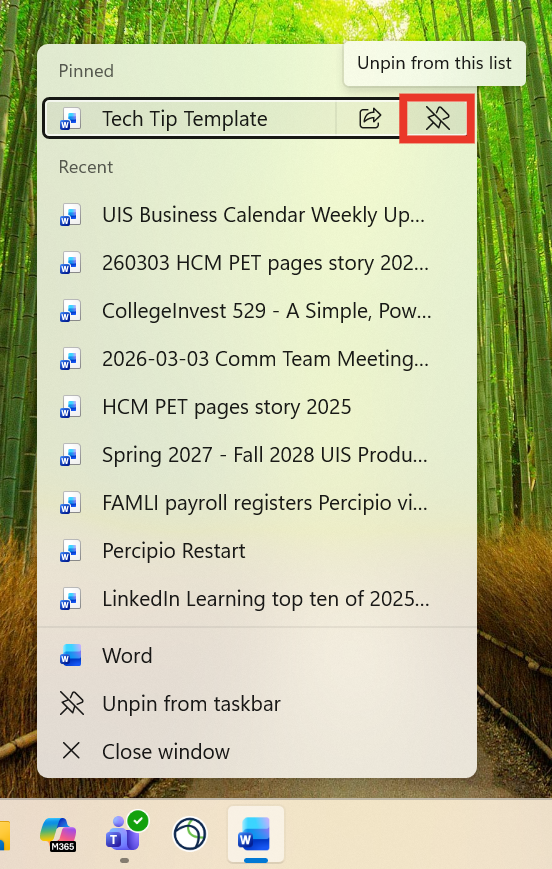
Now when you right-click on the application icon, you will see your document “pinned” at the top.
To unpin, right-click the application from the taskbar and select the unpin icon.

Add new comment