

All UIS enterprise and business applications are in service at this time.
Service Status: Green



Rather than searching past Teams chats every time you need to reference important information, you can pin a message. Use this feature to create easy reference points in your chats.
Pinned messages appear at the top of the chat and remain there until they are unpinned or replaced by another pinned message. Everyone in the chat can see pinned messages, and anyone in the chat can pin or unpin a message, though Teams does not notify the chat that a message has been pinned or unpinned.
1. In a chat, hover over the message you want to pin and select the More options (three dots) icon.
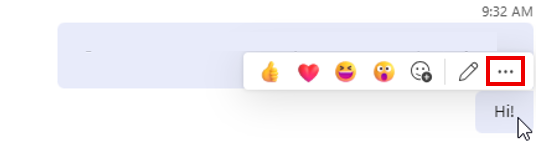
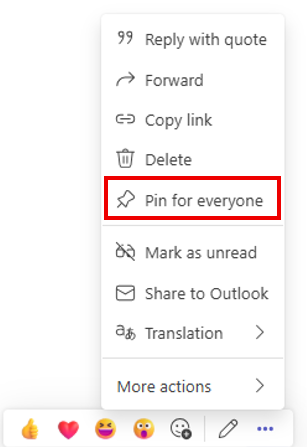
2. Select Pin for everyone. The message will appear at the top of the chat.
NOTE: Pinning a message is different from pinning a chat. Pinned messages appear within the chat, while pinned chats stay at the top of your chat list. Learn more about pinning chats.

Add new comment