

All UIS enterprise and business applications are in service at this time.
Service Status: Green



If you use Microsoft Teams on your phone, notifications can follow you well beyond the workday. Quiet time is a mobile‑only Teams feature that lets you silence notifications on a schedule, helping you stay focused — or fully disconnect — when you need to.
Quiet time silences Teams notifications on your mobile device during certain hours or full days. Messages and calls still come through, but you won’t receive notifications unless you open the app.
In addition, Quiet time:
Only works on the Teams mobile app (iOS and Android).
Does not change your Teams status or notify others.
Is not available on the Teams desktop app.
TIP: For more information on managing Teams desktop app notifications, visit our manage Teams Phone notifications tip.
Enabling Quiet time in the Teams mobile app
You can enable Quiet time directly from the Teams app on your phone.
1. Open the Teams app on your mobile device.
2. Tap your profile picture in the top -left corner.
3. Select Notifications.
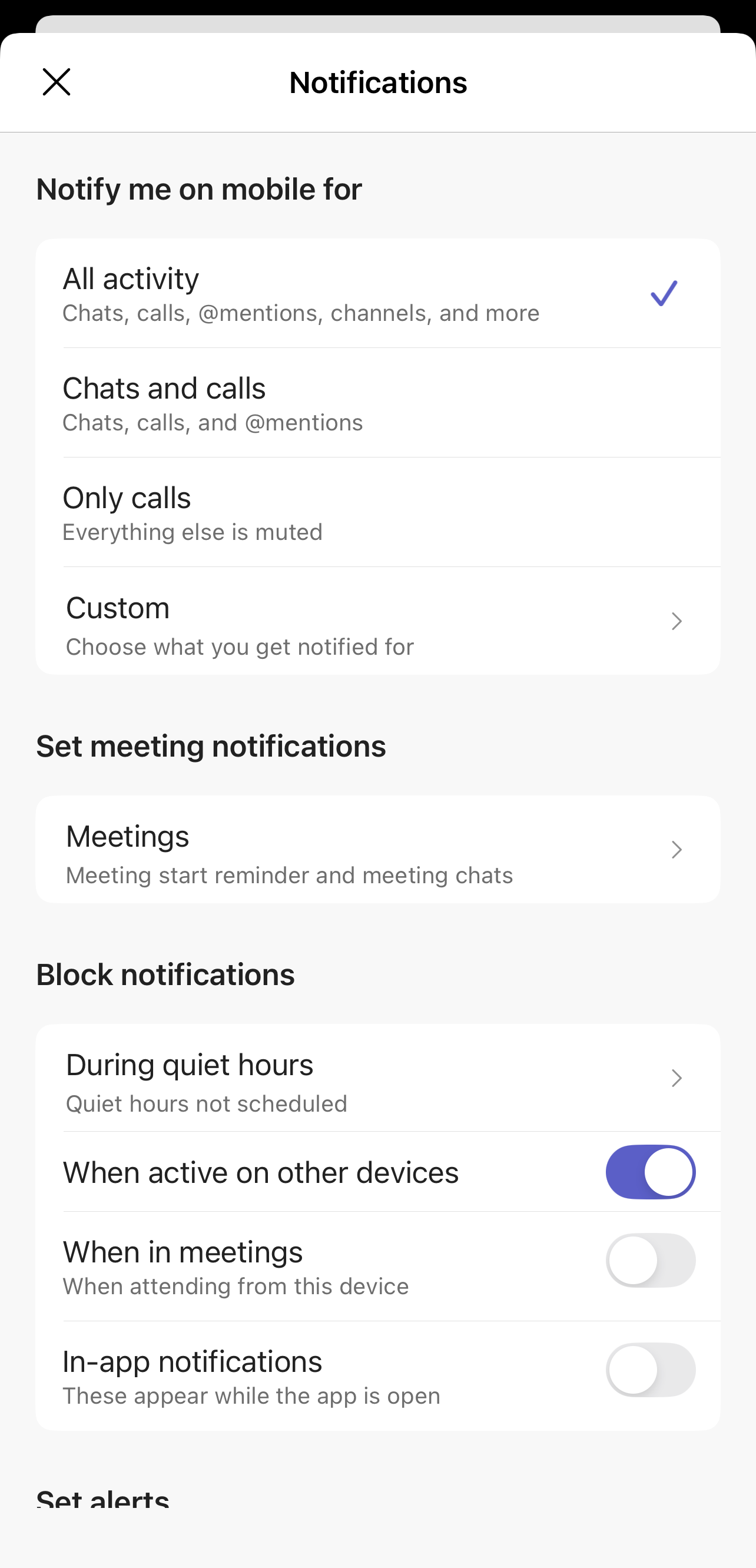
4. Under Block notifications, select During quiet hours.
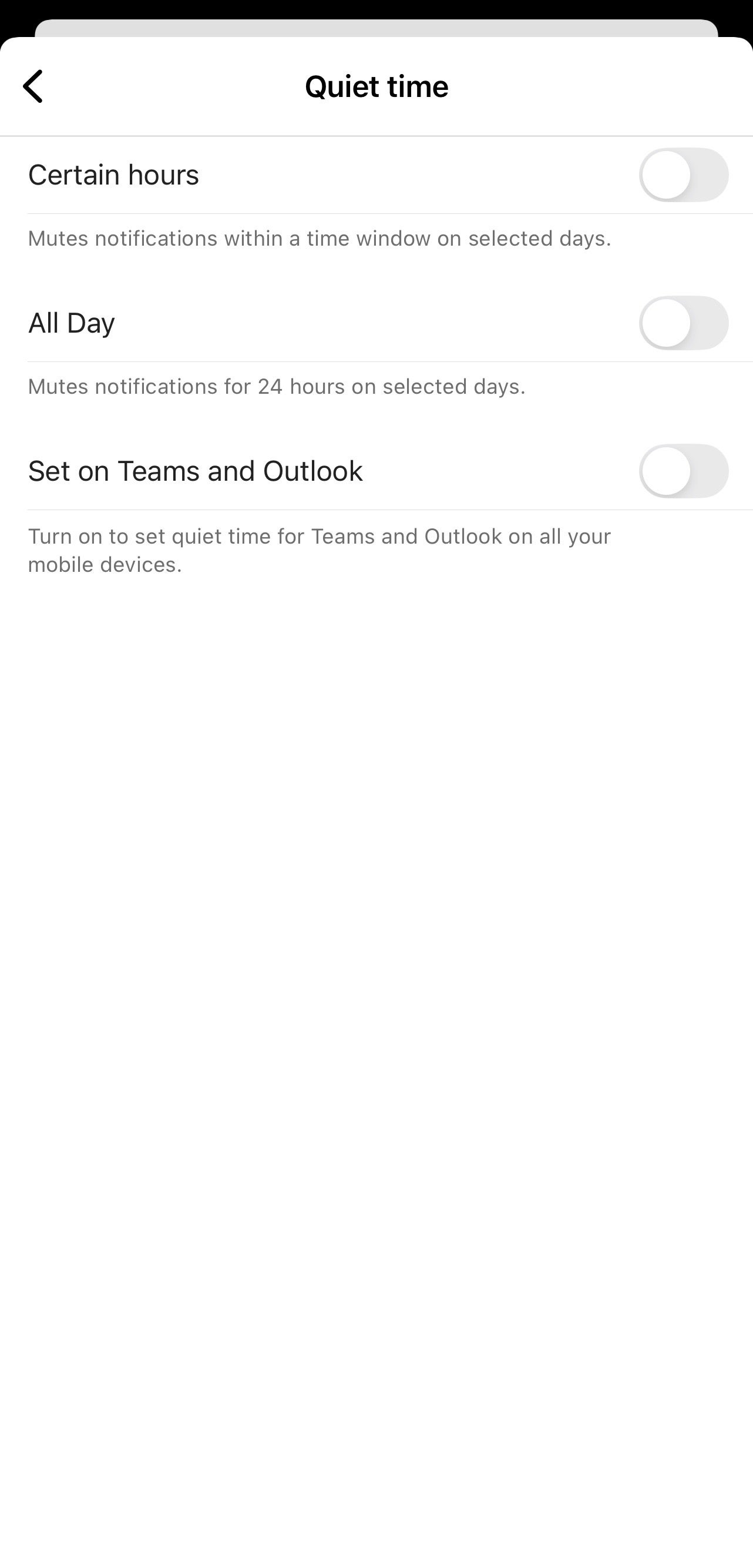
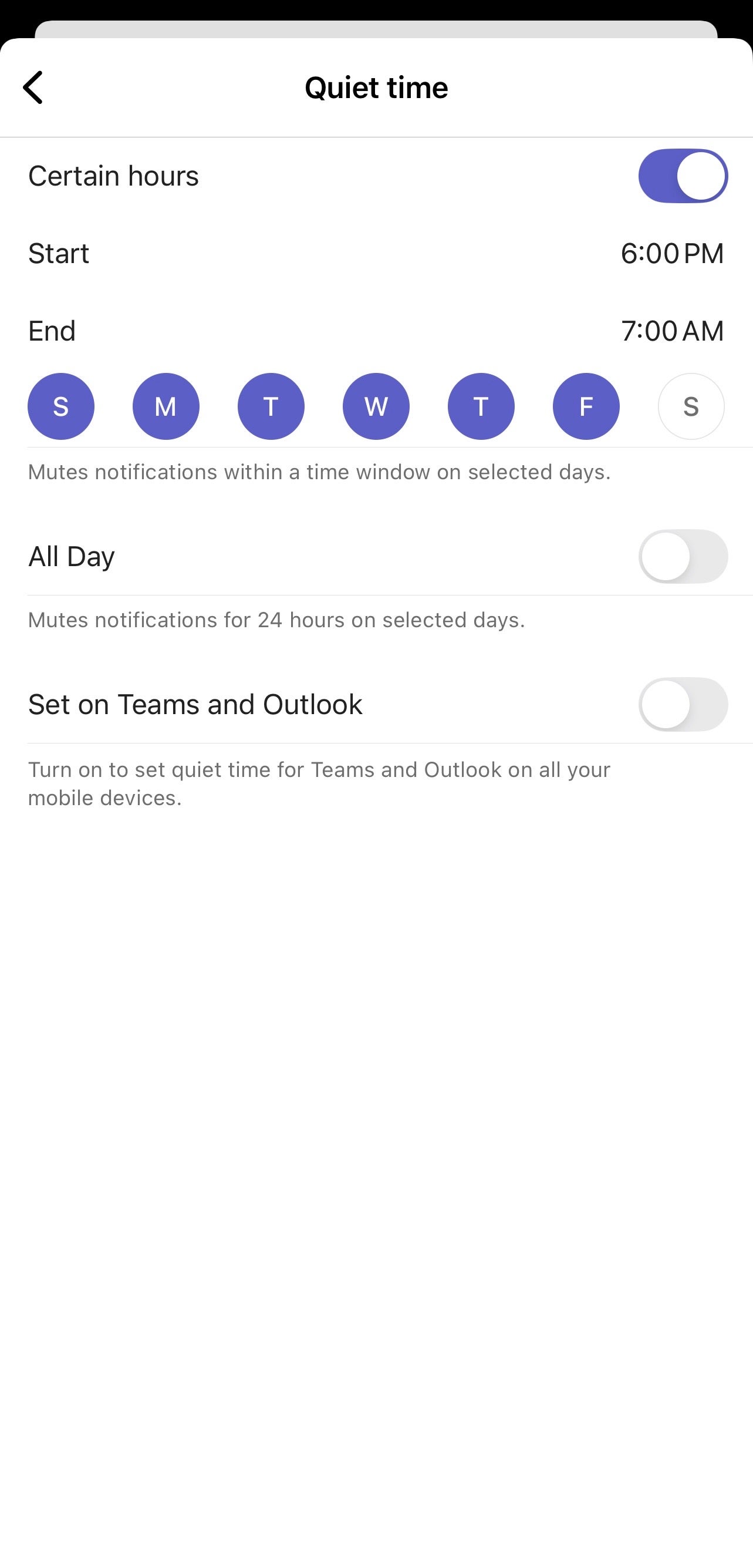
From the Quiet time menu, you can customize when notifications are muted.
Setting quiet hours
Set quiet days
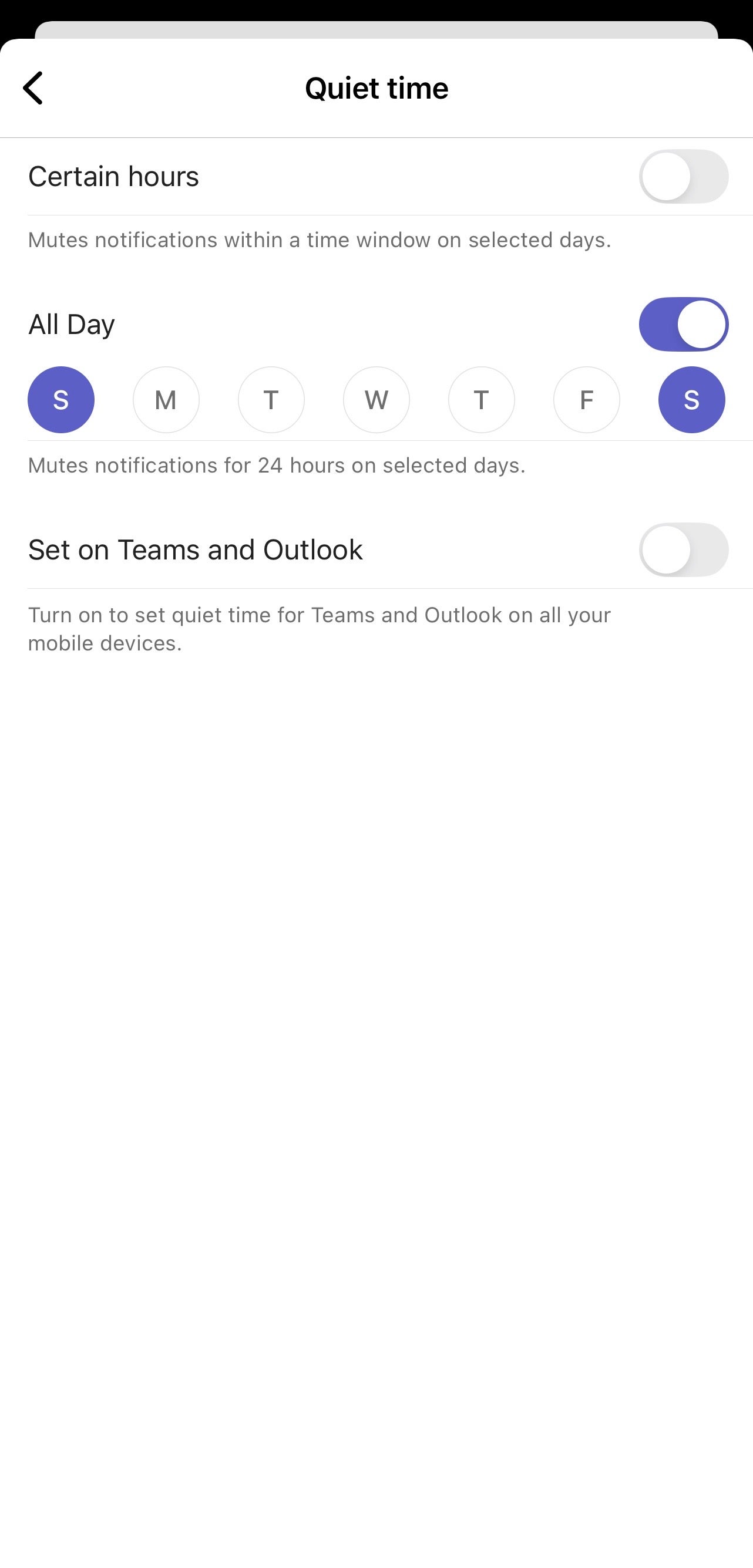
These schedules repeat automatically until you change them.
Sync Quiet time across devices (optional)
You can toggle Set on Teams and Outlook to sync your Quiet time schedule across:
NOTE: Once enabled, syncing cannot be turned off, so only use this if you want one shared schedule across all mobile devices.

Add new comment