

All UIS enterprise and business applications are in service at this time.
Service Status: Green



Too many temporary files can consume valuable storage space. These files accumulate over time and reduce the storage and system resources available for your computer to run efficiently.
If you’re running low on storage space, consider deleting your temporary files to free up space for other files and data. You can choose to delete some or all the temp files, but the process is different depending on the make of your device.
In some cases, Windows will automatically delete temporary files. If they're not automatically deleted, you can safely delete them yourself.
Most programs will create and store temp files in a folder titled C:\Users\AppData\Local\Temp — it’s safe to delete the temp files you find in the Temp folder.
To automate this process, set up Storage Sense on your PC:
1. Type Storage into the search bar next to the Start button.
2. Select Storage settings.
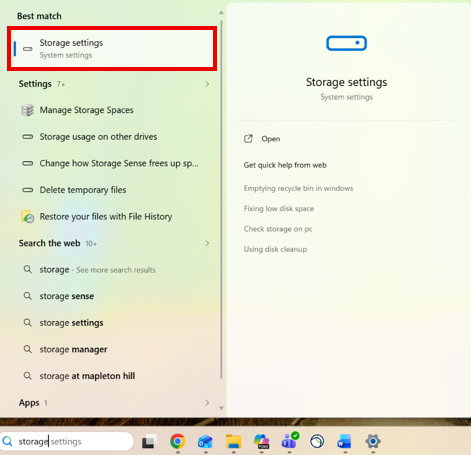
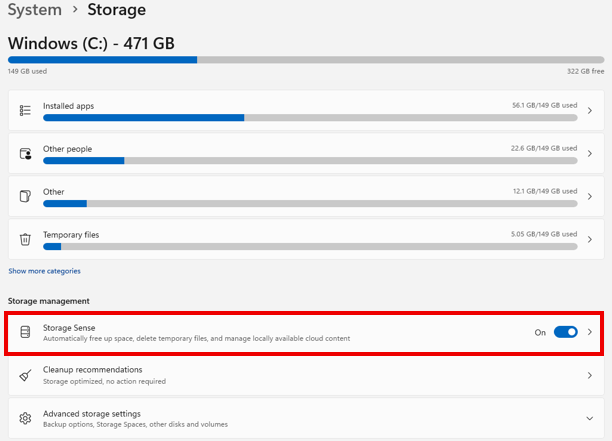
3. Click the slider to enable Storage Sense.
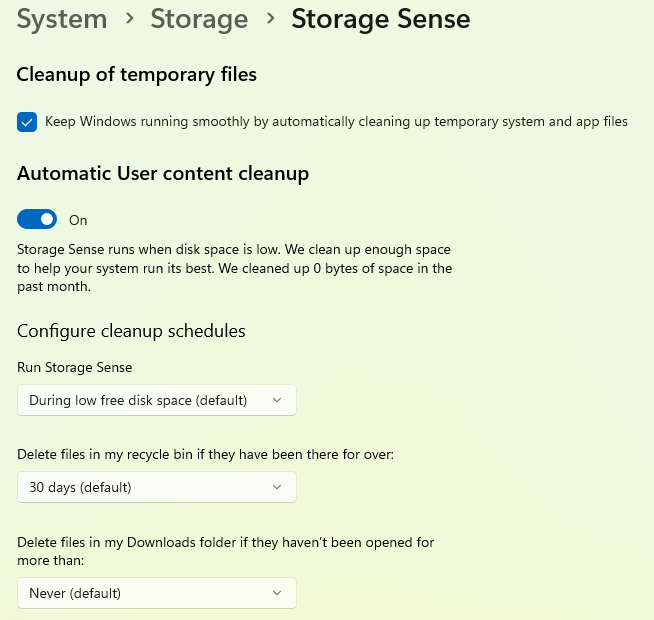
4. From the Storage Sense menu, you can configure it to run at specific times and empty your recycle bin on a schedule
Removing specific categories of temporary files
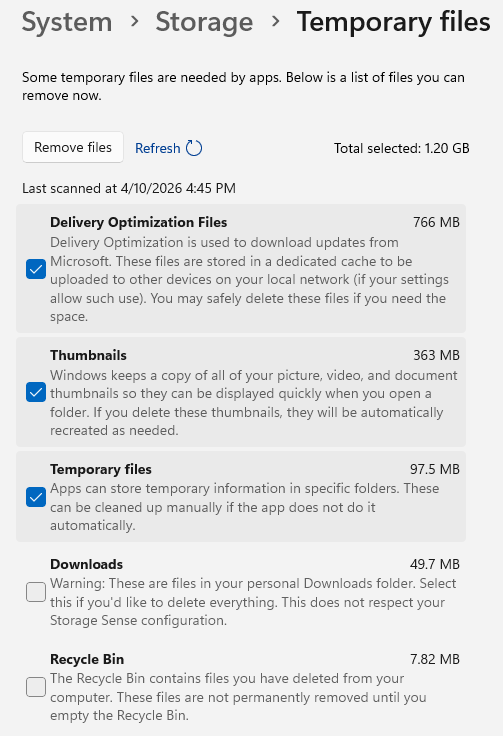
Another option is to select Temporary files from the Storage menu. There, you can find a breakdown of all the temporary files your computer is currently using.
1. From the Storage menu, select Temporary files.
2. Select the checkbox beside the categories you would like to delete.
3. Select Remove files.
On Mac devices, deleting temporary files if often referred to as “clearing the cache.”
There are two main types:
Restarting your Mac and using built-in Storage recommendations are the safest ways to clear temporary data.
Review storage usage
In Storage Settings, you will see a breakdown of Mac storage indicating where there are files that you might want to delete or move to cloud storage, such as OneDrive, in order to free up space.
Manually delete application cache (advanced)
If you are still experiencing difficulties, you can also manually delete temporary files from your Mac.
1. Back up your system.
2. Open Finder.
3. Select Go > Go to Folder.
4. Enter ~/Library/Caches/ and click Go.
5. Open folders and move unnecessary files to Trash.
6. Empty the Trash.

Add new comment