

All UIS enterprise and business applications are in service at this time.
Service Status: Green



Have a meeting on your calendar that conflicts with another commitment, but still want to know what was discussed? Instead of declining outright or marking yourself Tentative and blocking your calendar, try Outlook’s Follow response. Following a meeting lets the organizer know you will not be attending but still gives you access to the meeting chat, recording and transcript afterward.
NOTE: The Follow response is only available on new Outlook for Windows and Outlook for the web.
1. Open the meeting invitation in Outlook calendar.
2. Select the RSVP menu.
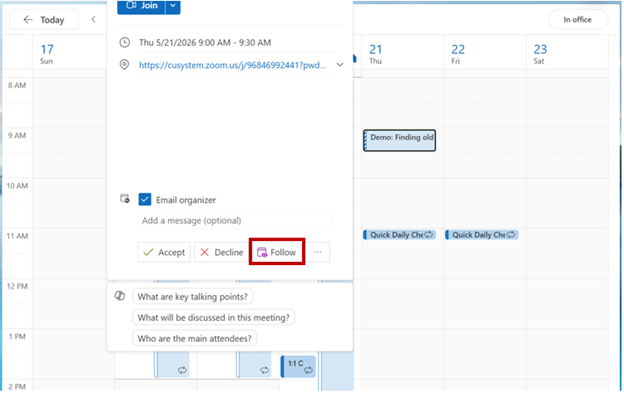
3. Select Follow.
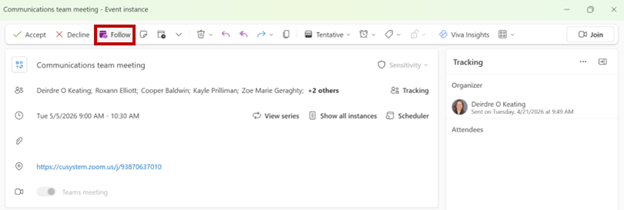
4. Add an optional message to the organizer, then select Send.
When an attendee Follows a meeting you have organized, you will get an email response confirming their choice. At the start of the meeting, Outlook will also prompt you to record it in Teams so attendees who followed it (and anyone else who missed it) can review it later.
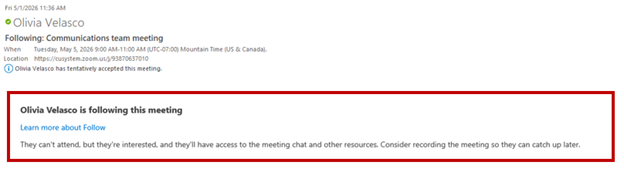
Follow responses are only available in new Outlook for Windows and Outlook on the web. If the meeting organizer is using either of these versions of Outlook, they'll see your Follow response. However, if they're using classic Outlook on Windows, Outlook for Mac, or Outlook on Mobile, your meeting response will appear as Tentative. The feature is also rolling out gradually, so it may not be visible to all users yet.
For more information, visit Microsoft Support’s Follow a meeting in Outlook article.

Add new comment