

All UIS enterprise and business applications are in service at this time.
Service Status: Green



CU System uses Teams Phone for calling and voicemail. By default, incoming Teams Phone calls may ring on your mobile phone or university-issued device. Customize these notifications to prevent disruptions during meetings or outside of work hours.
It is recommended that everyone disable the Play sounds when I’m busy or in a meeting setting to prevent Teams Phone from disrupting meetings. Review the Silence Teams Phone new calls during an active call or meeting tip for specific instructions. If you are waiting for an urgent call, you can re-enable the setting at any time.
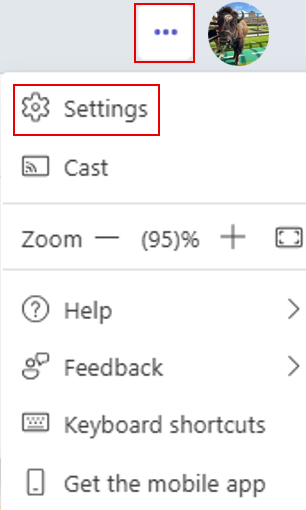
1. In the Teams desktop app, select the three dots icon in the upper right corner and select Settings.
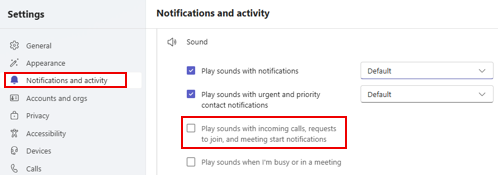
2. Under Notifications & activity, uncheck Play sounds with incoming calls, requests to join, and meeting start notifications.
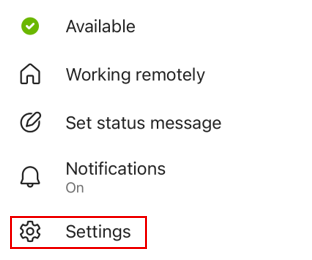
1. In the Teams mobile app, tap your profile picture in the upper left corner, then select Settings.
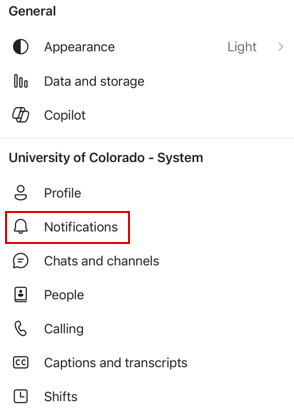
2. Select Notifications.
3. Select Custom.
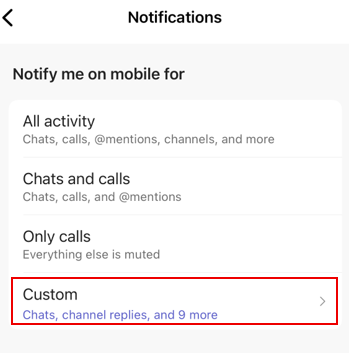
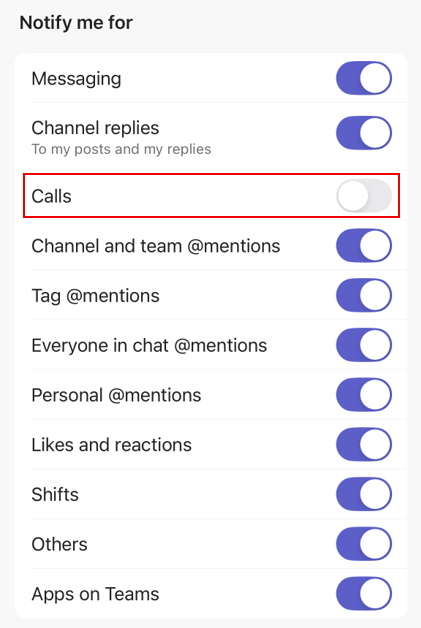
4. Turn off the slider next to Calls to disable the ringer and notifications.
For more information, review the Teams Phone User Guide.

Add new comment