

Production Maintenance Complete for Sunday, Oct. 25, 2026
All enterprise and business applications are in service at this time.
Portal Status: Green



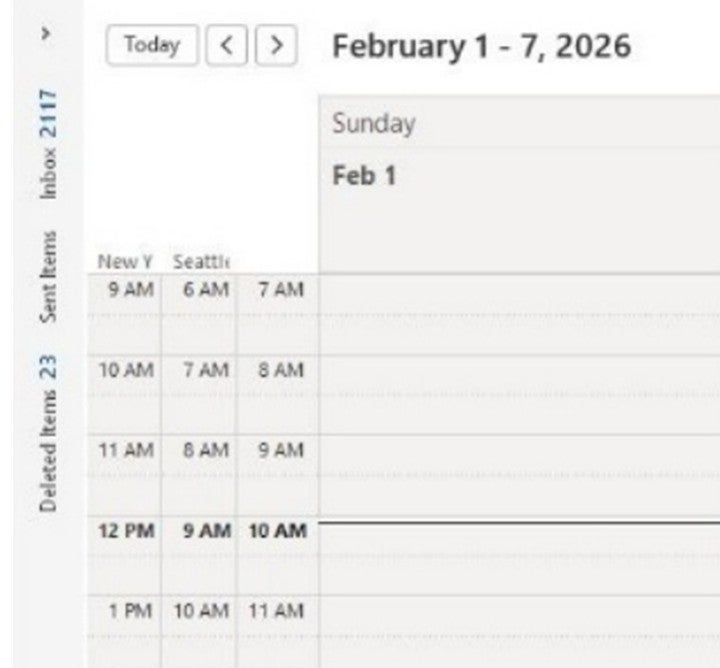
If you or someone on your team works in a different time zone, it can be helpful to have that time displayed in your calendar. Outlook allows up to three time zones to be displayed in Calendar view.
The second and third time zones are used only to display additional time bars in Calendar view and do not affect how calendar items are stored or displayed.
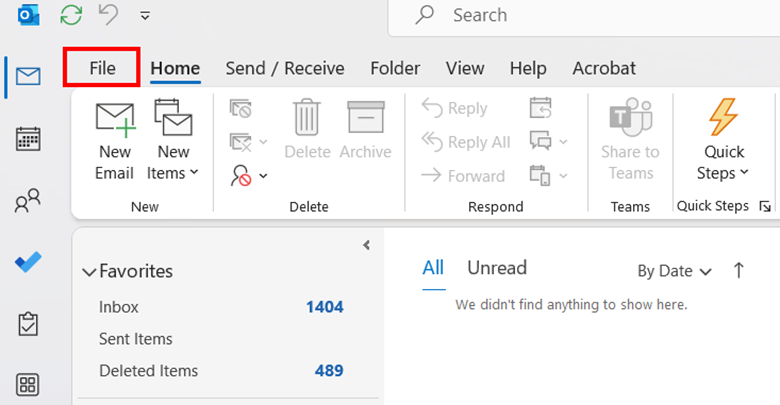
1. In the Outlook desktop app, click File.
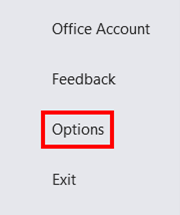
2. At the bottom of the left-hand menu, click Options.
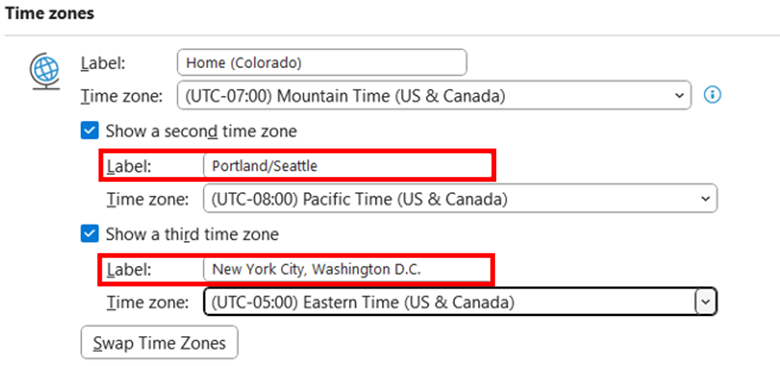
3. From the Calendar tab, under Time zones, click the Show a second time zone checkbox and, if needed, Show a third time zone.
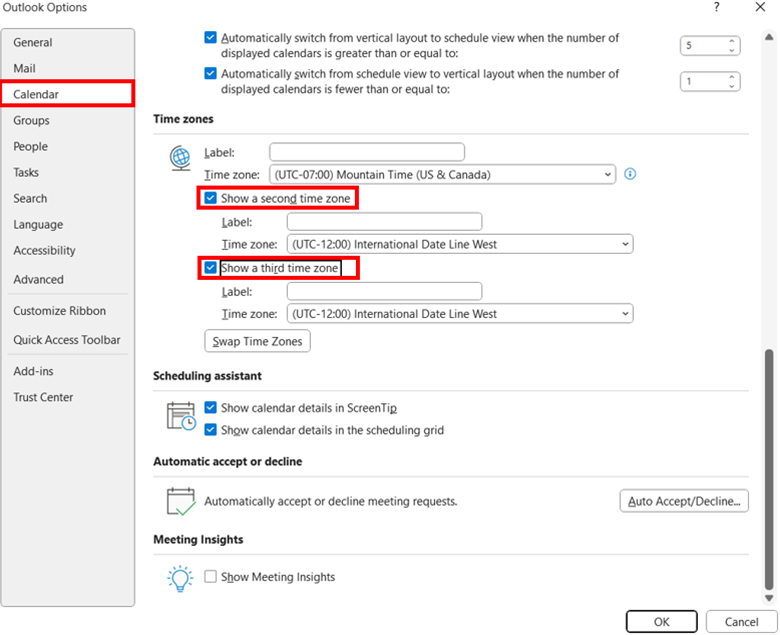
4. In the Label field for each time zone, type a name for the additional time zone.
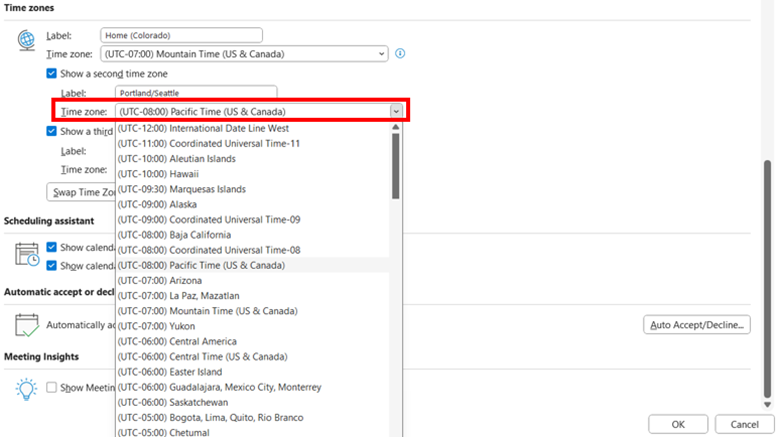
5. Select the time zone you want to add from the Time zone drop-down menu.
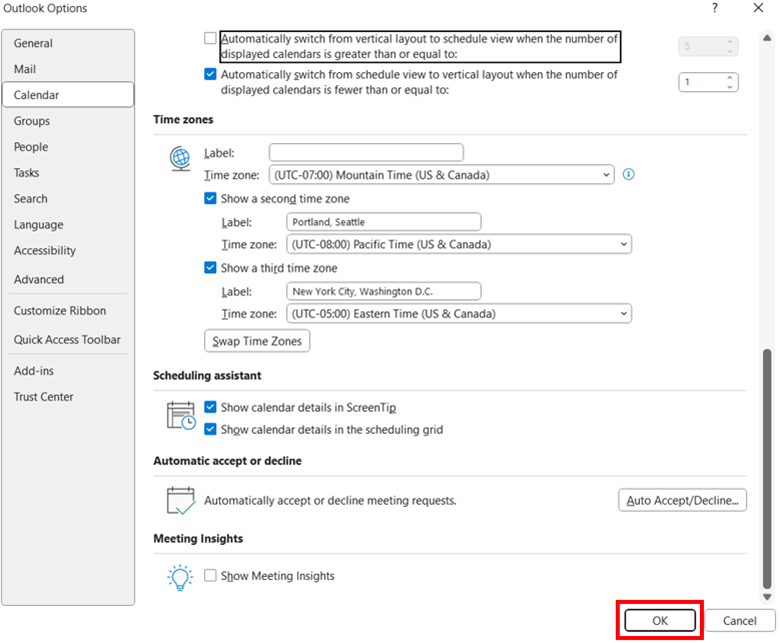
6. Click OK.

Add new comment