

All UIS enterprise and business applications are in service at this time.
Service Status: Green



Images and graphs can visually enhance a document. However, many people rely on screen readers and other assistive tools to navigate their daily work. That’s why every image in your document should include alt text, or alternative text.
Without alt text, screen readers skip images and readers miss essential context.

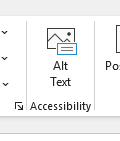
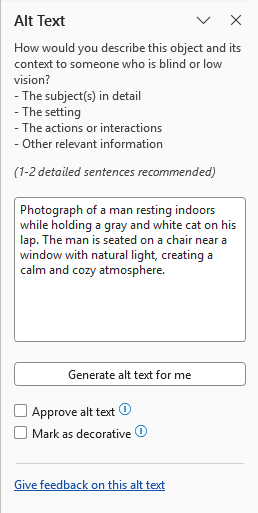
NOTE: Alt text is saved with the Word document, not the image file — so if you use the image elsewhere (in an email, on a website, or in another program), you'll need to add alt text again in that context. It does carry over when you export the document as an accessible PDF.
Learn more about writing alt text and other accessibility practices at the CU Boulder Digital Accessibility Office website.

Add new comment