




CU System Encrypted Email Support
Purpose
This FAQ walks you through how to read an encrypted email from a CU System Administration department.
Last updated: 8/31/2026
I received a message saying Read Secure Message. What do I do next?
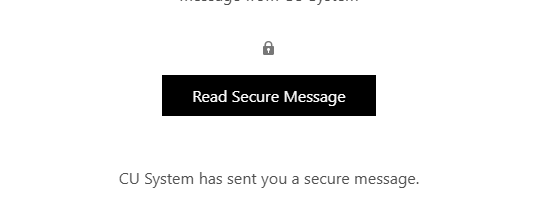
Select the Read Secure Message button.
Choose to sign in through your associated email account such as Microsoft or Google. You can also elect to receive a one-time passcode.
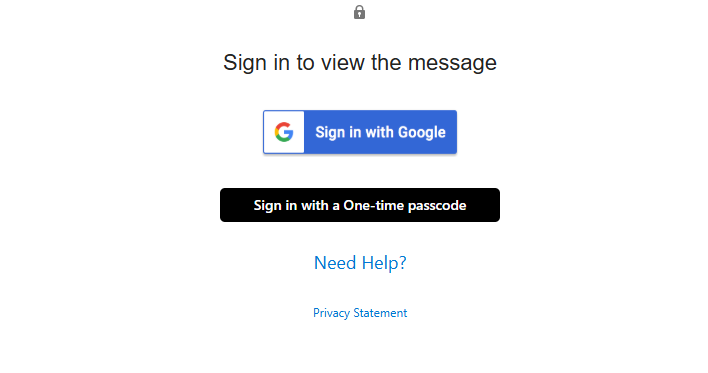
Why can I receive a one-time passcode?
A one-time passcode ensures that the intended recipient is the only one who can access confidential or highly confidential information. A one-time passcode is only sent to the email address to which the encrypted message was originally sent.
Will the reply remain encrypted?
When a recipient selects Reply or Reply All from an encrypted message, the response is typically sent back through the same protected conversation and retains the encryption applied to that message thread.
Example Scenario:
- A CU employee sends a Highly Confidential encrypted email to a Gmail user.
- The Gmail user opens the message through the secure portal.
- The Gmail user clicks Reply.
- The reply is sent back through the protected conversation.
- The CU employee receives the response as an encrypted message.
Can recipients remove the encryptions?
Generally, no. When replying directly to an encrypted message, the encryption remains associated with the conversation.
However:
- Starting a new email creates a new message that is not automatically encrypted.
- Forwarding behavior depends on the permissions assigned to the original message.
- If a user copies information into a separate email thread, that new message may not inherit the original encryption settings.
Only replies within the encrypted conversation automatically remain protected.
If a recipient creates a brand-new email instead of replying to the encrypted message, the new email will not automatically be encrypted unless encryption is separately applied.
I cannot open the encrypted email. What do I do?
There are several common causes:
- The recipient has not completed the authentication process.
- The recipient used the wrong email account.
- The recipient's message-access link has expired.
- The recipient is attempting to open a protected attachment with an unsupported application.
- The recipient is opening the message from a security product that blocks the authentication page.
Take these steps to access the email.
- Open the notification email.
- Select Read the Message.
- Authenticate using the prompts presented, ensuring you are using the email account the encrypted email is addressed to.
- Try opening the message from another browser, if necessary.
I requested a one-time passcode and never received it. What do I do?
If you requested a one-time passcode to view the encrypted email but did not receive it:
- Check your Junk or Spam folder.
- Confirm you are checking the same email address the encrypted message was sent to.
- Wait a few minutes and request a new passcode.
- Ensure your organization's email security system is not blocking Microsoft's passcode messages.
If the passcode still does not arrive:
- Try again using a different browser.
- Authenticate with an existing Microsoft work, school or personal account, if available.