Monthly License Change Requests [1]
THIS WIKI HAS BEEN UPDATED SIGNIFICANTLY AS OF APRIL 2026, WITH PROCESS CHANGES PRECEEDED BY THE WORD 'CHANGE'. PLEASE ONLY SUBMIT REQUESTS AFTER COMPLETING TRAINING (INSTRUCTIONS & VIDEO BELOW) AND THE ASSOCIATED QUIZ.
This resource is designed for eComm specialists who are responsible for submitting provisioning and deprovisioning requests for their campus. Learn how to submit requests while being mindful of important deadlines and details that affect the user experience.
Recorded Training | April 22, 2026 [3]
The recording is only accessible to eComm specialists with SharePoint access.
Exceptions to the following process and timelines CANNOT be accommodated.
Provisioning Requests
CHANGE: eComm specialists can submit access request changes once:
- the new user's contact record in Salesforce has the correct employee details, including:
- Their university email is populated in a university email field (for example, a CU Boulder employee should have a UCB Email populated)
- They have an employee ID
- They have an active CU Employment record*
- the new user has completed pre-access requirements [4]
- including a signed new user eComm agreement (which can be verified by them being in the 'eComm User Agreement' Campaign) and
- completed Percipio courses (they should have provided you with a screenshot of their learning transcript)
The System team addresses requests submitted by the end of the month in a single batch during the first week of the following month, where new users get their credentials and training materials around the 5th.
*Common Troubleshooting | Duplicates & eComm Agreement
Sometimes the eComm agreement could have matched to a duplicate Contact and the MEC cannot request provisioning on the correct Contact. MECs can resolve this by:
- Correcting User Behavior (if relevant)
- If the user signed the agreement with an email other than their full university email (Identikey or abbreviated email), it may result in manual intervention at this phase and when they complete the quiz. The sooner we correct the user, the better.
- Submit a Data Change Request (DCR) [5] ASAP
- It’s worth checking for and fixing duplicates as early in the month as possible (before submitting the request). Depending on the case, the DCR may resolve in a week but could take longer. If the DCR is resolved, you can submit the provisioning request.
- Manually add the correct contact to the Campaign: 08_20340227_eComm User Agreement
- Only do this after submitting the DCR and confirming they signed the agreement.
- This should ONLY be done when the DCR has not been resolved yet and submitting the provisioning request is urgent.
Submit Provisioning Request
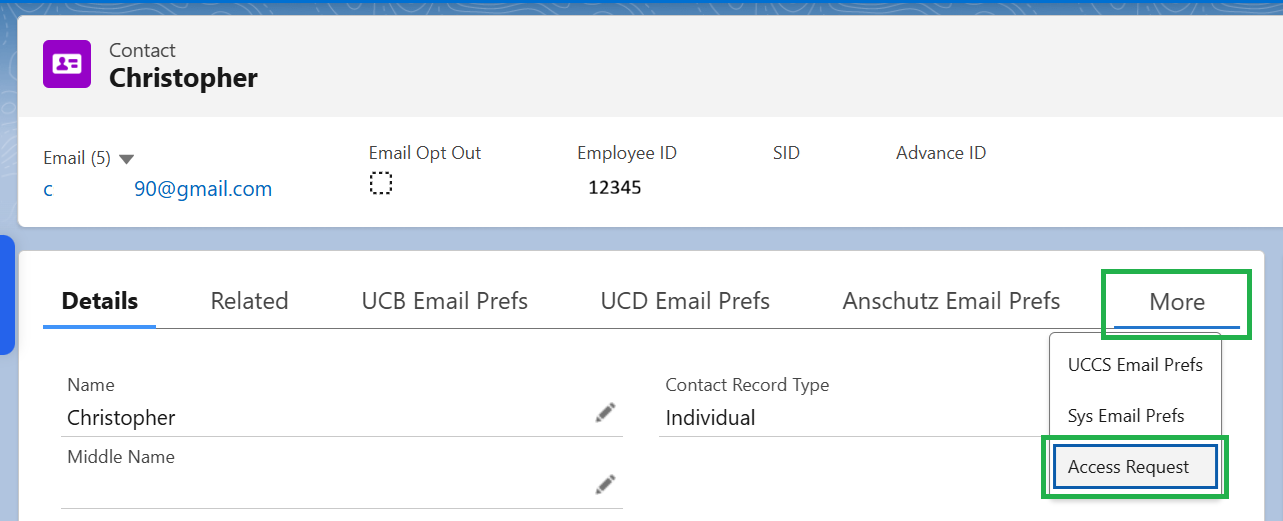
- CHANGE: Navigate to the More tab >> select Access Request in the dropdown
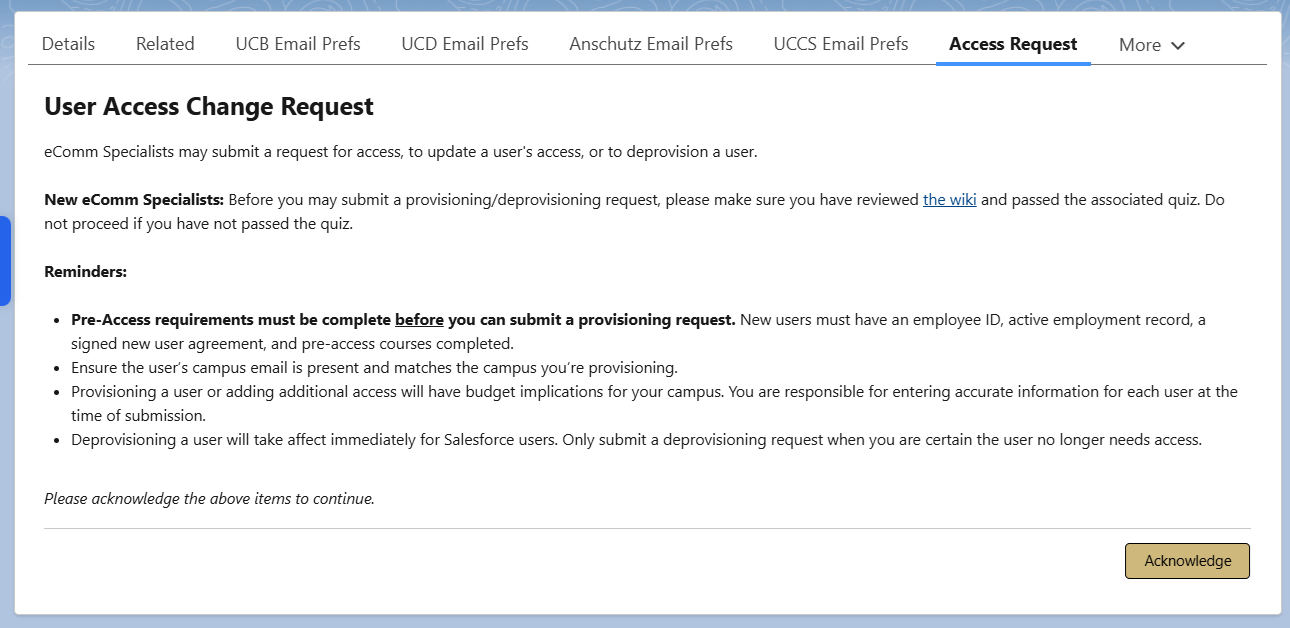
Acknowledge
- Please read through the User Access Change Request details and reminders.
- Then select the Acknowledge button in the bottom right.
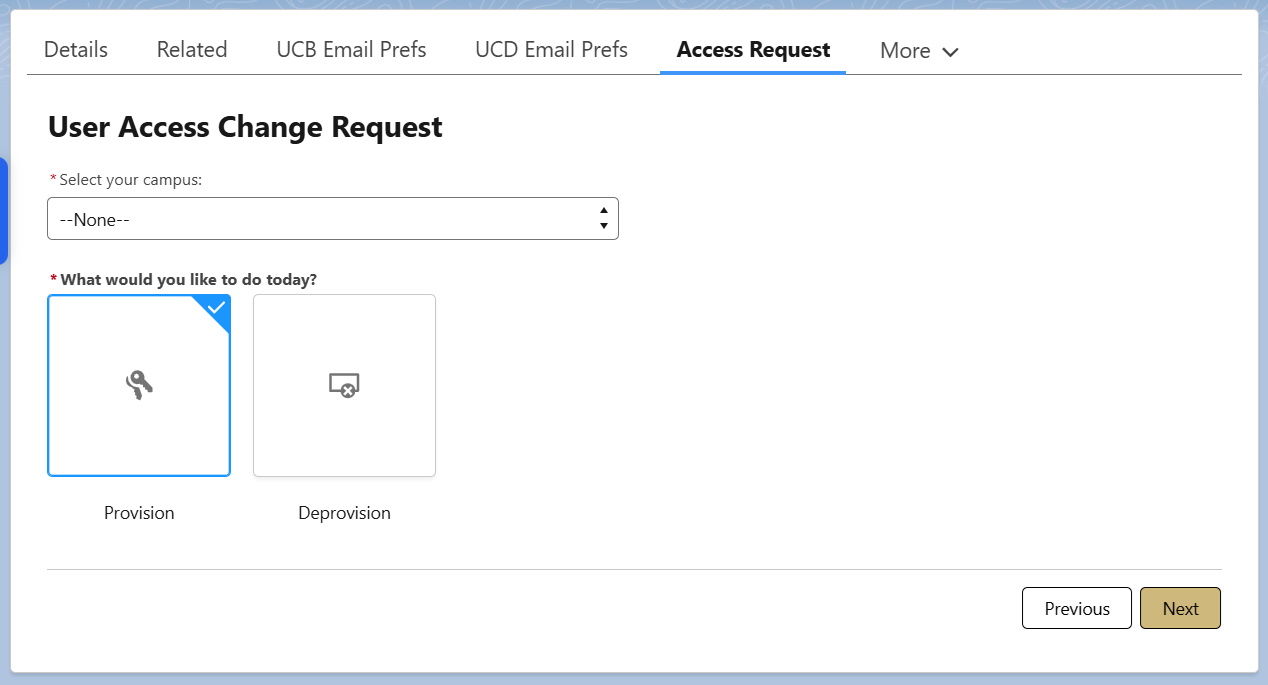
- Select your Campus - this field will auto-populate fields in the following screens
- Choose Provision and select the Next button
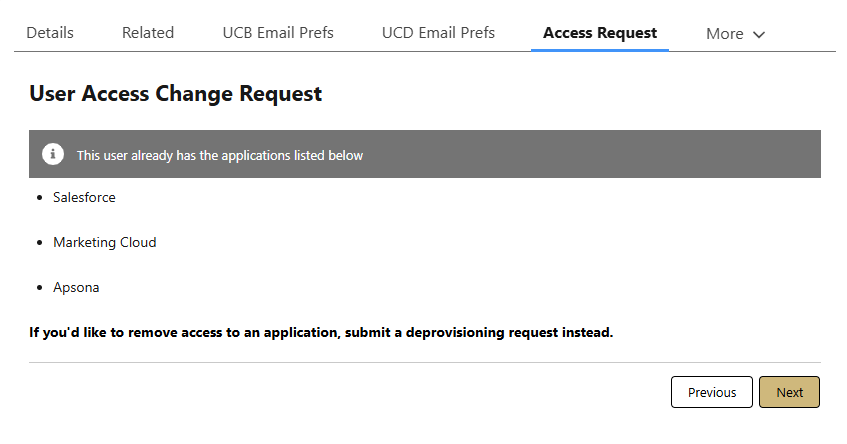
- Review details of current access (if relevant) and select the Next button. If they do not currently have access, you will not see this step.
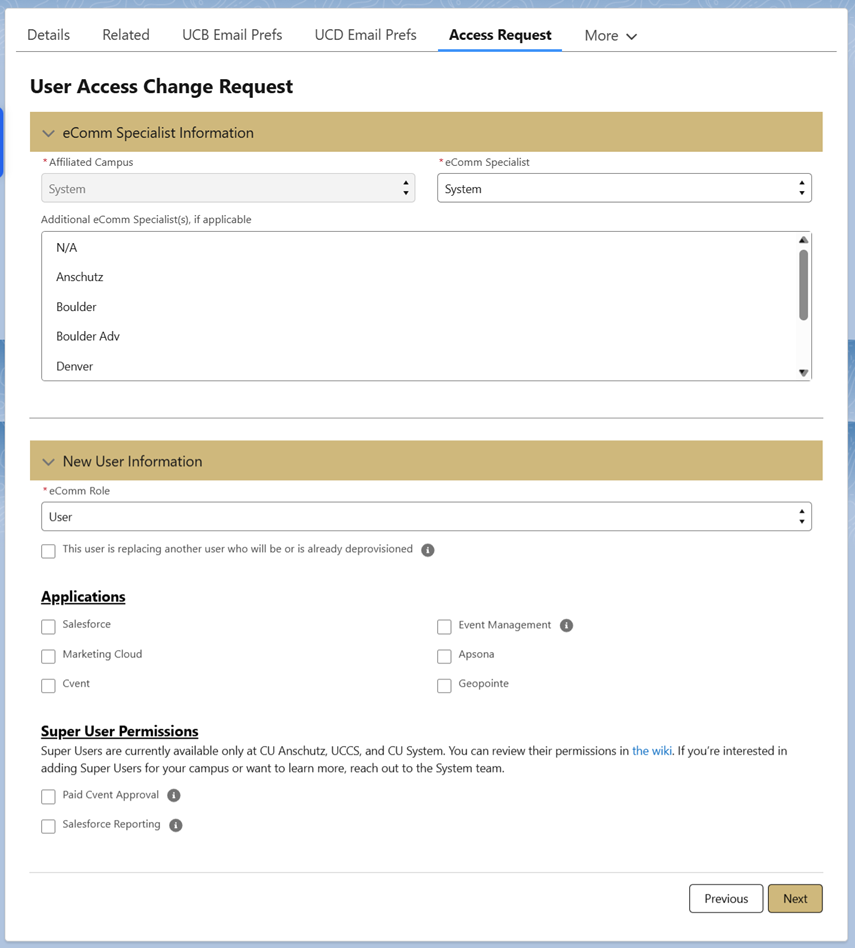
eComm Specialist Information
- Affiliated Campus
- This is the campus you selected in the previous screen. If you need to change it, you will need to select Previous
- eComm Specialist
- Will default to the campus based on the Affiliated Campus field
- Additional eComm Specialists | This is only applicable in cases where a user is supported by multiple eComm specialists
New User Information
- eComm Role
- The default is 'User'
- Indicate 'User' for basic users.
- Indicate 'User' for Super Users. The system eComm team should have advanced awareness of new Super Users to ensure certain licences are available (and procure more if needed).
- Indicate 'MEC' if this is a new eComm Specialist. The system eComm team should have advanced awareness of a new eComm specialist to coordinate training and ensure certain licences are available (and procure more if needed).
- This user is replacing another user who will be or is already deprovisioned | Not checking this box indicates a 'net new' license, rather than being billed for a single license that different people have used throughout the year.
- After checking the box, you'll find the names of fellow campus users* they are replacing. Start typing a name to narrow the list down.
- *You'll only see users who have the same campus as the user being provisioned.
- Applications
- If Cvent is selected, an option for Cvent Add-ons will display. Add-ons should already be contracted for before requesting access.
- Super User Permissions
- Super users for Paid Cvent Approval and Salesforce Reporting are only available at CU Anschutz, UCCS, and CU System currently. If you have interest, discuss with the System team.
- Select the Next button
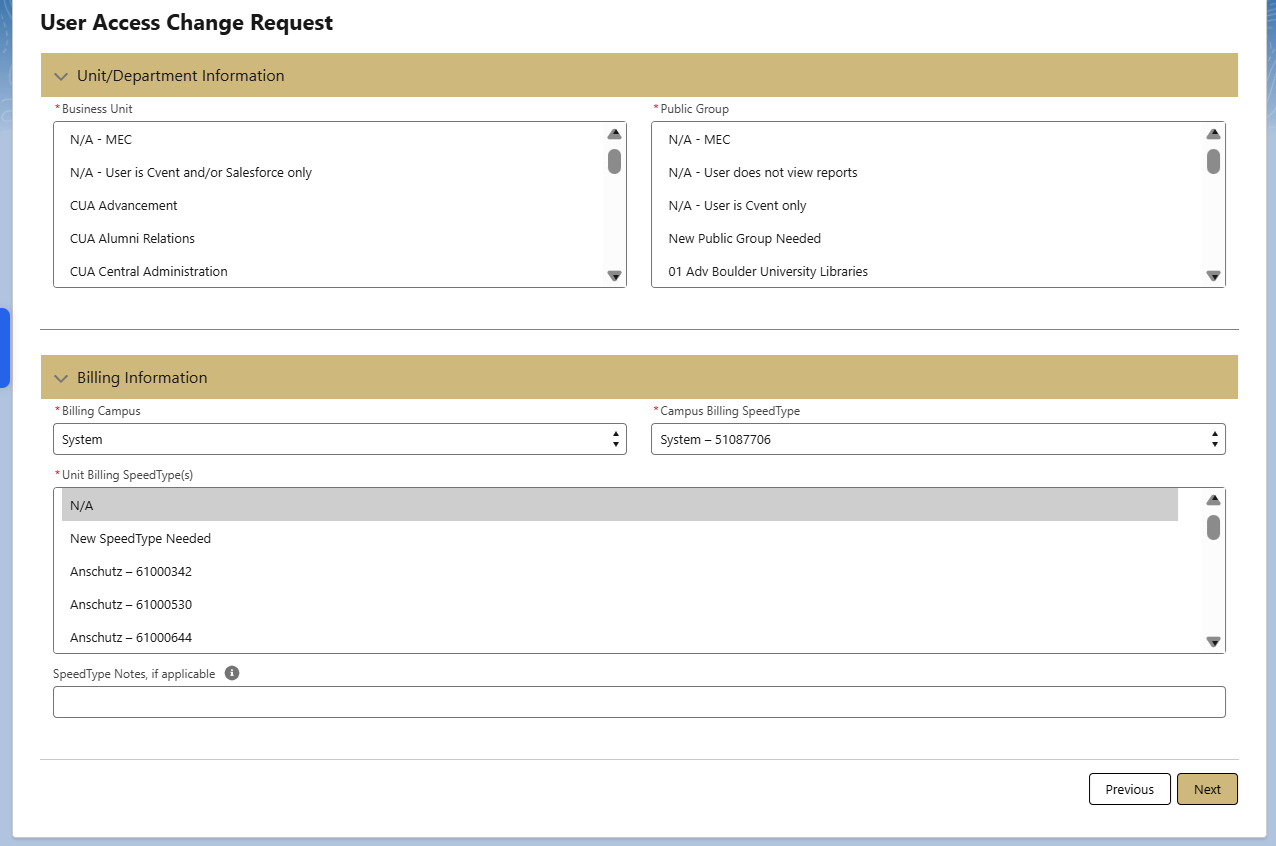
Unit / Department Information
- Business Unit
- You may select more than one public group by holding down the control (CTRL) key and selecting additional options. Review your selections before you move on - if you accidentally click without selecting control (CTRL), it will clear out your other selections.
- Public Group
- You may select more than one public group by holding down the control (CTRL) key and selecting additional options. Review your selections before you move on - if you accidentally click without selecting control (CTRL), it will clear out your other selections.
- New Public Group (if applicable)
Billing Information
- Billing Campus
- Defaults to the campus you selected when you started the request, however, you can change it here.
- Campus Billing Speedtype
- Defaults to the campus you selected when you started the request, however, you can change it here.
- Unit Billing Speedtype(s)
- Speedtype Notes (if applicable) | Notes are generally not needed, aside to clarify: 12345 should be billed 20% and 98765 80%
- Select the Next button
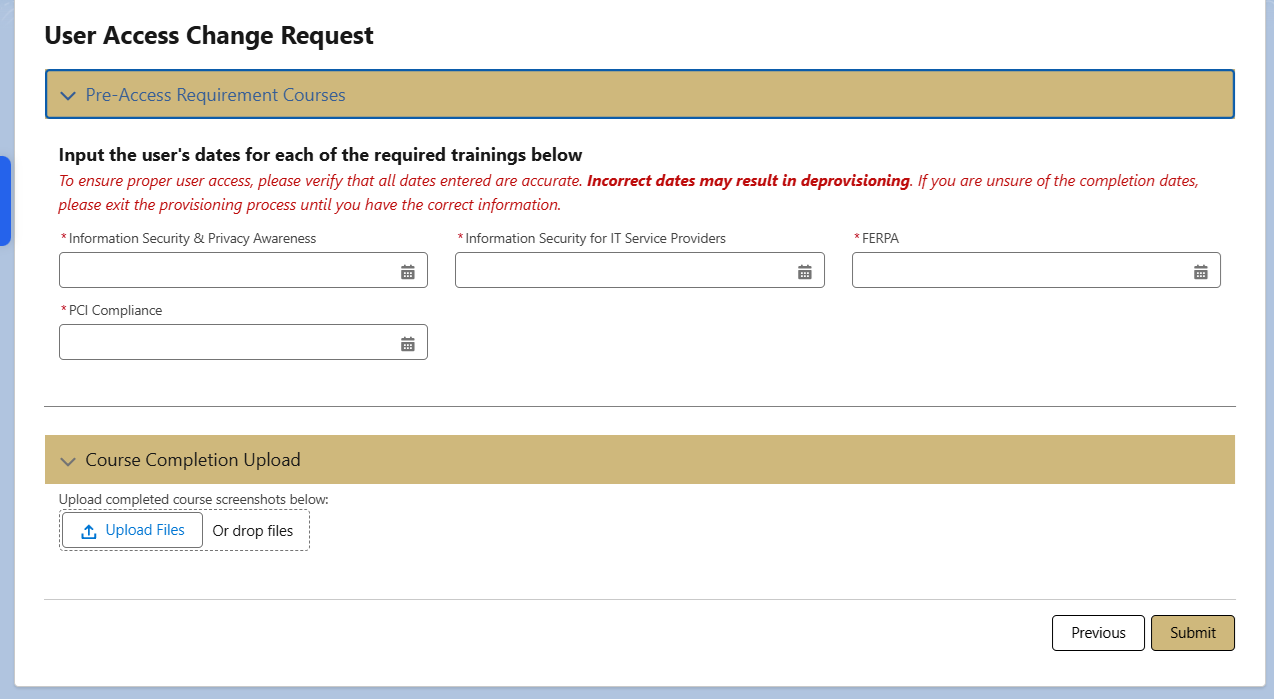
Pre-Access Requirement Courses
- Populate course dates based on transcript (upload below). If courses are out of date, you cannot submit the request.
- Upload the screenshot for the course completion. When the file is uploaded, a green banner will appear indicating success.
- Click the Submit button.
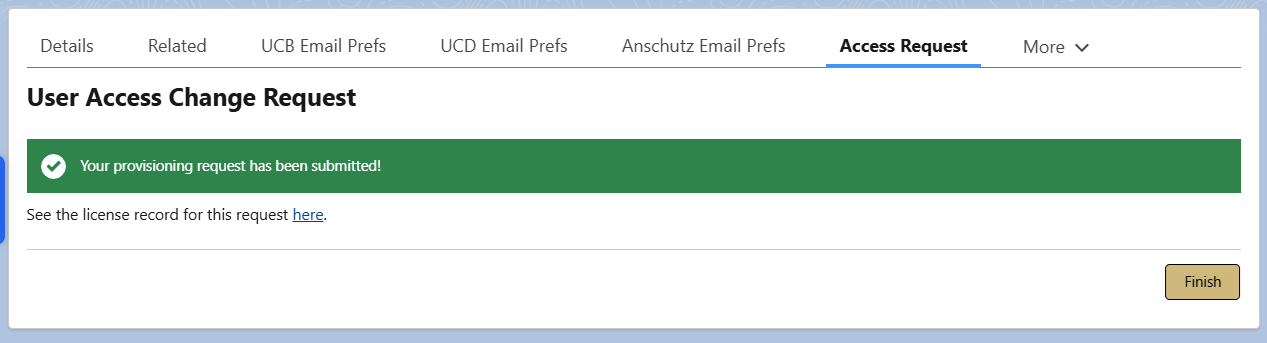
Request Complete
- Once submitted successfully, a final page with a green banner will appear. You can view the request if desired.
- Select Finished or navigate away from this page.
What is 'Net New'?
When you look at a license, you may see the "Net New" box is checked. This is important for billing purposes. The Net New field on the license object will automatically be checked if you provision a new user and do not indicate they are taking a license from a soon-to-be or recently deprovisioned user.
When the fiscal year (July 1) begins, document the number of licenses you have for each application. Any licenses that you request throughout the year that exceed these original counts are considered 'net new'. For example:
- If a licensed employee leaves and the new position is filled, you likely will submit a deprovisioning request and a provisioning request. Swapping a license like this will not be 'net new'.
- Suppose a group decides to no longer use eComm (resulting in one deprovisioning request) and a different group decides to start using eComm (resulting in one provisioning request). In that case, this license swap will not be 'net new'.
- If a new group decides to start using eComm or an existing group expands (resulting in provisioning requests), this will increase your original license counts and is 'net new'.
License Update
PLEASE DO NOT DO THE FOLLOWING UNTIL SEPT. 11 2026.
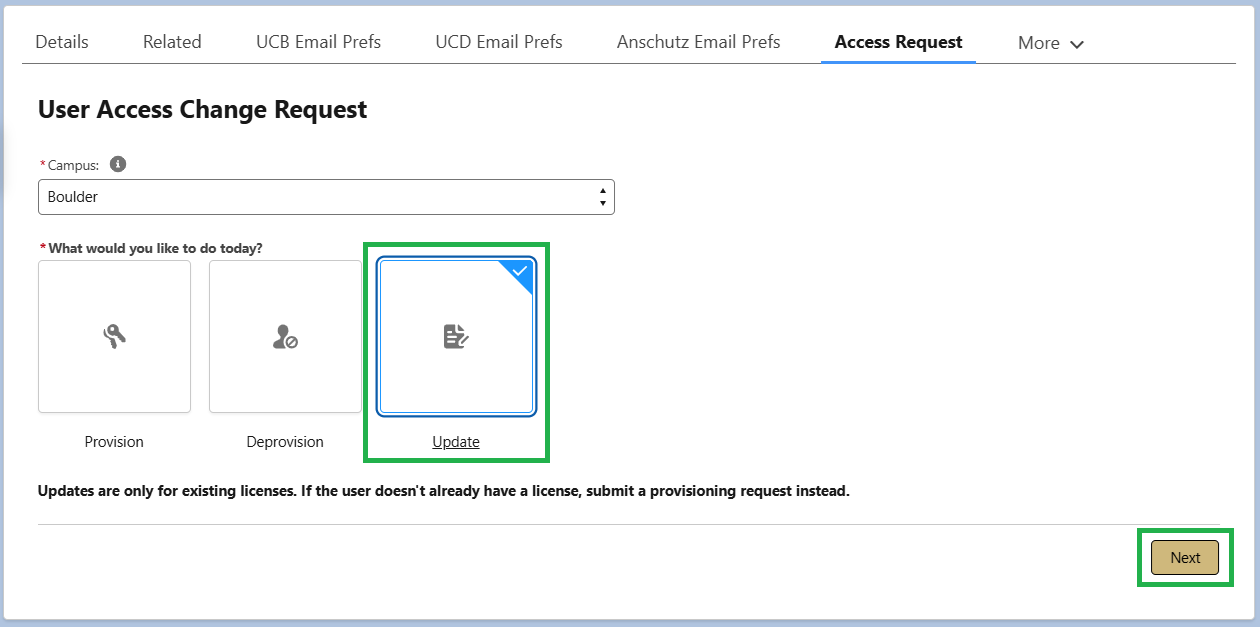
Updates are only for existing licenses. If the user doesn't already have a license, submit a provisioning request instead.
- After navigating to the Contact > select the Access Request tab > select Update > click the Next button
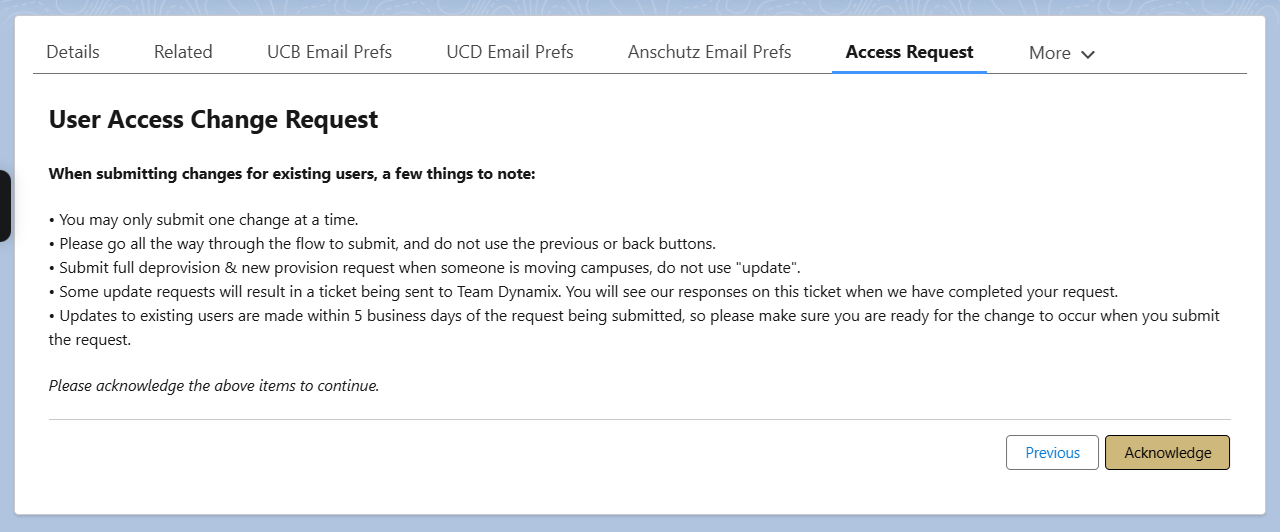
- Review the following items and select the Acknowledge button
- You may only submit one change at a time.
- Please go all the way through the flow to submit, and do not use the previous or back buttons.
- Submit full deprovision & new provision request when someone is moving campuses, do not use "update".
- Some update requests will result in a ticket being sent to Team Dynamix. You will see our responses on this ticket when we have completed your request.
- Updates to existing users are made within 5 business days of the request being submitted, so please make sure you are ready for the change to occur when you submit the request.
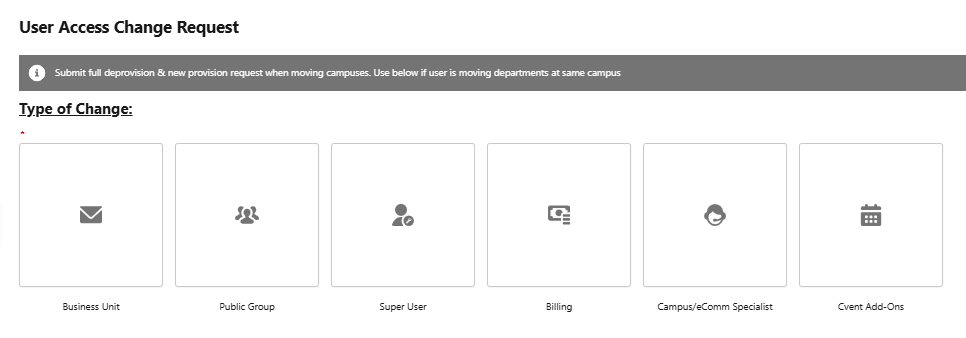
- Select the change you wish to make >> click the Next button
- The following changes will create a TeamDynamix ticket and will be addressed in 5 business days:
- Business Unit
- Public Group
- Super User
- Cvent Add-On
- The following changes will occur automatically:
- Billing
- Campus/eComm Specialist
- The following changes will create a TeamDynamix ticket and will be addressed in 5 business days:
View License Details
View Individual License Record
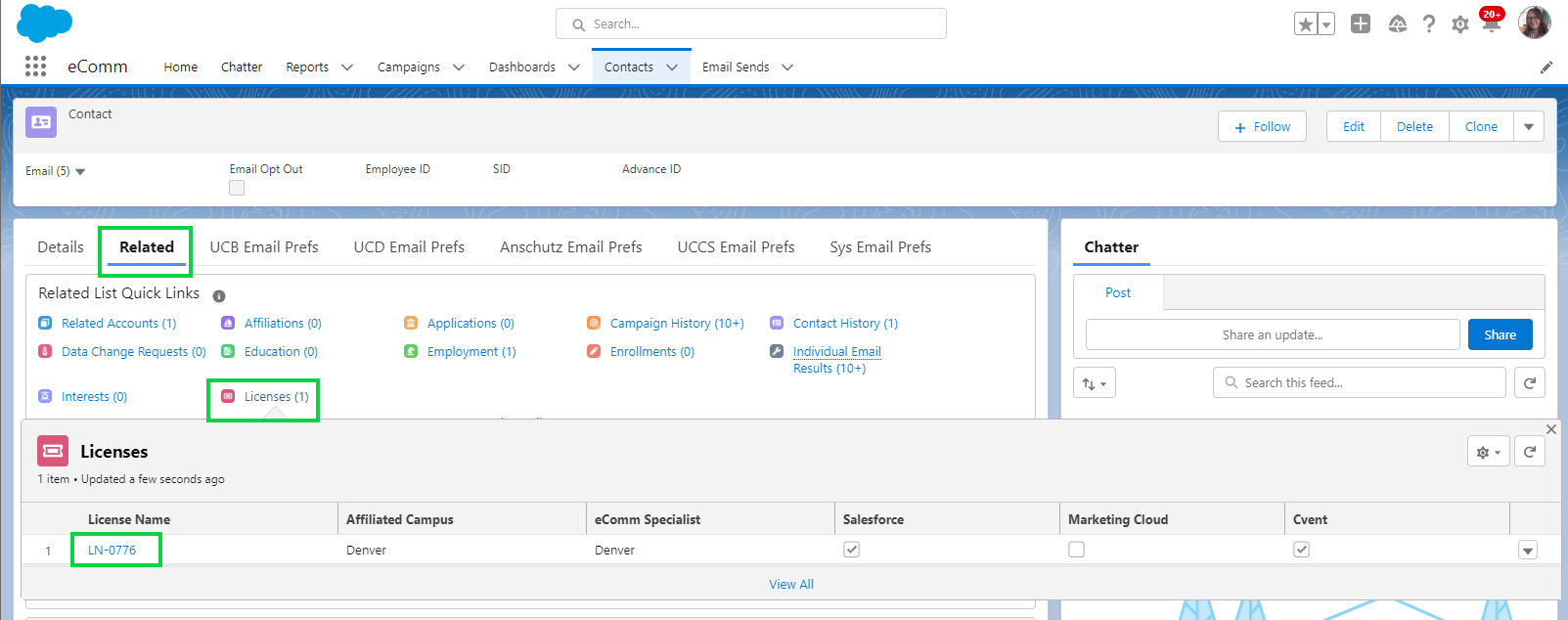
- After opening a Contact, navigate to the Related tab
- Hover Licenses and select the License Number to see the full License record
Change User Business Unit or Public Group Access (off-cycle)
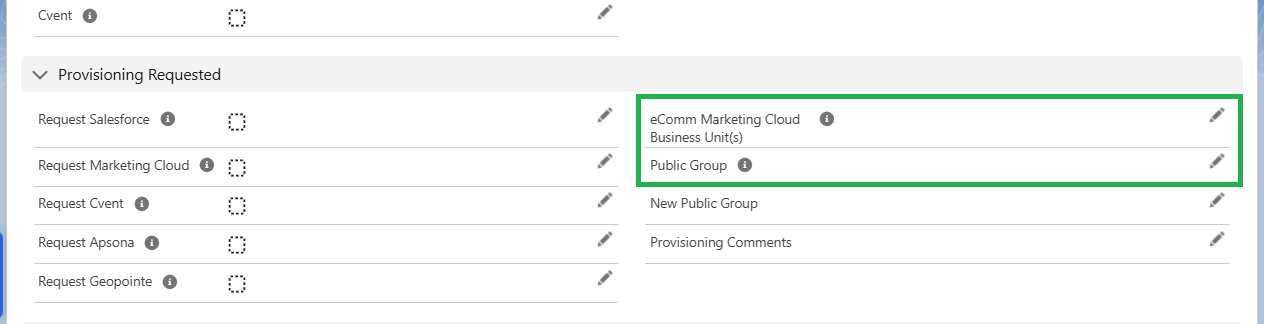
eComm specialists can request that an existing user be placed in different Business Units or Public Groups, without waiting for the monthly cycle. To do so:
- Use the instructions above to find a license
- Submit a help ticket [6] including details:
- User Name & URL to License Record
- Business Unit(s) / Public Group(s) to add
- Business Unit(s) / Public Group(s) to remove
- You will be notified once the request is complete
View Pending Requests
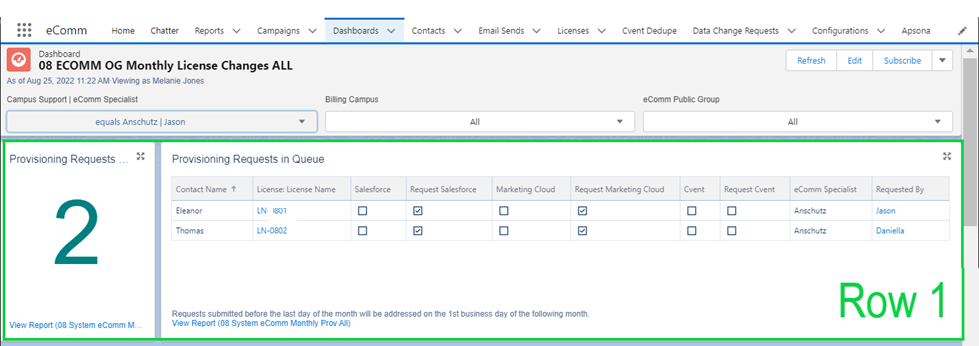
- Pending provisioning requests can be viewed on the first row of the license dashboard [7]. These will be addressed the following month, with new users getting credentials around the 5th.
View Existing Users
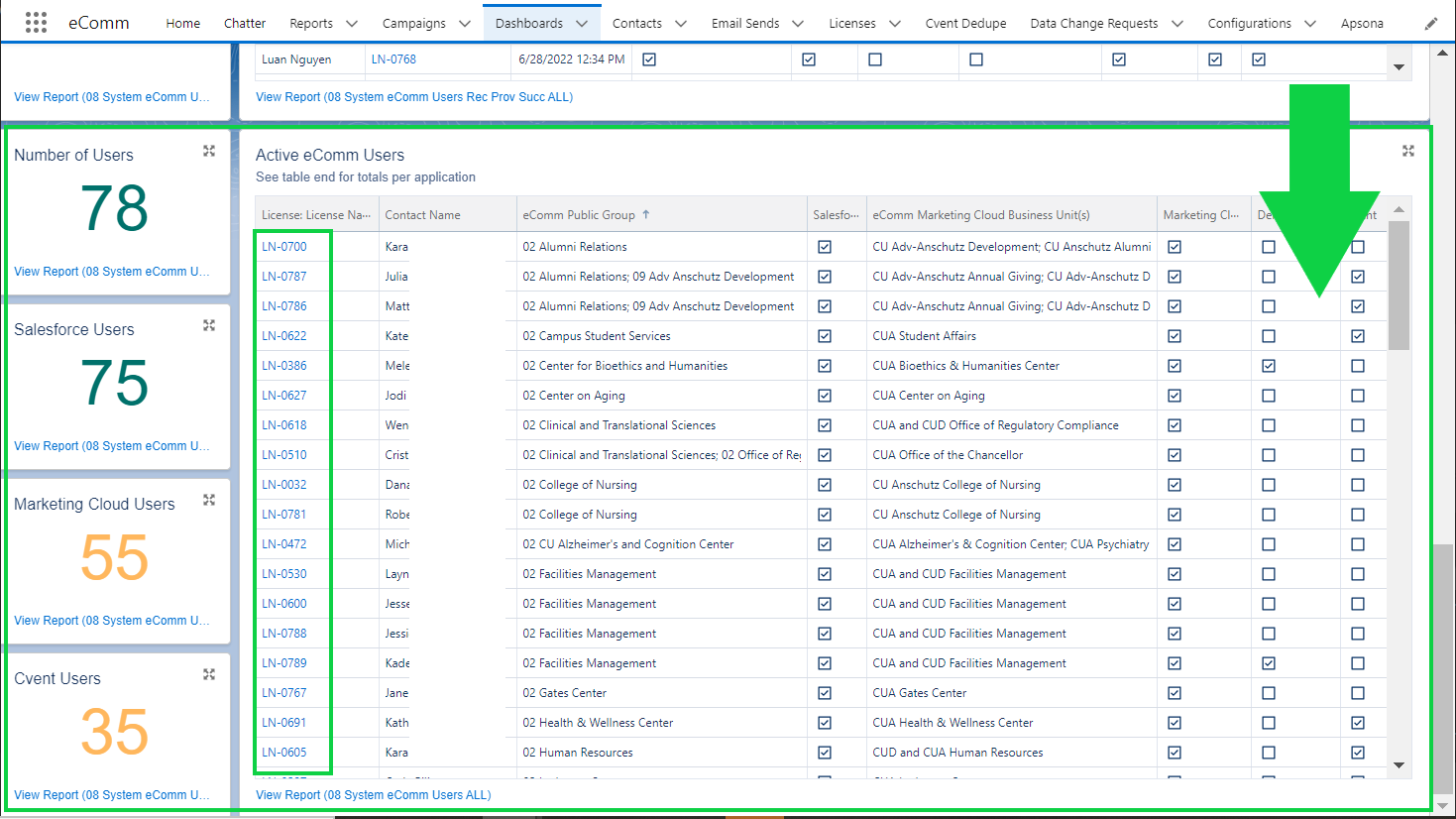
- To view a list of your active users, view the license Dashboard [7], scroll to the last row
- View active licenses and select the license number to see full details
Important Timing
Provisioning
Last Day of the Month
- Provisioning requests MUST be provided by the last business day of the month to be addressed during the first week of the following month.
- eComm specialists are encouraged to confirm a new user's contact has employment details populated correctly as early as possible (see Provisioning Requests section for full details). Fixing this requires coordination with campus HR and/or OIT, which may take a few days.
Around the 5th of the Month
- New users can anticipate credentials around the 5th of the month.
- eComm specialists are CC-d on the first new user emails, including credentials, reminders to complete the quiz, and when they complete the quiz.
Deprovisioning
60 Days After Getting Provisioned
- New users who fail to complete training and the quiz after 60 days should be deprovisioned (per the user agreement). The eComm specialist should 1) intervene when CC-d on 4 reminders to complete the quiz and review ROW 3 of the license Dashboard to see when the 60 days have passed.
Six months After Not Logging In
- Users who do not log in for six months should be deprovisioned (per the user agreement). eComm specialists are encouraged to audit this information in each tool.
Percipio Course Compliance
- Users must re-take the pre-access Percipio courses every 1-2 years. The system office automatically sends annual reminders to users and will reach out to an eComm specialist when a user is no longer compliant and needs to be deprovisioned. The eComm specialist is given a last opportunity to encourage the user to complete the necessary courses before being deprovisioned.
New User Experience
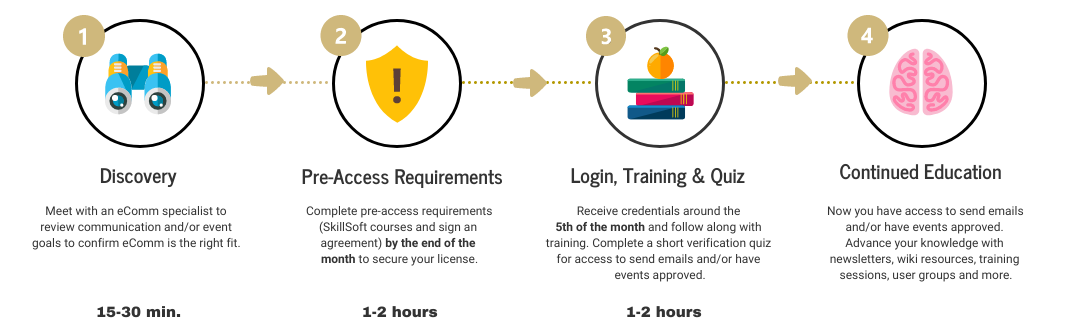
Four Steps to Get Started with eComm for New Users [8]
STEPS 1 & 2 | Discovery & Pre-Access Requirements
- eComm specialists should submit a provisioning request after meeting with a potential user for discovery [9], an important step to ensure eComm is the right fit. Pre-access requirements [4] must be completed by the last business day of the month for provisioning to occur during the first week of the following month.
STEP 3 | Login Details, Training & Quiz
- The System team will notify new users when their credentials are ready (around the 5th of the month) with the eComm specialist CC-d. New users will also receive relevant training courses and a short post-training quiz, to be completed within the first month.
- Once new users complete the post-training quiz, they will be granted access to send Marketing Cloud emails and/or have Cvent events approved. They will be notified via email (with their specialist CC-d) and provided with continued training resources.
Users who do not complete the post-training quiz will be reminded to do so. If the quiz is not completed after 60 days of obtaining access, eComm specialists are encouraged to deprovision them.
View Emails New Users Receive [10]
Deprovisioning Requests
Submit Deprovisioning Requests
- On a Contact Record, navigate to the More tab >> select Access Request in the dropdown
- Select the Campus and choose Deprovision
- Select the Next button
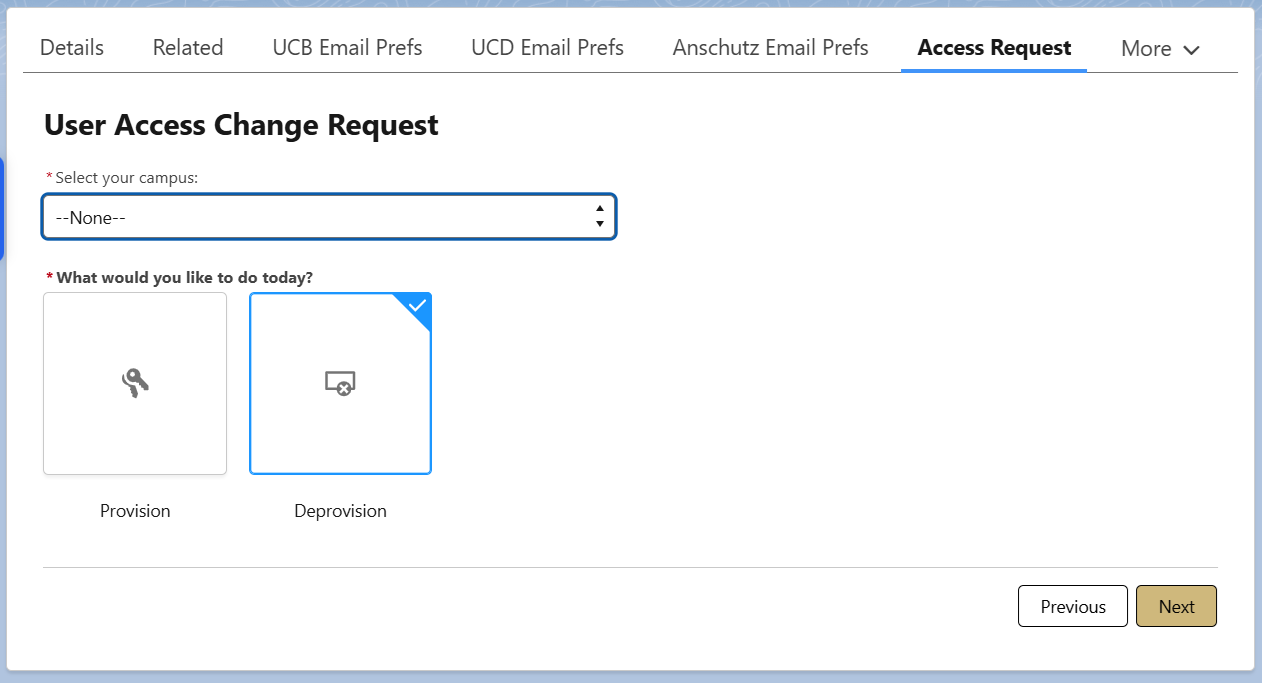
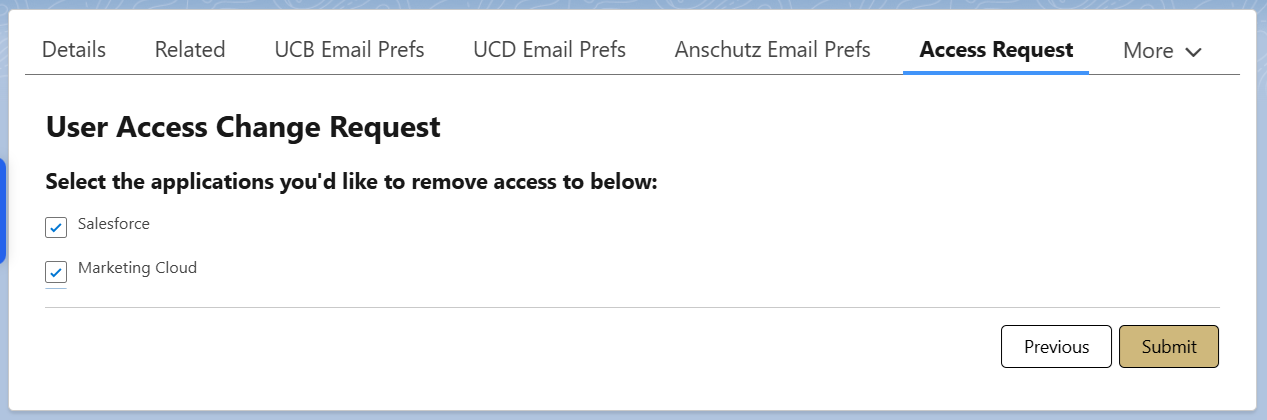
- The applications the user has access to will show
- Check the box(es) next to the applications you want removed
- Select Submit
View Pending Deprovisioning Requests
- Scroll to the 2nd row on the license dashboard [11] to view deprovisioning requests that will be addressed during the first week of the following month.
- CHANGE: Salesforce is deprovisioned immediately upon submission, although they will be billed through the end of the month. Submit the request when they no longer need Salesforce access.

Cvent Only Licenses
Chatter Free Users
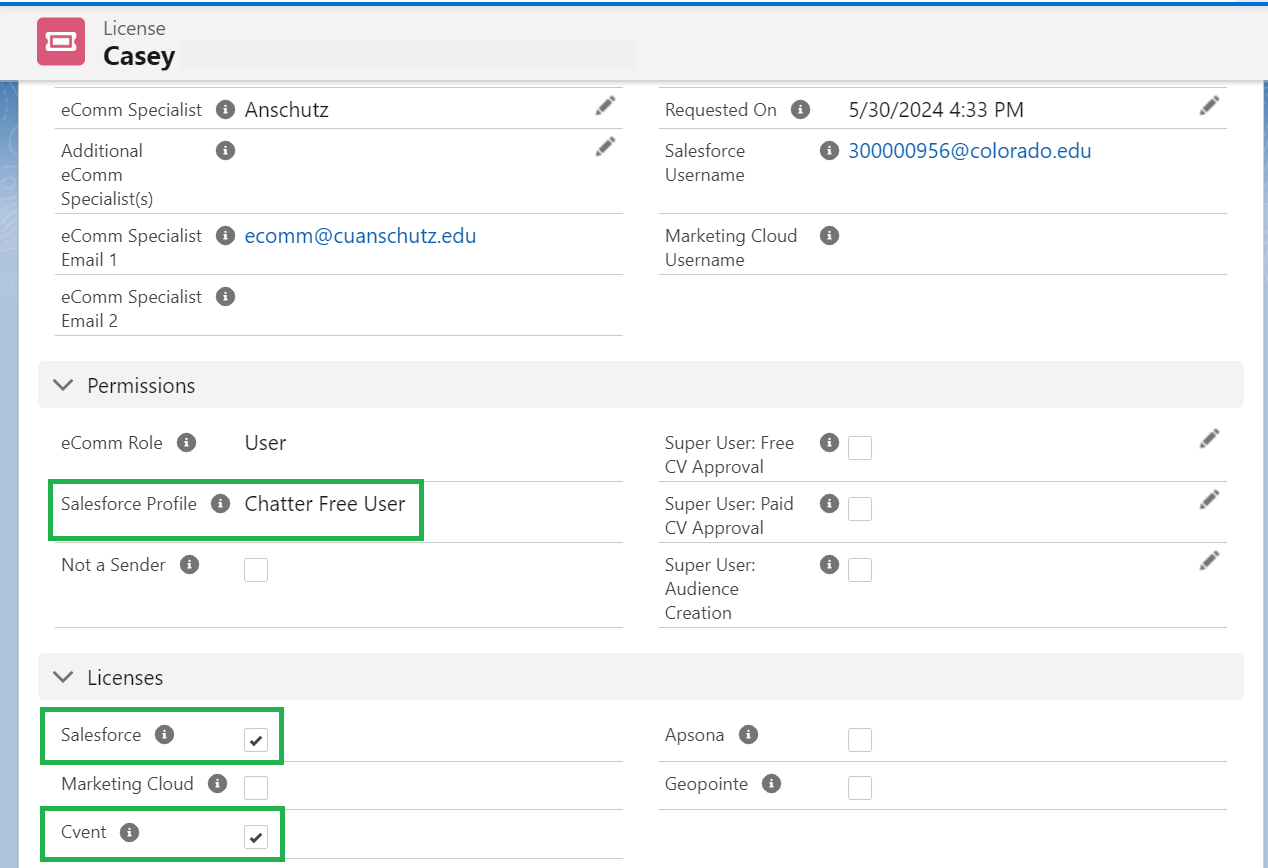
Many users have a license in Cvent ONLY - and thus only pay for Cvent. If you are looking at a user's license record and notice both Salesforce and Cvent are checked, also look under the 'Permissions' section to see if the 'Salesforce Profile' is 'Chatter Free User'. This means they are not paying for Salesforce access and instead have a 'Chatter Free User' in Salesforce, which is free. This grants them access to the Collaborative Community [12] in Salesforce devoted to Cvent. See the example below.
If a user wishes to see Dashboards in Salesforce (or anything more than participate in the Collaborative Community), they require a full Salesforce license.
License Changes Quiz | REQUIRED TO SUBMIT REQUESTS [13]
Related Content
- How do I view a contact? [14]
- What is the difference between a Standard Contact and an Individual Contact? [15]
- How do I modify information on a contact (such as the email address)? [16]
- How do I add a contact to a Salesforce campaign? [17]
- What are individual email results (IERs) and how can I use them? [18]
- How do I add contacts to Salesforce? [19]
- How can I match new contacts against existing contacts to avoid creating duplicates? [20]
- How will I know if a contact received my email? [18]
- How does a Salesforce contact relate to a Marketing Cloud Subscriber? [21]
- Is Salesforce GDPR compliant? [22]