Set up Teams status change notifications [1]
Teams is often the quickest way to reach a coworker. However, when a coworker’s status is set to Do not disturb or Away, it might not be best to send a Teams message. Setting up notifications for when their status switches to Available is a great way to know when to reach out.
Enable status change notifications
1. Navigate to the Chat tab in Teams.
2. In your chat list, select the person you want to add to your status notifications list and click More options (the three horizontal dots).
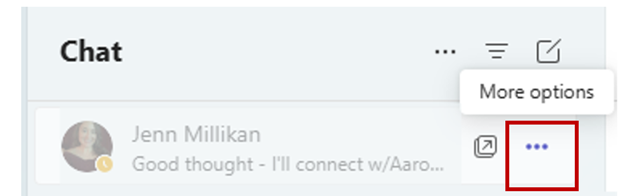
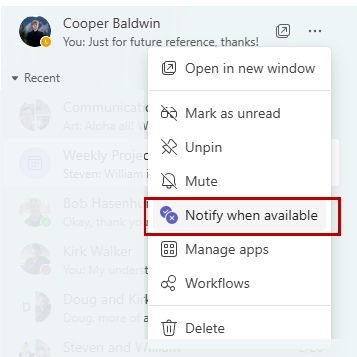
3. Select Notify when available.
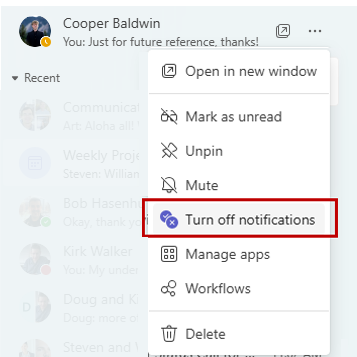
4. After you receive the notification and are able to message your coworker, follow the same steps above and select Turn off notifications.
Manage status change notifications in Settings
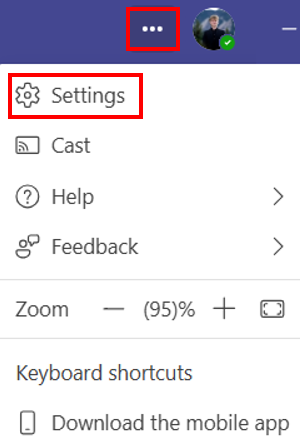
1. In Teams, select the three dots icon in the top right corner, then select Settings.
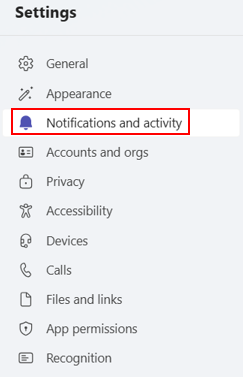
2. Select the Notifications and activity tab.
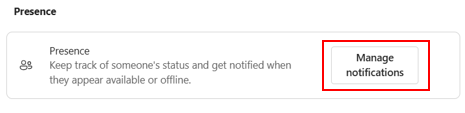
3. Scroll down to the Presence section and select Manage notifications.
4. Enter the name of the user for whom you want to receive notifications.
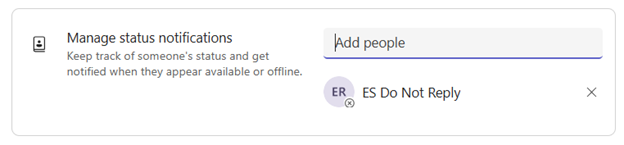
5. Availability notifications for that user are now turned on. To turn notifications off, remove the user in the same Manage notifications section.

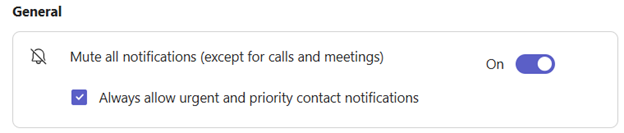
TIP: During meetings when your screen is shared, it is a good idea to mute your Teams notifications. To do this, go to Settings > Notifications and activity, then turn on Mute all notifications (except for calls and meetings).
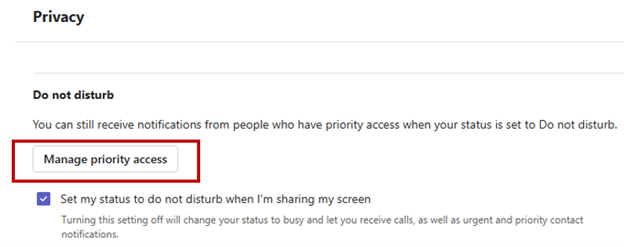
You can allow notifications from specific people even while your status is set to Do not disturb. Go to Settings > Privacy > Manage priority access, then search for and select any name within CU System.