Share clean links from Microsoft 365 apps [1]
When copying links from Microsoft 365 apps, you may notice that they sometimes include extra characters or start with security domains instead of the URL you expect, resulting in long, cluttered links. This happens because Microsoft adds protection and tracking information to links so they can be scanned and checked for safety.
To share a cleaner, more readable link, first open the webpage you want to share, then copy the URL from your browser’s address bar. This removes the extra security and tracking details and gives you a direct, clear link to the webpage you want to share.
However, when sharing a document or folder from SharePoint or OneDrive, it is best practice to use the built-in Copy link button instead of copying the URL from your browser’s address bar. This generates a shorter, descriptive link with customizable viewing and editing permissions.

When composing an email in Outlook or a Teams message, paste this link into your message to create a clean hyperlink using the file name.
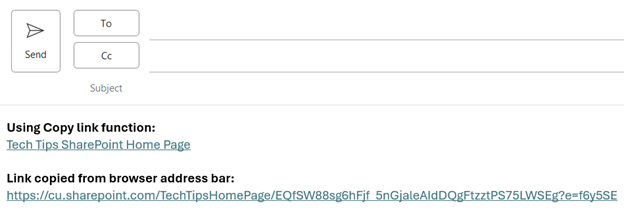
Sharing clean links keeps your messages readable, helps recipients see where a link is taking them, and reduces confusion caused by long, security-wrapped URLs.