Salesforce Login [1]
- Navigate to https://cuonline.my.salesforce.com/ [3]
- Click Log in with CU Single Sign On
-
-
- Use your campus credentials to log in.
- This is the same username and password you use to log in to your CU email, computer, or the employee portal.
Multi-Factor Authentication (MFA)
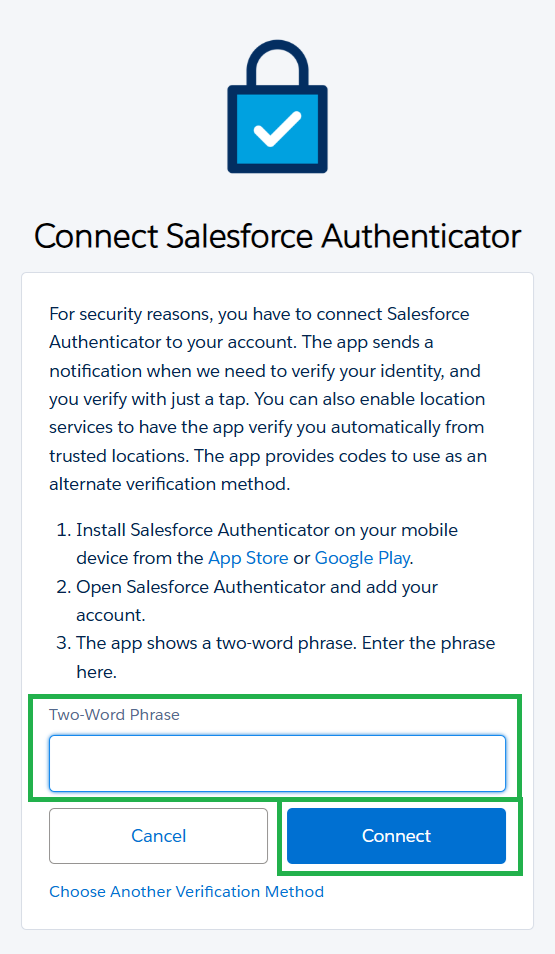
Salesforce multi-factor authentication (MFA) may become necessary for users in August 2026. If you already use an app for MFA for a different reason, you can simply add the Salesforce account. If not, you will need to download the app first by searching for it on your mobile device's app store.
Lost or new Device? Your previous method of MFA must be revoked.
If you got a new device, you won't be able to set up MFA again unless your previous one has been revoked. Ask your eComm specialist to revoke your current MFA.
If the method you use for authentication was lost or stolen, please let your eComm specialist know ASAP so the authentication method can be revoked, keeping your account secure. Plus, you'll be able to set up MFA on your new device once you have it.
There are many generic apps for MFA, but common ones include Microsoft, Google Authenticator, Duo, and 2FAS.
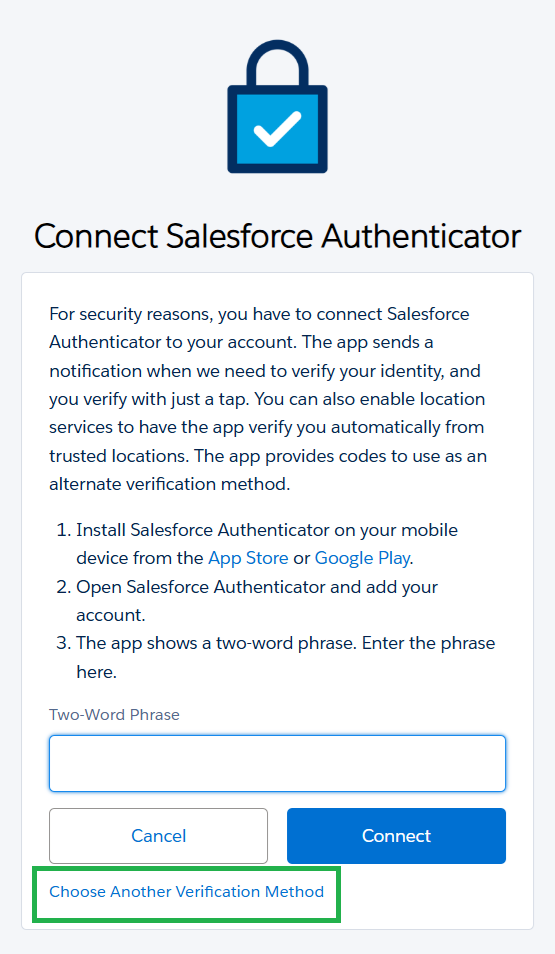
- Select Choose Another Verification Method near the bottom
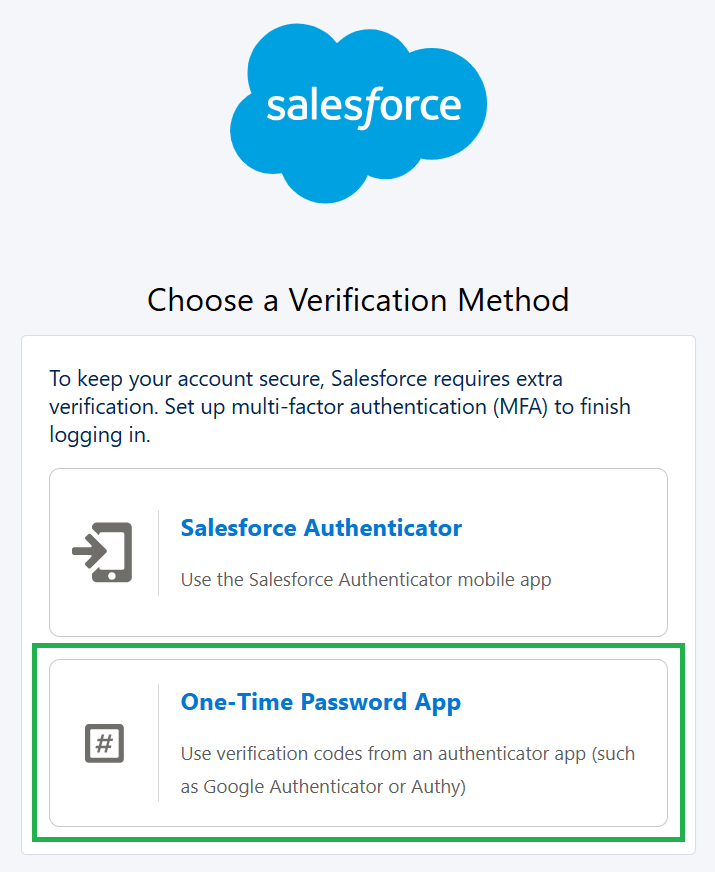
- Select One-Time Password App
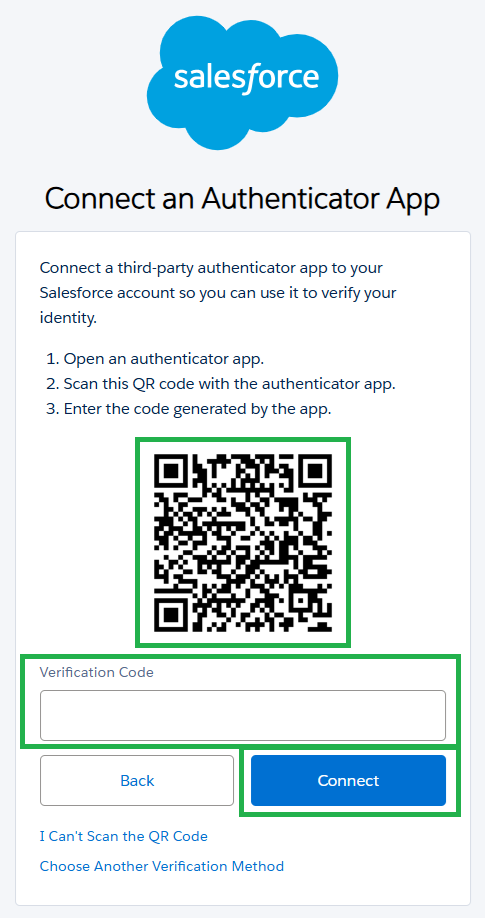
- Open an authenticator app.
- Scan the QR code with the authenticator app.
- After opening your app, find an option to Add Account > by QR Code > this will start your camera in the app for you to scan the QR code presented on your desktop.
- Enter the code generated by the app.
- The code will show once this account has been added.
- Next time you log in: navigate to the MFA app > select this account >> input the code presented