Sort and manage your Outlook inbox [1]
A cluttered inbox can make it harder to find important messages and stay on top of your work. Outlook’s built-in tools allow you to quickly group, sort and manage your inbox without deleting messages you may need later.
Arrange by subject to group related emails
If your inbox contains long email chains, arranging by subject groups together related emails, making it easier to review full conversations and remove duplicate or outdated messages.
1. Select the View tab.
2. Click Arrange By from the top ribbon.
3. Select Subject from the dropdown menu.
4. Review the groups (sorted alphabetically). If a newer message contains the full thread, you may be able to delete or archive older duplicates.
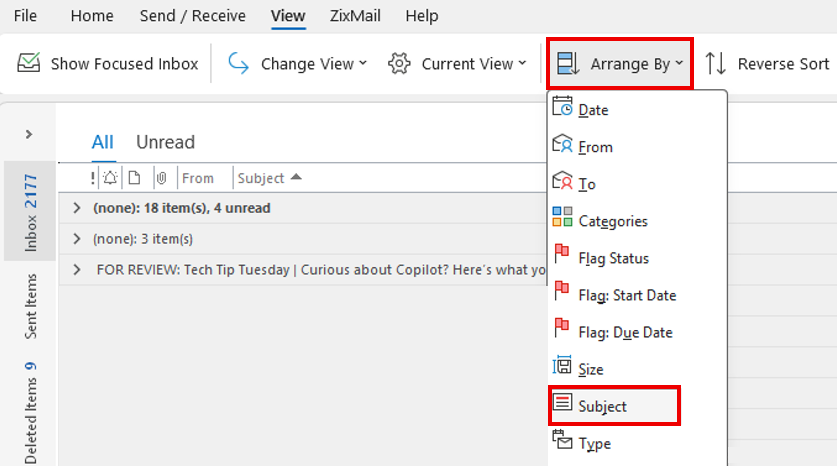
TIP: Right-click any group and select Collapse All Groups to get a cleaner view of each group and its messages.
Sort by sender to quickly manage newsletters and bulk emails
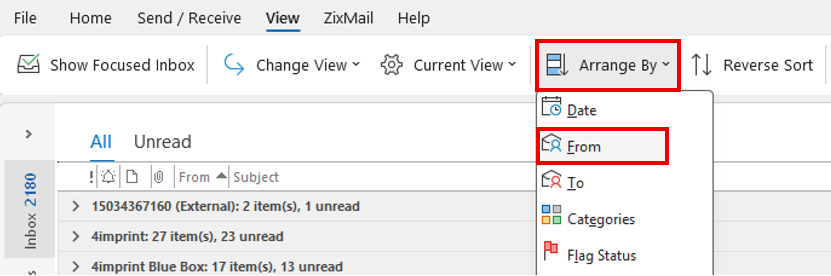
Sorting by sender makes it easier to quickly manage newsletters, recurring updates or mass emails. From there, you can quickly delete emails you no longer need or move them into folders for later review.
1. In the View tab, select Arrange By from the top ribbon.
2. From the dropdown menu, select From.
3. Review the sender groups (sorted alphabetically) and delete, archive or move unnecessary messages to a folder.
Prioritize older messages with reverse sorting
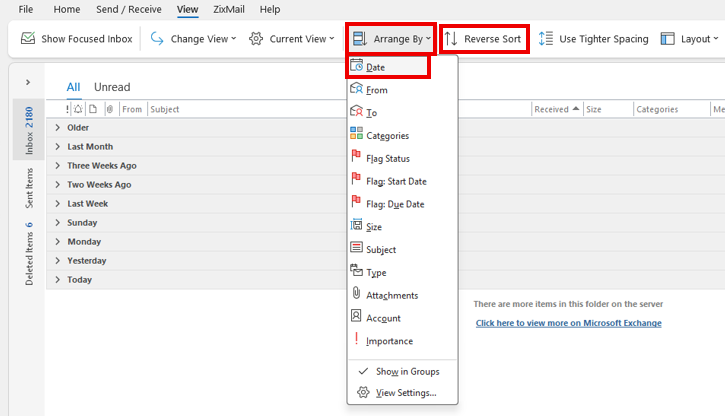
By default, Outlook displays the newest messages first. Reverse sorting by date can help you identify emails that have been waiting the longest for a response.
1. In the View tab, select Arrange By from the top ribbon.
2. From the dropdown menu, select Date.
3. Click Reverse Sort from the top ribbon to display the oldest emails on top. Click it again to revert to the newest emails on top.
Archive emails instead of deleting them
Archiving removes messages from your primary inbox while keeping them searchable and available for reference.
1. Select an email or email group. Hold Ctrl to select multiple messages at once.
2. Click the Archive icon from the top ribbon or press Backspace.

To find archived messages later, select the Archive folder from the left-hand folder list. Use the search bar to locate archived messages by sender, keyword or subject.
NOTE: Emails in the Deleted Items folder for longer than 30 days will be automatically deleted [3]. Archiving emails instead of deleting them prevents automatic deletion. Review our tip on archiving emails in Outlook [4] for more information.