Create and rename a Microsoft Teams group chat [1]
In addition to the collaboration happening in posts under a team’s channel, Microsoft Teams offers two forms of chats: a basic one-to-one interaction where two coworkers can message and send files and a group chat.
Group chats in Microsoft Teams allow quick conversations between colleagues. You can include several participants and rename the chat at any time for clarity. For simple, linear threads, group chats are easy to create and less formal than a Teams channel.
Create and name a group chat
1. Select the New message icon at the top of the Teams desktop app and create a new message.

2. In the To: field, add the participants you want to include.
3. Select the down arrow next to the recipient names to open the group name field.

4. In the Group name field, enter a descriptive name for your chat, such as “Budget Planning FY 25-26” or “Wellness Committee Event Planning.”
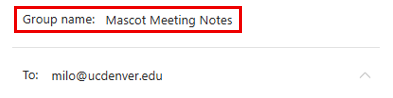
5. To rename your chat, select the pencil icon next to them chat name and update it.

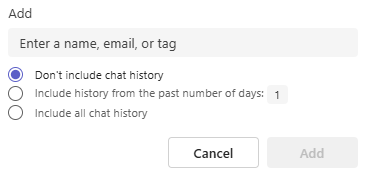
TIP: To add a new user to a group chat, select the Add people icon in the chat header and choose how much chat history to share with them.

When a group chat starts to feel overwhelming, consider creating a formal team with channels within Microsoft Teams to better support your goals. Channels provide dedicated spaces for different topics, streamline file sharing and improve visibility — so your team can collaborate more effectively and stay aligned.