Select a browser homepage [1]
Have a website you open every single day? Make that site your browser homepage.
Everytime you open your work browser (Microsoft Edge, Google Chrome or Firefox), a designated site will open. This is a great tool to keep up with CU System updates and making CU System Connect [3] your homepage.
Microsoft Edge
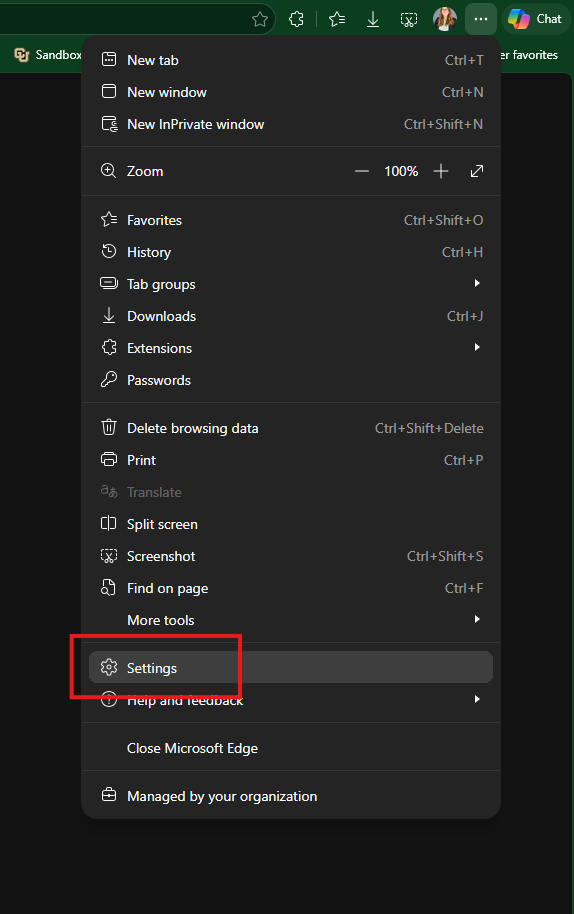
1. In Edge, select the settings and more icon in the top-right corner.
2. Select Settings.
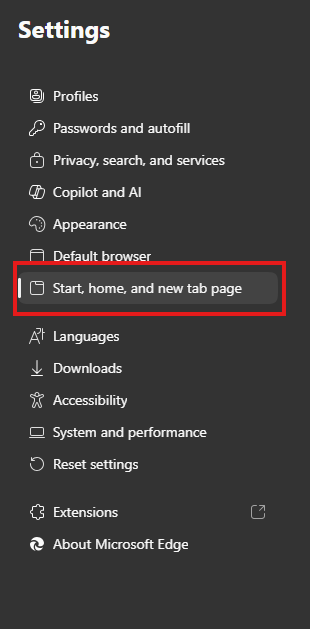
3. From the left-hand menu, select Start, home and new tab page.
4. Select Open custom sites.
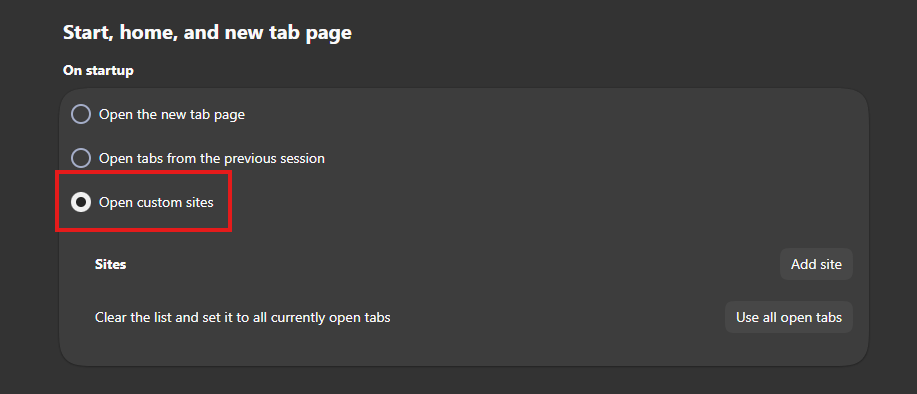
5. Paste in the URL of the site you'd like to open and click Add.
Google Chrome
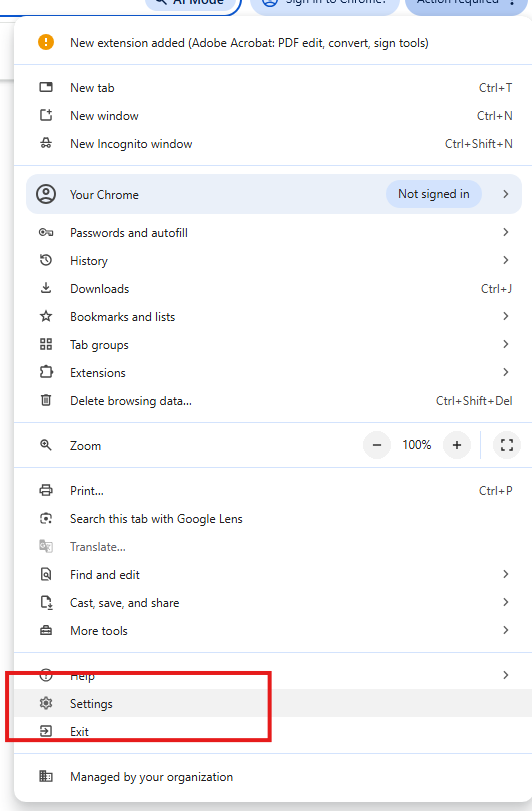
1. Select the three-dot icon, then select Settings
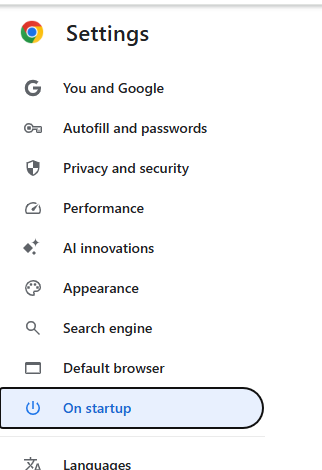
2. Select On Startup in the lefthand menu.
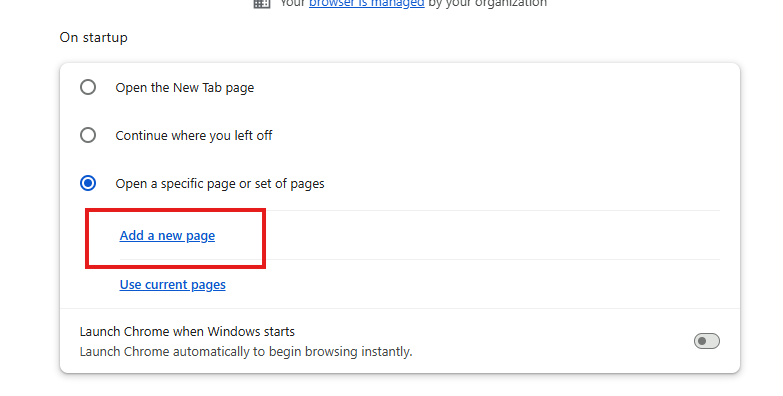
3. Select the Open a specific page or set of pages radio button and select Add a New Page.
4. Paste in the URL of the site you'd like to open and click Add.
Firefox
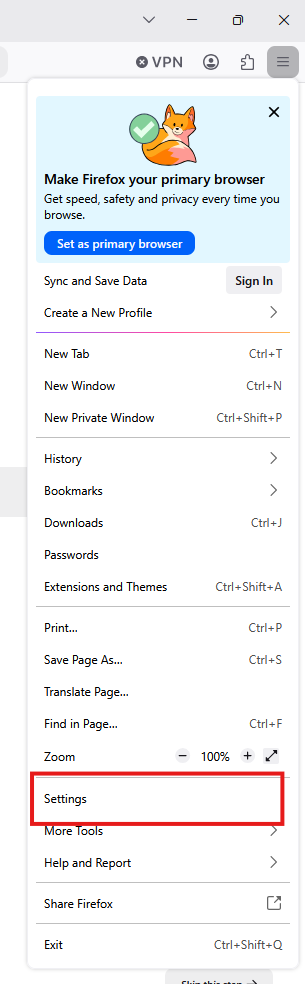
1. Select the Menu icon in the top-right corner.
2. Select Settings.
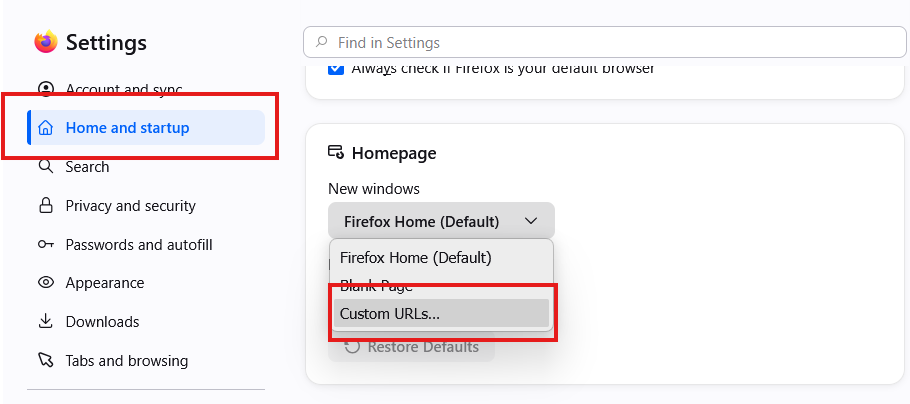
2. Select Home and startup on the lefthand menu.
3. Under the Homepage section, select Custom URLs under the New windows dropdown.
4. Paste in the URL of the site you'd like to open and click Add.